




DailyTxT on your Synology Container manager
DailyTxT is an encrypted Diary Web-App to write down your stories of the day and to find them again easily. It is written in Python Flask (Backend) and Vue.JS (Frontend). In this step by step guide I will show you how to install DailyTxT on your Synology NAS using Docker.
Step 1
Install container manager, If you have already installed the manager jump to step 3
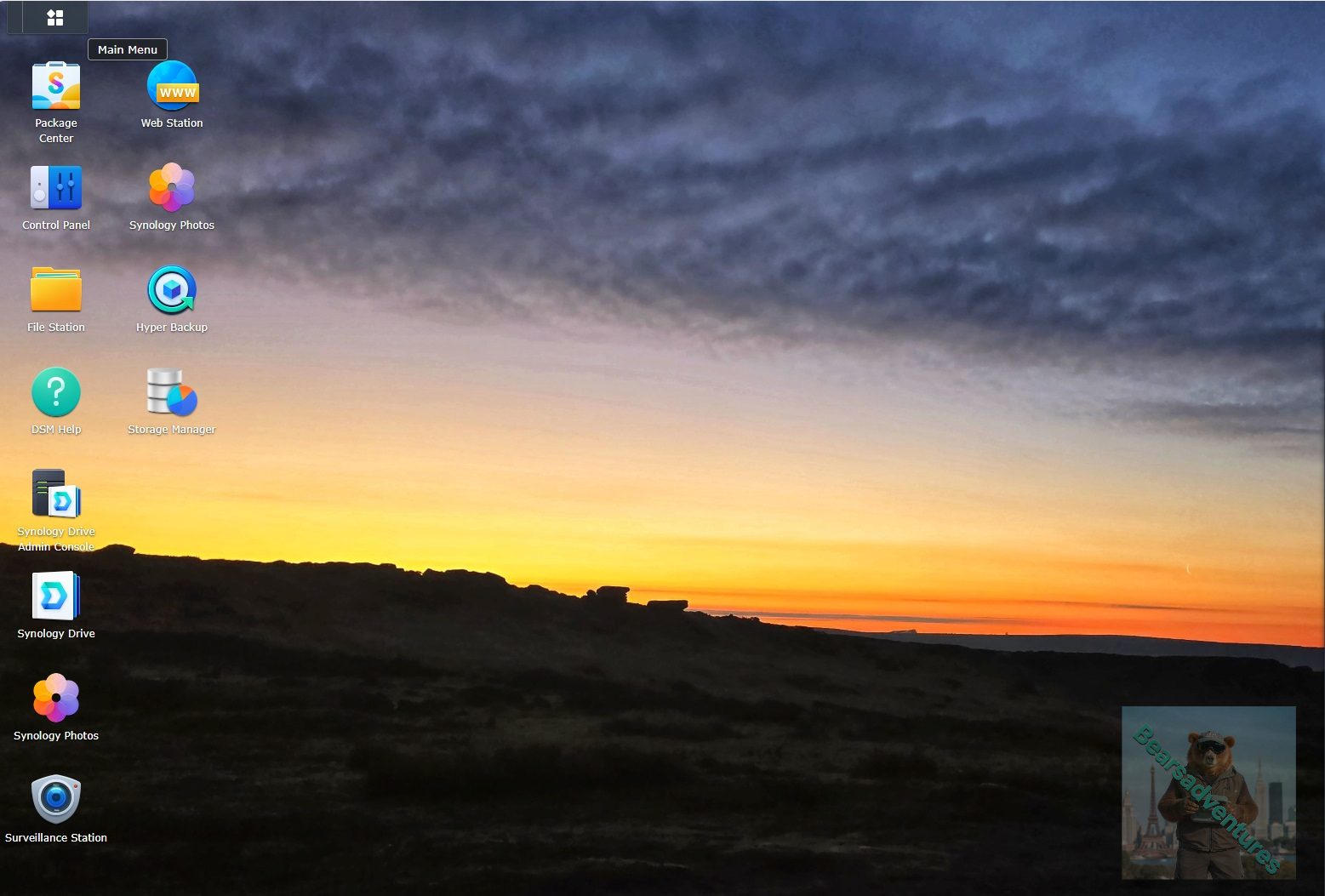
Select Main menu or the Package Center shortcut
Step 2
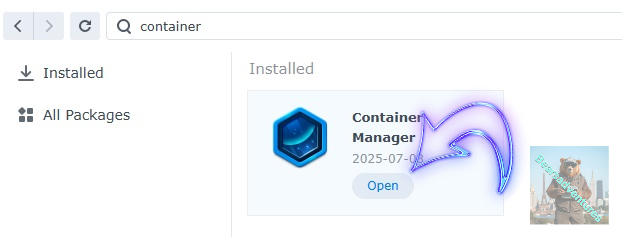
Type in Container in the Search bar and Press enter on your keyboard. Then you will See Container manager like below. in my case i have installed the Container manager already. Select install, wait a few second and then select open.
Step 3
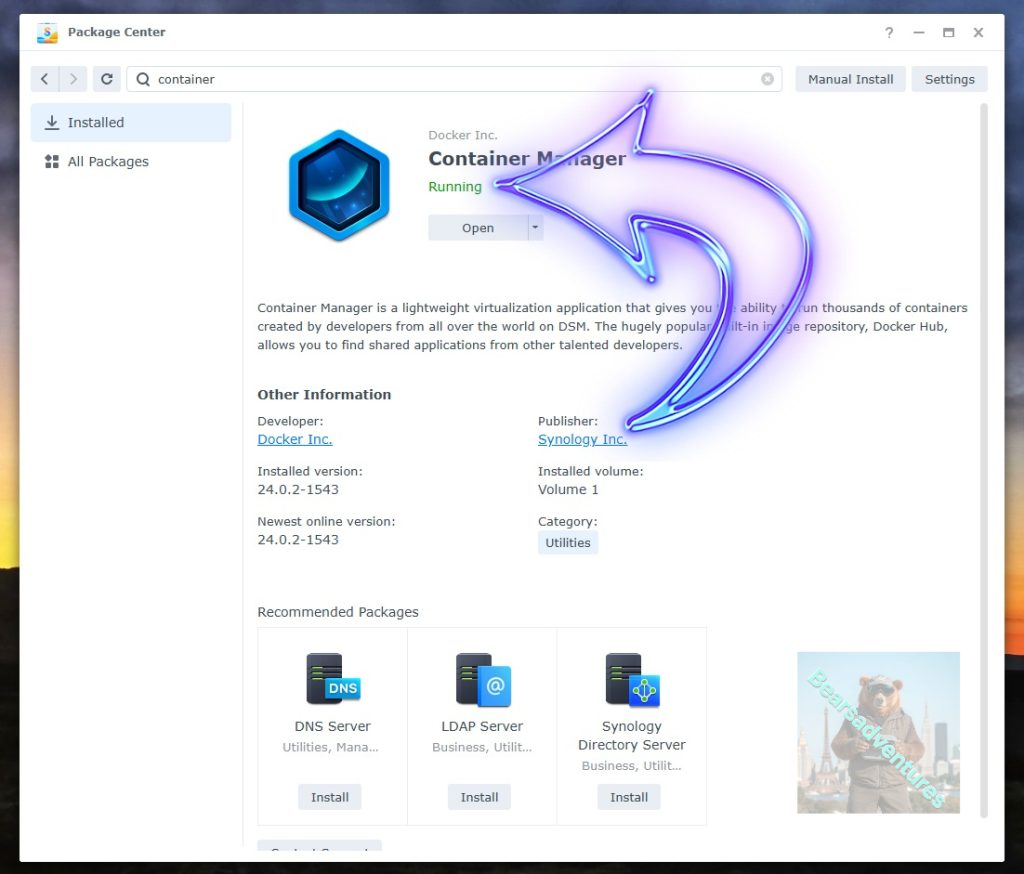
Now you have selected open you should see a screen like below and The Manager will say Running in green. Select open and move on to the next step.
Step 4
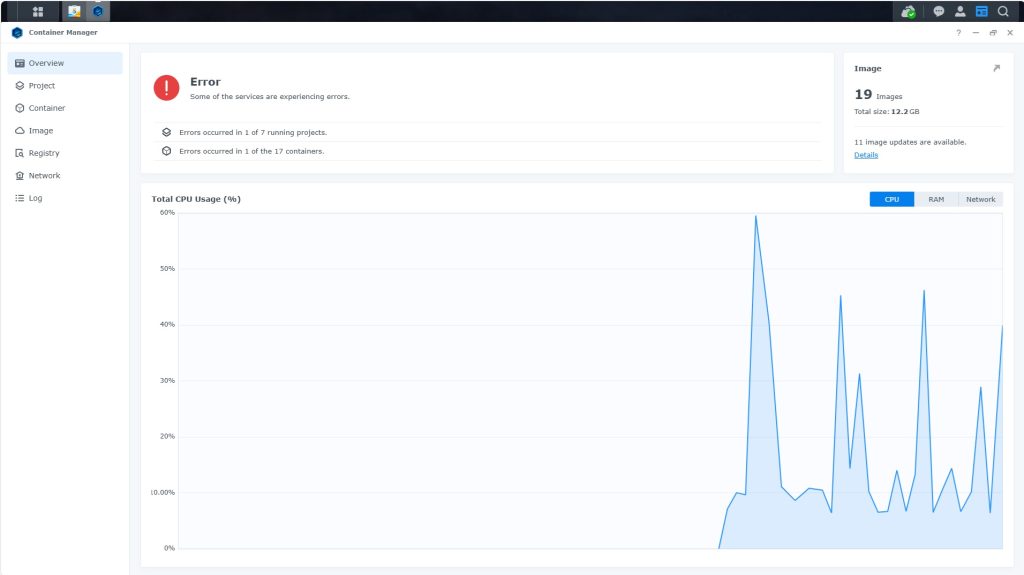
Now you will be Presented with the below. This is the Container manager over view of all your Containers and what’s happening in real time.
Step 5
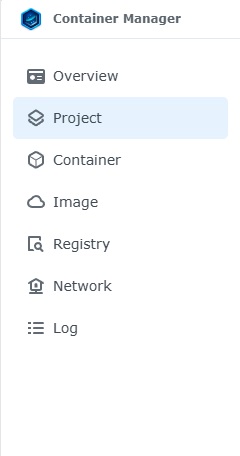
Now We need to Create a Project for qBittorrent.
This project will do a number of things. download the image and setup the Project to Run all in one go.
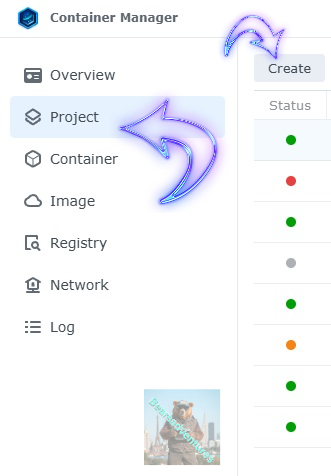
Select project from the menu down the side and then select Create button
Step 6
before we go any thurther we need to ensure we have our folders setup ready for the project.
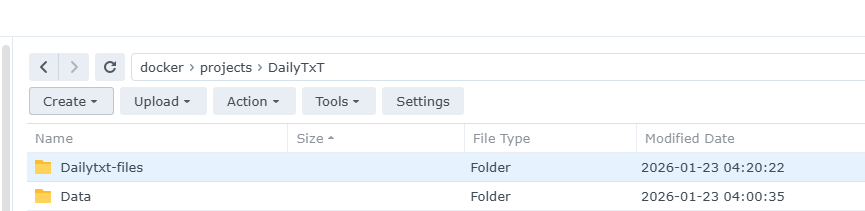
I have a main folder on the Synology system just for docker projects. create the following folders using filestation so my path for Dailytxt will look like this
DailyTxT
DailyTxT/Data
DailyTxT/Dailytxt-files
Step 7
now we have created the folders needed for the project we can go ahead and create the project in Container manager
Give the project a name, change source to Create docker-compose.yml and add the path. Project name is all lower case.
See below for before and after the code you will need is below also.
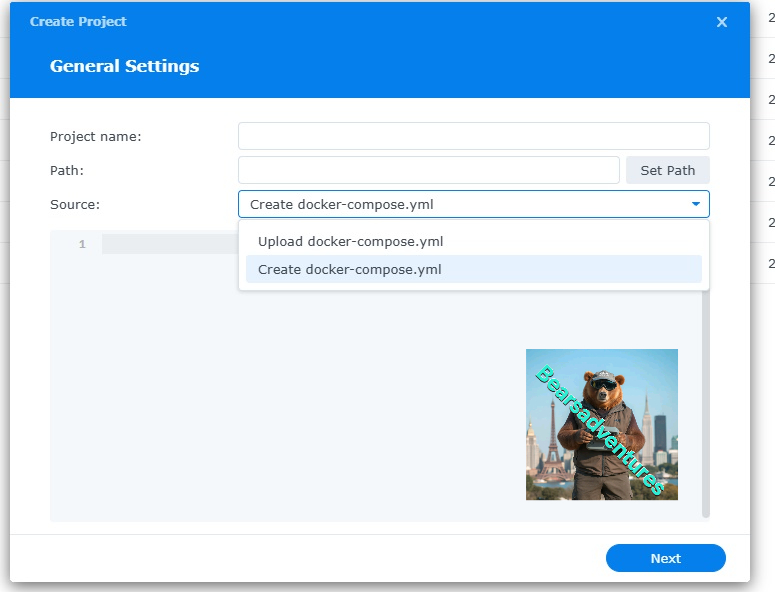
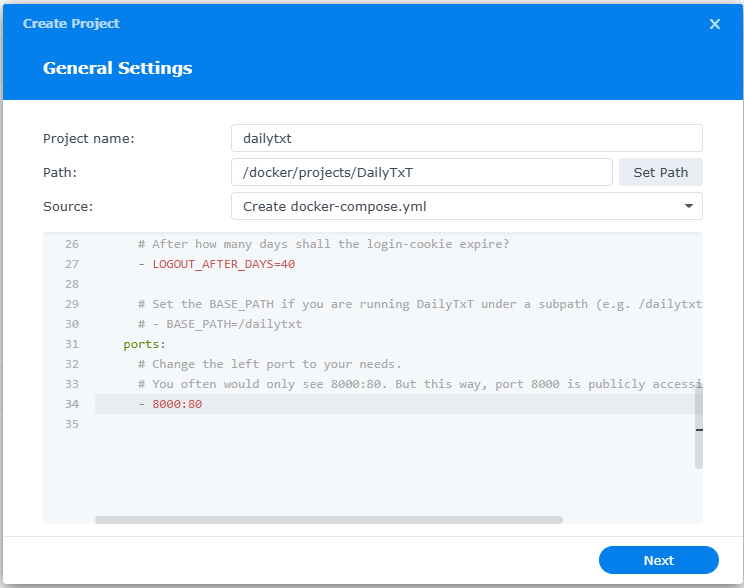
the volume path needs tobe exact or the project will return a fail. like above i missed out projects folder so i got a error and had to trouble shoot.
Note: Before you paste the code above in the Run command area below, change the value for SECRET_TOKEN. (Generate your own Random 64 length SECRET_TOKEN.)
services:
  dailytxt:
    # choose the correct image tag
    image: phitux/dailytxt:latest
    container_name: dailytxt
    restart: unless-stopped
    volumes:
      # Change the left path to your needs
      - ./data:/data
    environment:
      # Create a secret token by running: openssl rand -base64 32
      - SECRET_TOKEN=...

      # If you want to have the json-files pretty-printed, set some indent.
      # (Otherwise just remove the line)
      - INDENT=4

      # Allow new user registrations.
      # I strongly recommend to keep this disabled except for the first user.
      # You can later temporarily enable it again in the admin panel.
      - ALLOW_REGISTRATION=true

      # Set the Admin-Password (for the admin-panel).
      - ADMIN_PASSWORD=your_admin_password

      # After how many days shall the login-cookie expire?
      - LOGOUT_AFTER_DAYS=40

      # Set the BASE_PATH if you are running DailyTxT under a subpath (e.g. /dailytxt).
      # - BASE_PATH=/dailytxt
    ports:
      # Change the left port to your needs.
      # You often would only see 8000:80. But this way, port 8000 is publicly accessible (without TLS!).
      - 127.0.0.1:8000:80
volumes:
      - "</save/my/dailytxt-files/here/>:/app/data/"
      # Or perhaps if using on a windows enviroment:
      # "C:/Users/example/dailytxt/:/app/data"
press next when you are happy with the code
Step 8
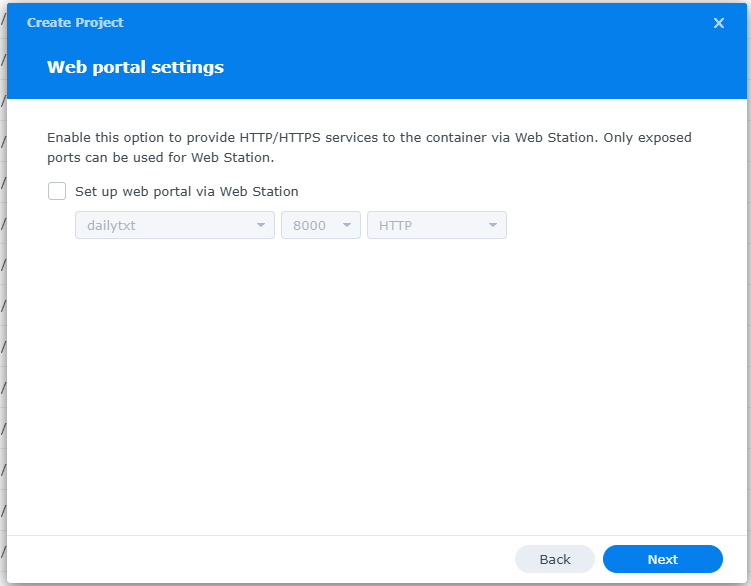
setup a web portal if you like . I would not advise it. and press next
Step 9
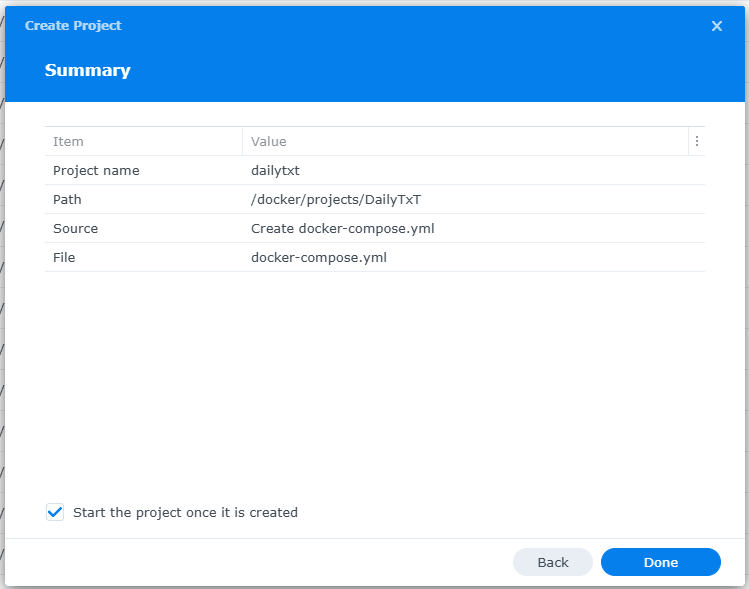
Thats it for this section, time to create the project.
Select Done
Step 10
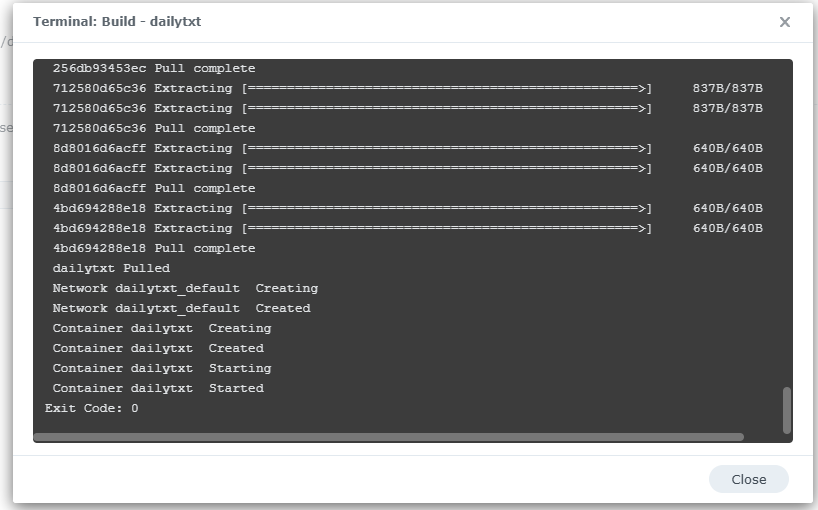
If you have a Exit Code of 0 like i have below then you are done. project created. if you have a Exit code 1 you have a error and need to visit the code again and trouble shoot.
Step 11
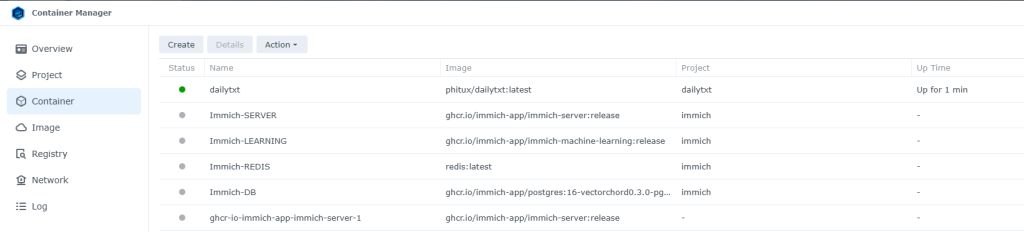
One last thing you can check to see if the docker is Green and showing no Errors, todo that just goto Container manager and on the left select Projects. There’s a Status Colum there the project should be green if not you will need to trouble shoot.
Step 12
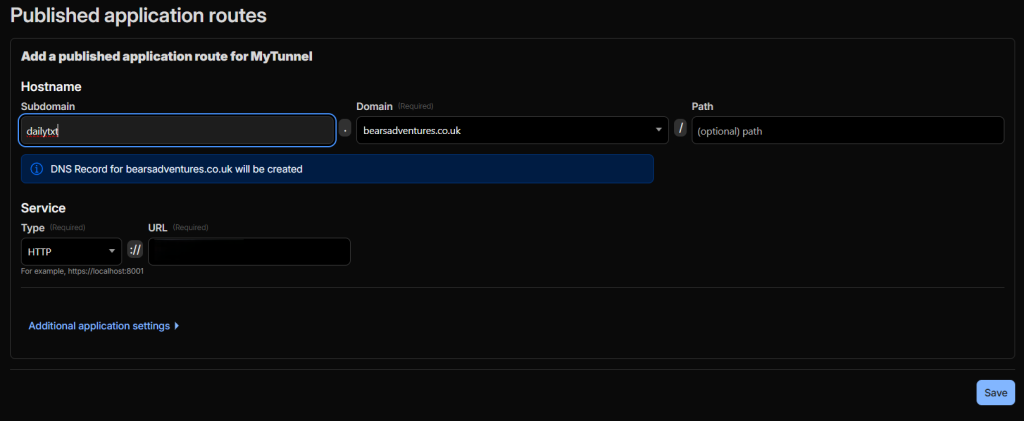
Now lets create a tunnel for the container so we can use this outside the network. I use Cloudflare for my hosting portal.
Step 13
Try the tunnel to see if the container is working outside our network.
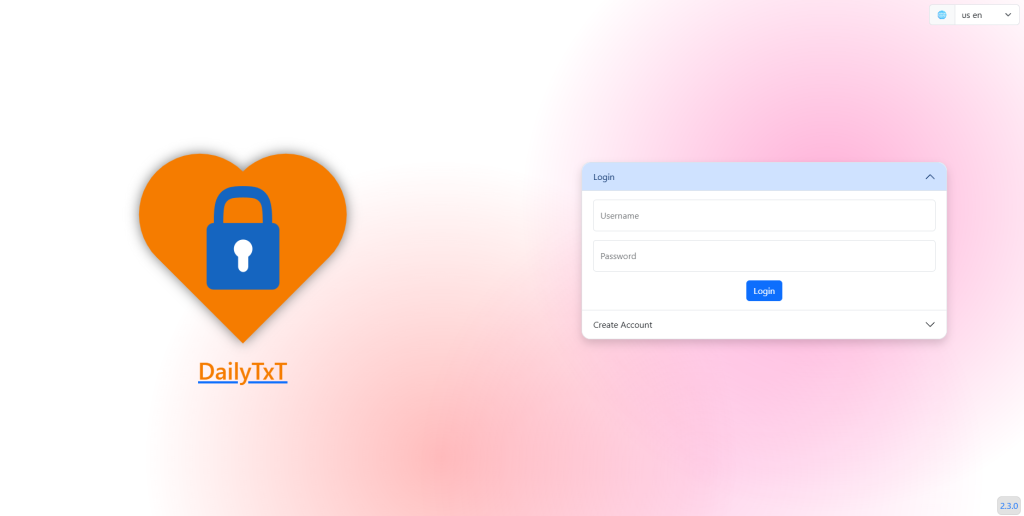
We have access outside our home network.
Step 14
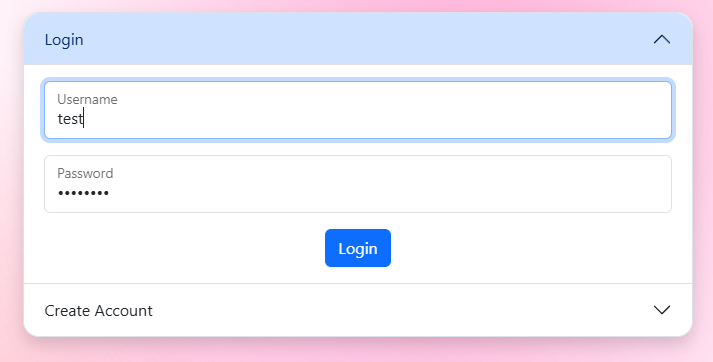
Now lets create a account . Press on the button Create Account.
Step 15
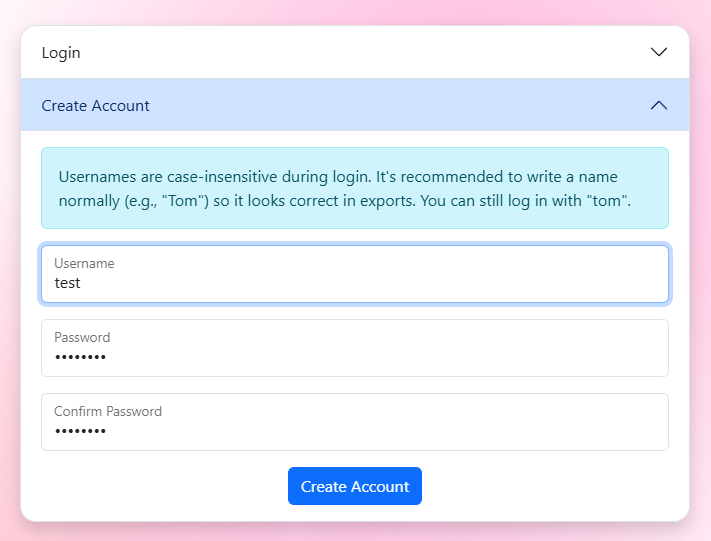
Choose your user name and password.
Step 16
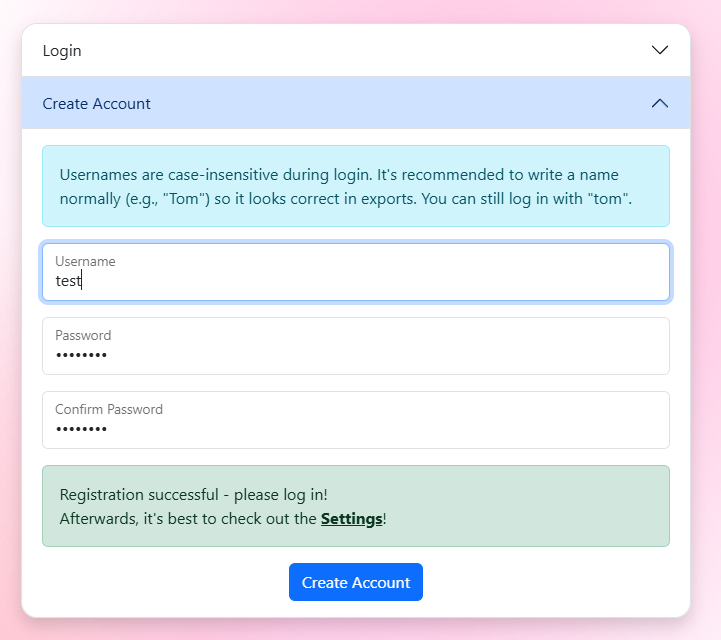
Now we have created a account. we need to Login and Head over to Settings.
Step 17
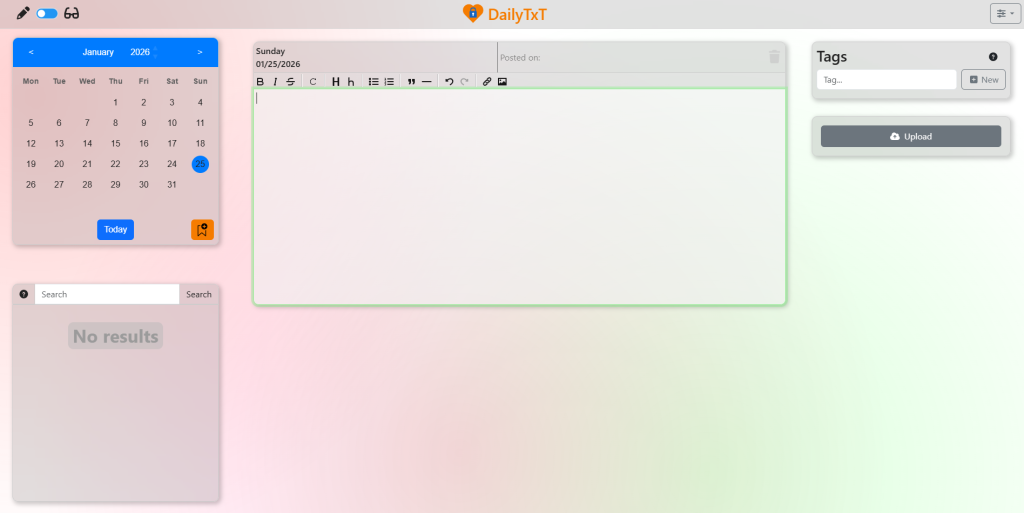
We are now Logged in.
Step 18
Press sop right button to Head over to Settings.
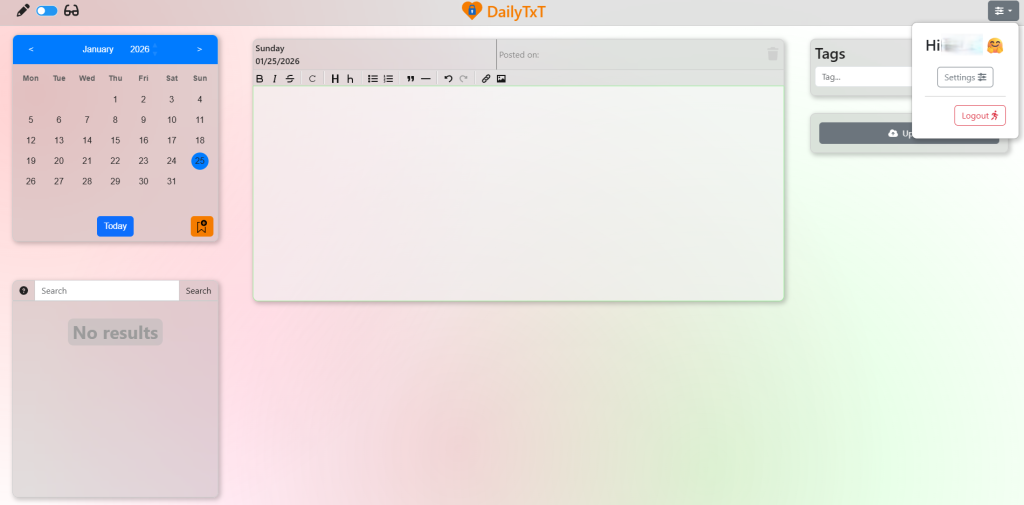
Step 19
Now we are in settings we need todo a few things to secure our Container.
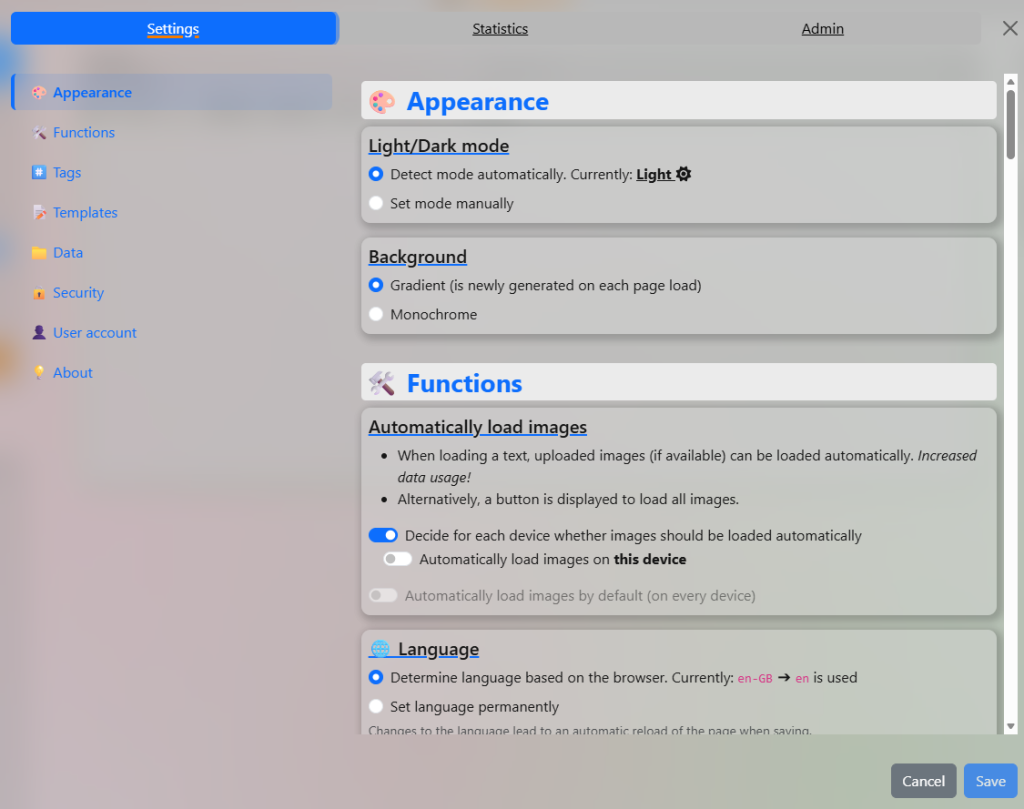
A, First one is to see if allow_registration: is true. Todo this Head over to admin Page top right
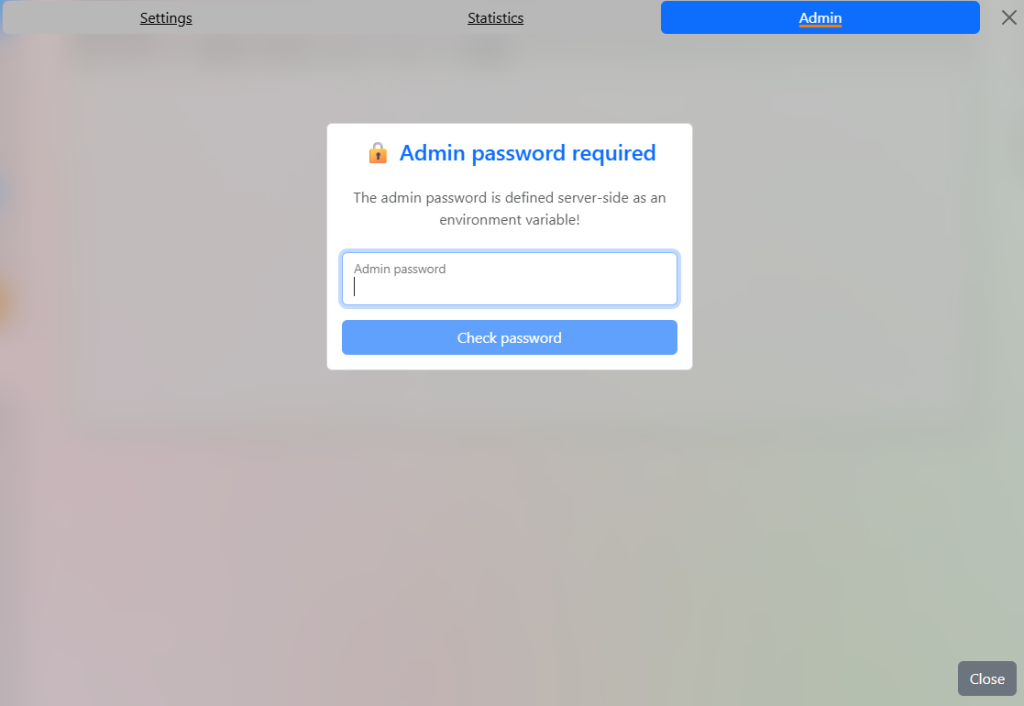
Enter your Password
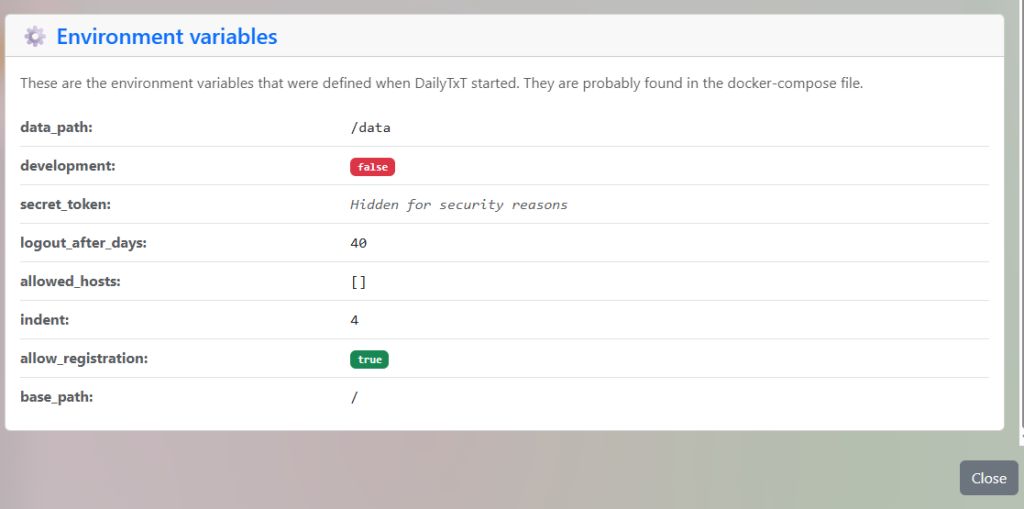
B, Head to the bottom of the Page and you will see The allow_registration: is set to True. We Need to Change this to stop unwanted accounts being created.
C, Go back to your container manager project to DailyTxT and stop the container
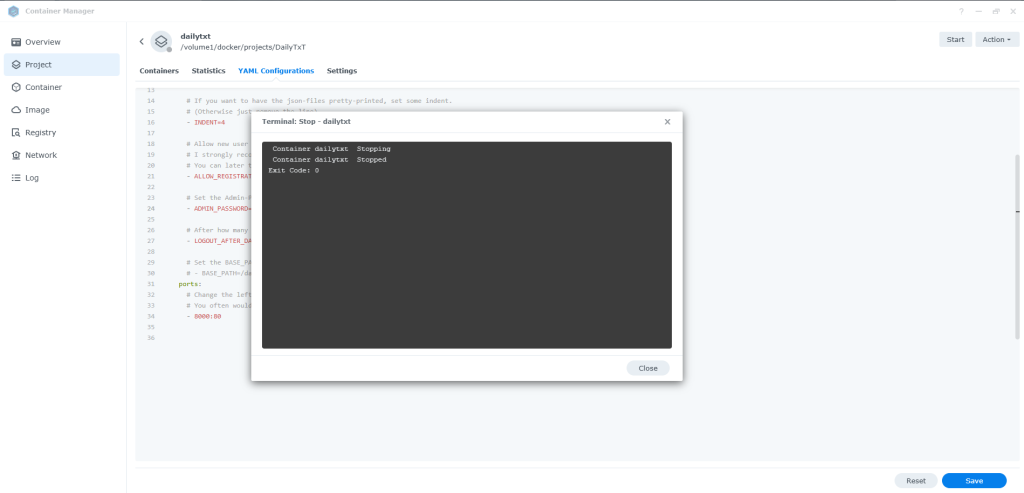
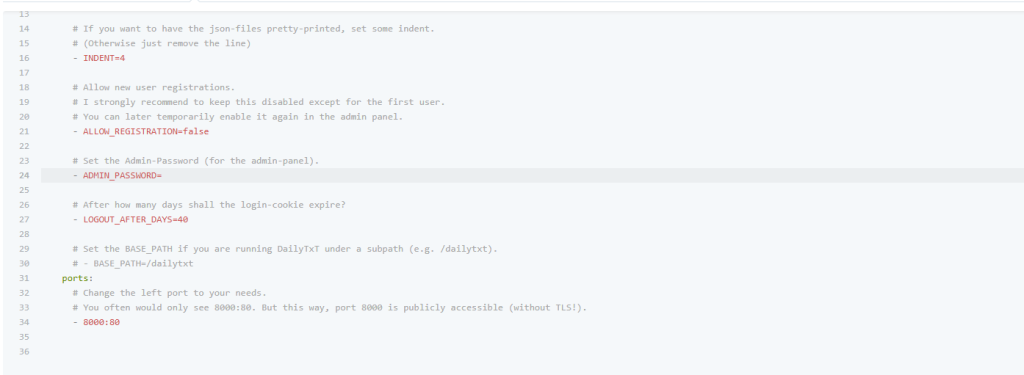
D, I the YAML Configuration file change ALLOW_REGISTRATION=true to ALLOW_REGISTRATION=false.
copy and paste this bit if you like.
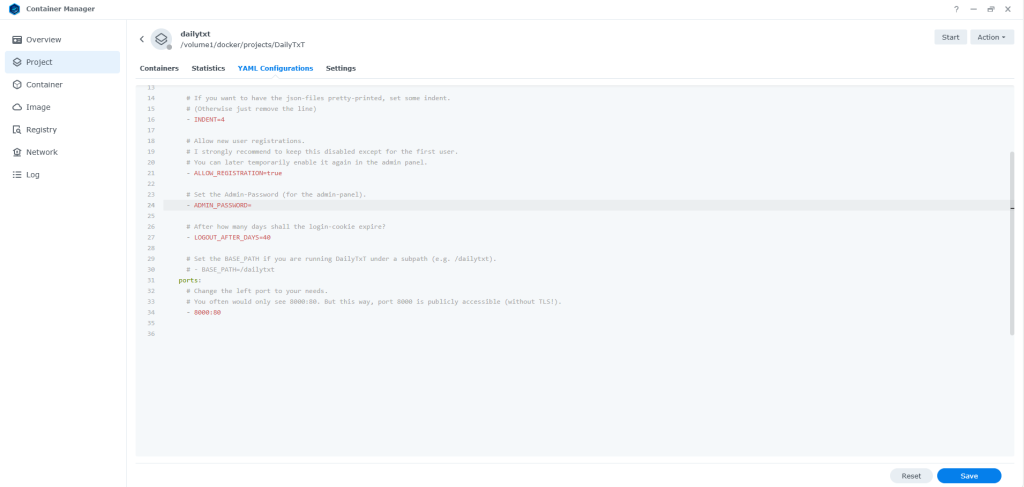
E, so now you should have somthing like this
Note: I have take my password out
F, Now press save and rebuild container
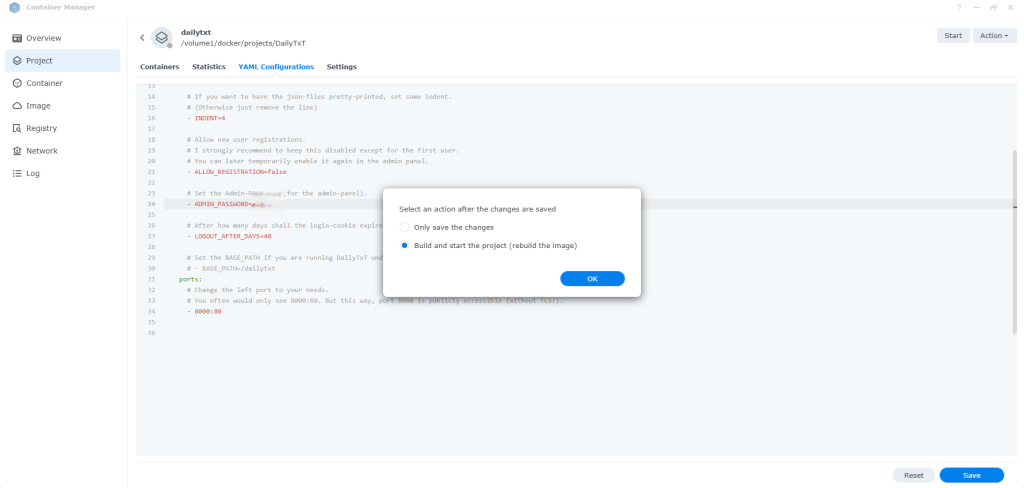
G, Now Container is built select start.
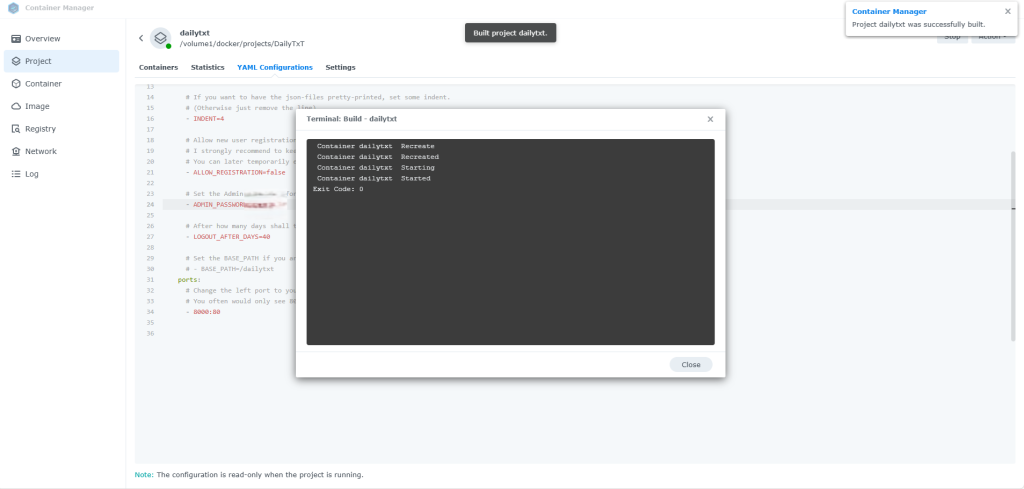
H, Now we have started the Container again Head back over to DailyTXT Settings page / Admin. Now you should see ALLOW_REGISTRATION=false.
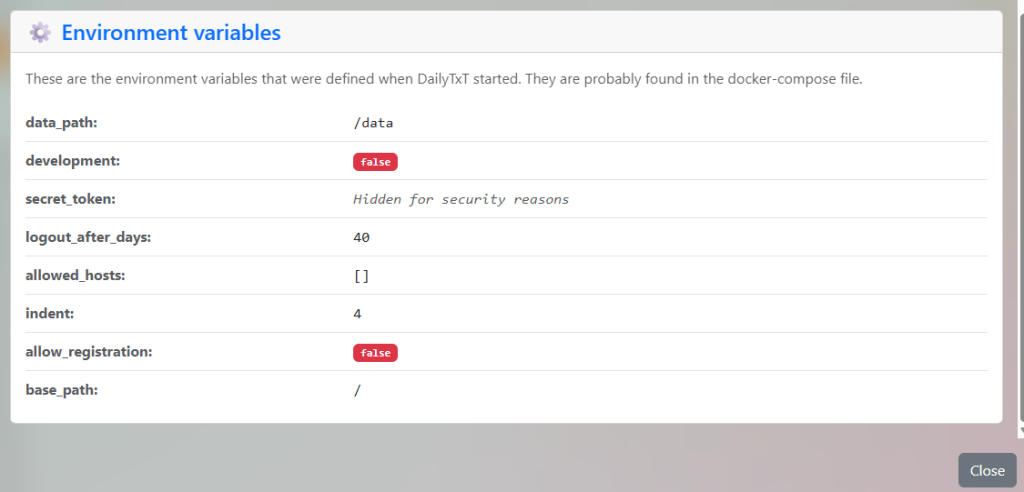
Step 20
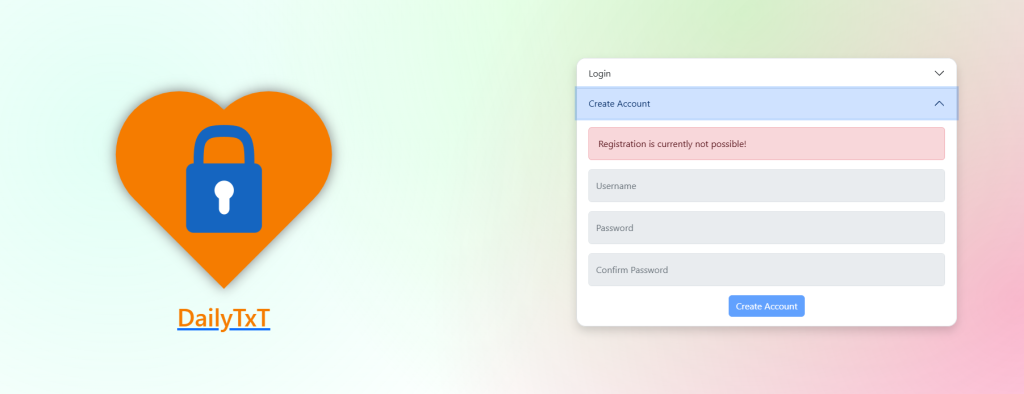
Now we need to Test that the Create account section is Disabled for our Container.
logout
Step 21
As you can see Create account is disabled.
Happy Daily Text