FileBrowser provides a file managing interface within a specified directory and it can be used to upload, delete, preview, rename and edit your files. It allows the creation of multiple users and each user can have its own directory. It can be used as a standalone app or as a middleware.
Step 1
Install container manager, If you have already installed the manager jump to step 3
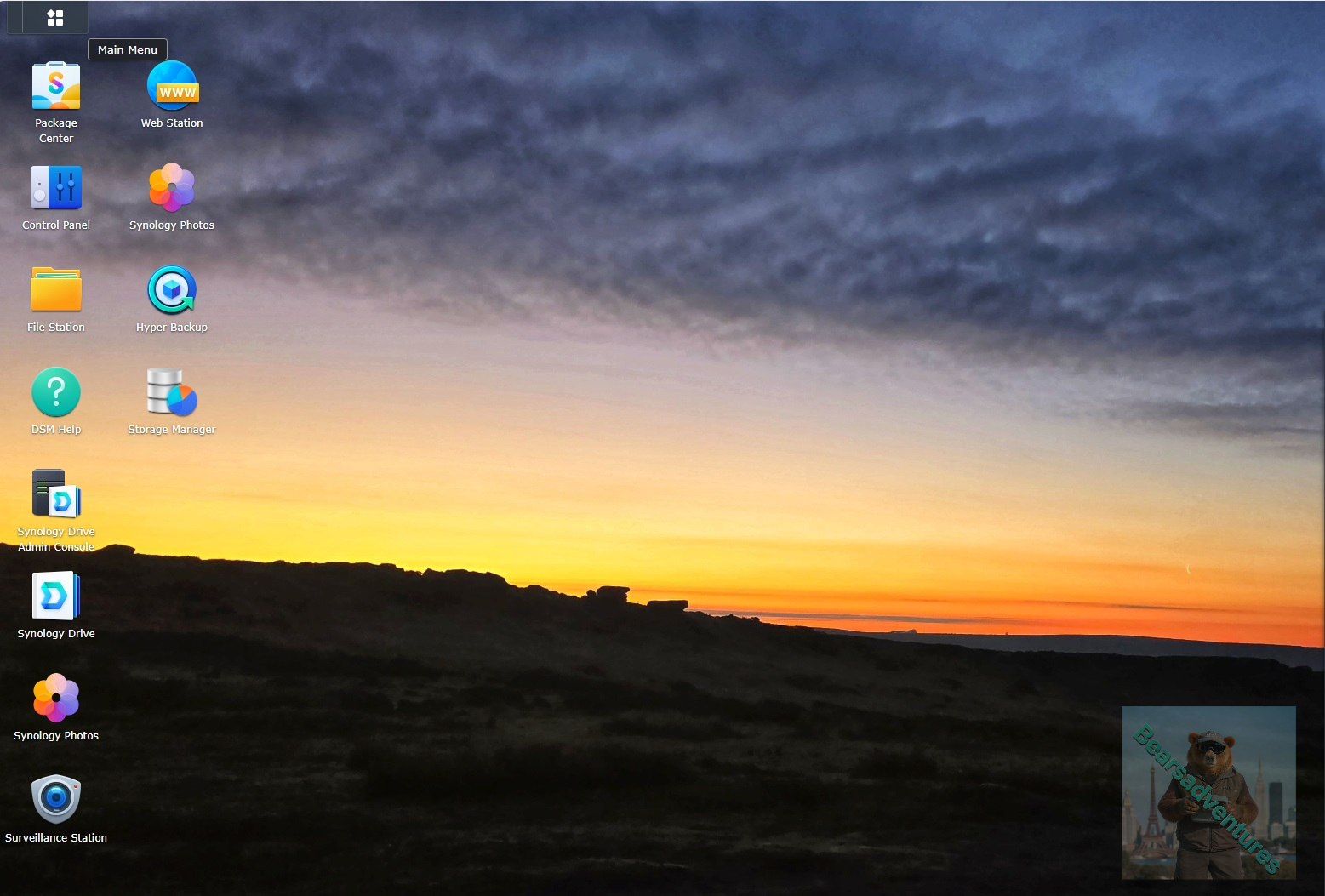
Select Main menu or the Package Center shortcut
Step 2
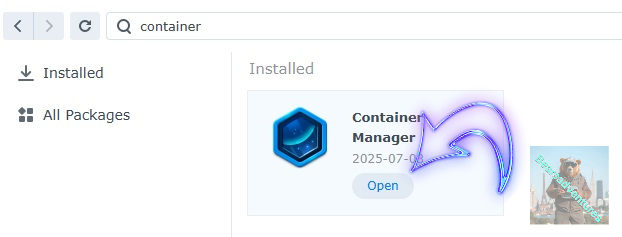
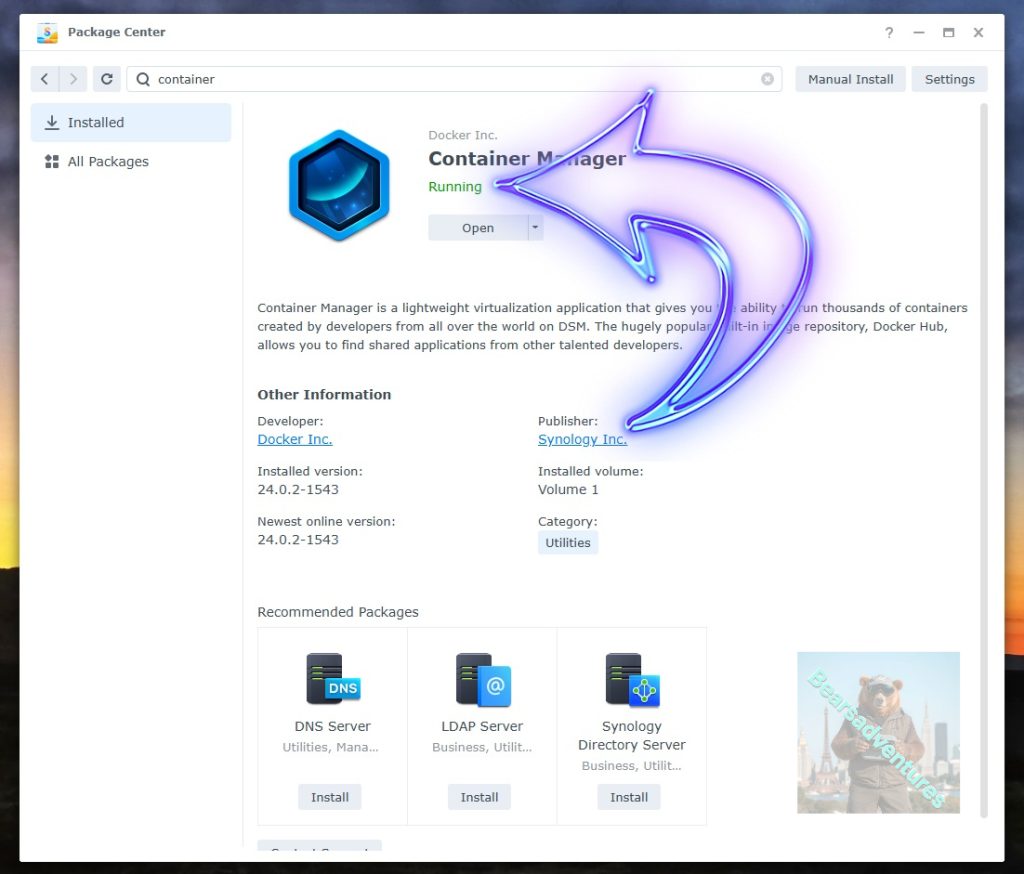
Type in Container in the Search bar and Press enter on your keyboard. Then you will See Container manager like below. in my case i have installed the Container manager already. Select install, wait a few second and then select open.
Step 3
Now you have selected open you should see a screen like below and The Manager will say Running in green. Select open and move on to the next step.
Step 4
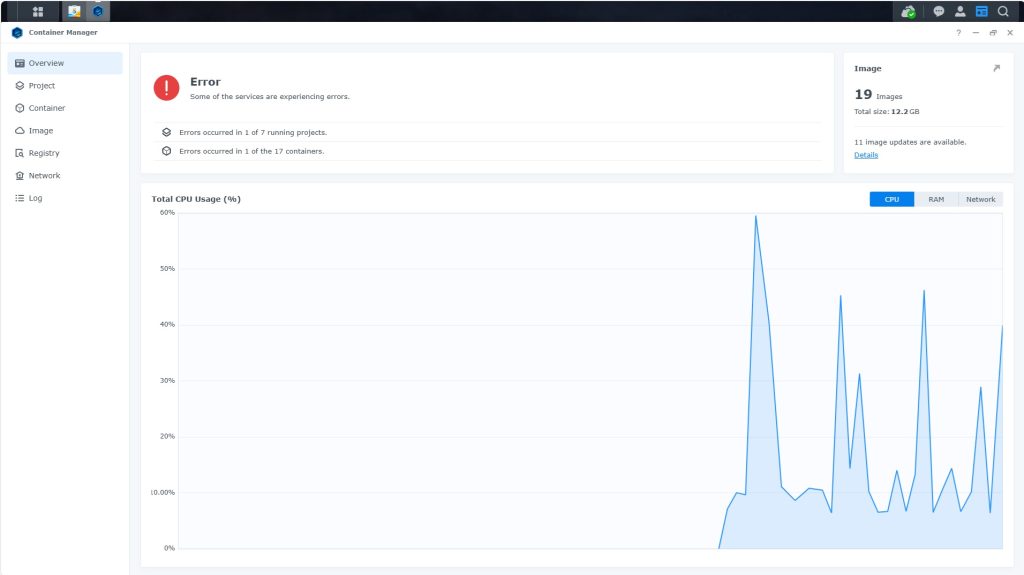
Now you will be Presented with the below. This is the Container manager over view of all your Containers and what’s happening in real time.
Step 5
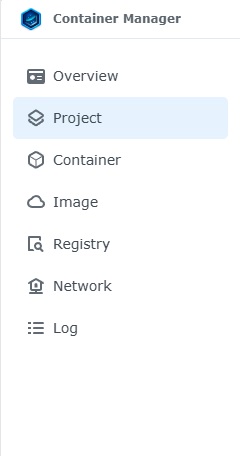
Now We need to Create a Project for FileBrowser.
This project will do a number of things. download the image and setup the Project to Run all in one go.
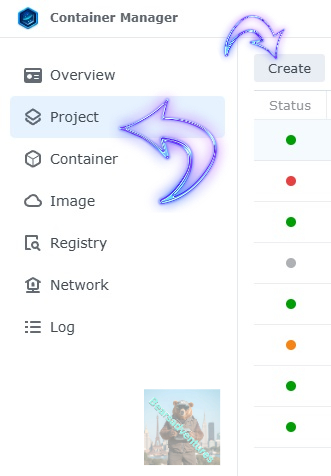
Select project from the menu down the side and then select Create button
Step 6
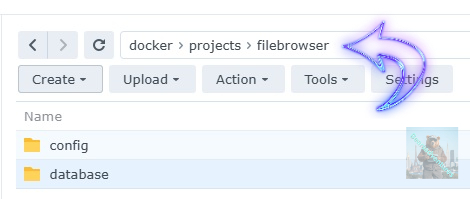
before we go any thuther we need to ensure we have our folders setup ready for the project.
I have a main folder on the Synology system just for docker projects. create the following folders using filestation in the config folder
- Config
- Database
- database/
filebrowser.db(this is a empty file)
Step 7
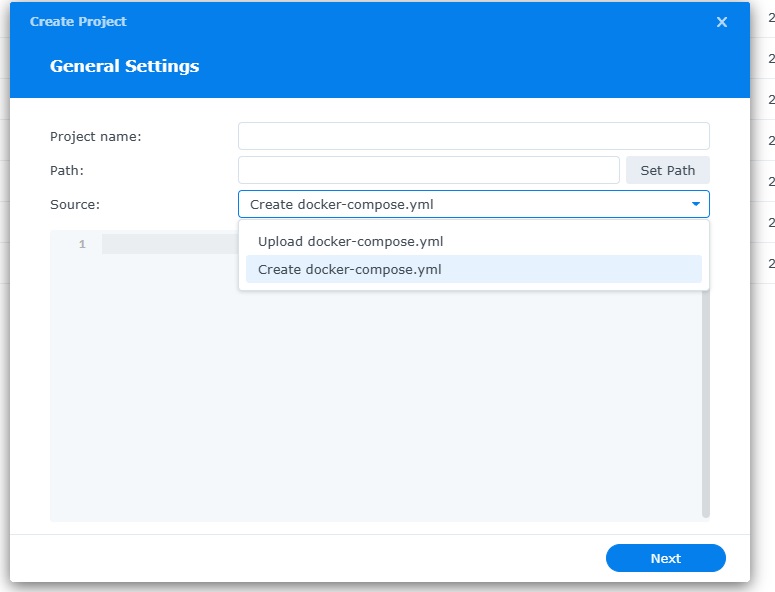
now we have created the folders needed for the project we can go ahead and create the project in Container manager
Give the project a name, change source to Create docker-compose.yml and add the path. Project name is all lower case.
See below for before and after the code you will need is below also.
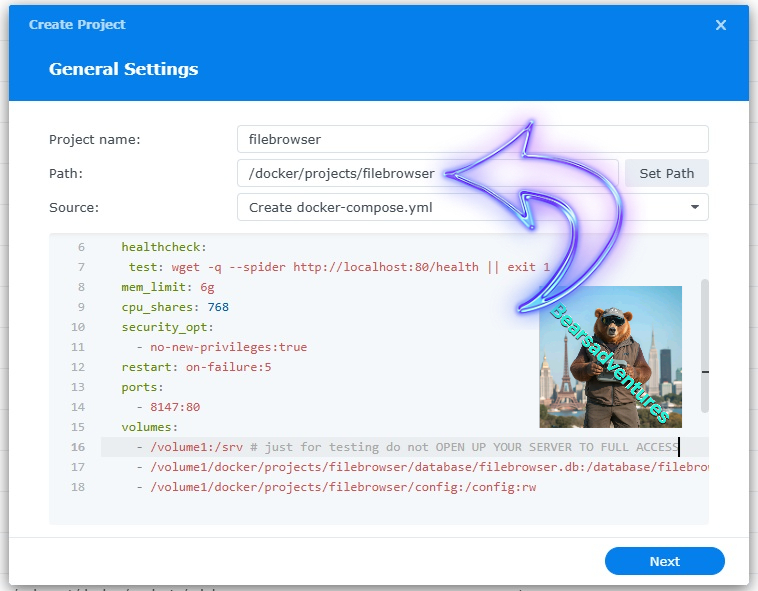
the volume path needs tobe exact or the project will return a fail.
services:
  filebrowser:
    container_name: File-Browser
    image: filebrowser/filebrowser
    user: 0:0
    healthcheck:
     test: wget -q --spider http://localhost:80/health || exit 1
    mem_limit: 6g
    cpu_shares: 768
    security_opt:
      - no-new-privileges:true
    restart: on-failure:5
    ports:
      - 8147:80
    volumes:
      - /volume1:/srv
      - /volume1/docker/projects/filebrowser/database/filebrowser.db:/database/filebrowser.db:rw
      - /volume1/docker/projects/filebrowser/config:/config:rw
press next when you are happy with the code
Step 8
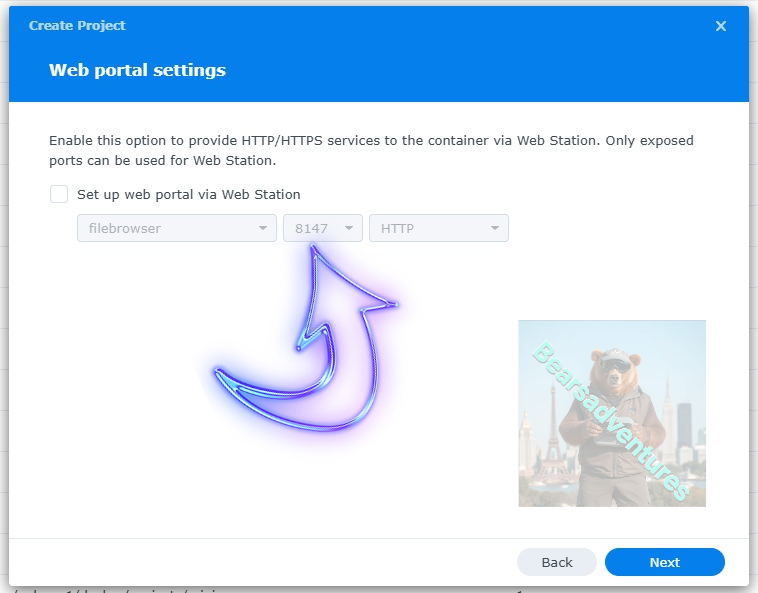
setup a web portal if you like . I would not advise it. and press next. Port 8147 is set in the above code
Step 9
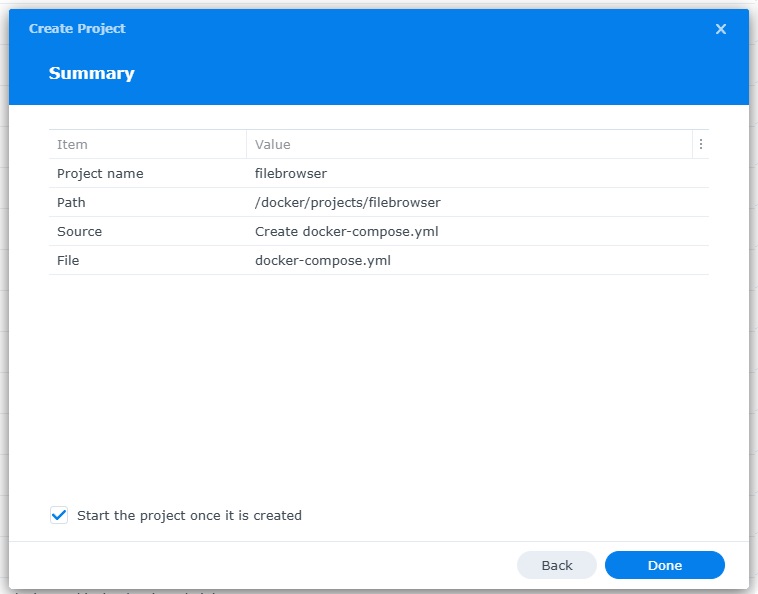
That’s it for this section, time to create the project. Remember to click start when project created bottom left.
Select Done
Step 10
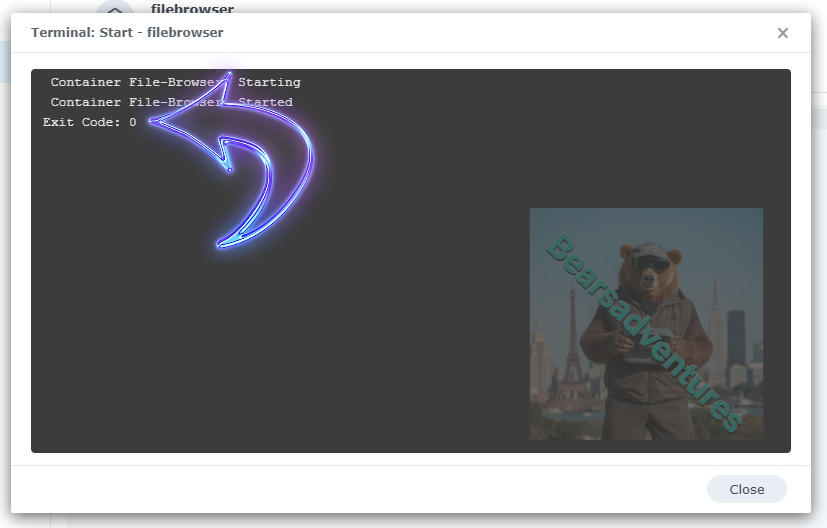
If you have a Exit Code of 0 like i have below then you are done. project created. if you have a Exit code 1 you have a error and need to visit the code again and trouble shoot.
Step 11
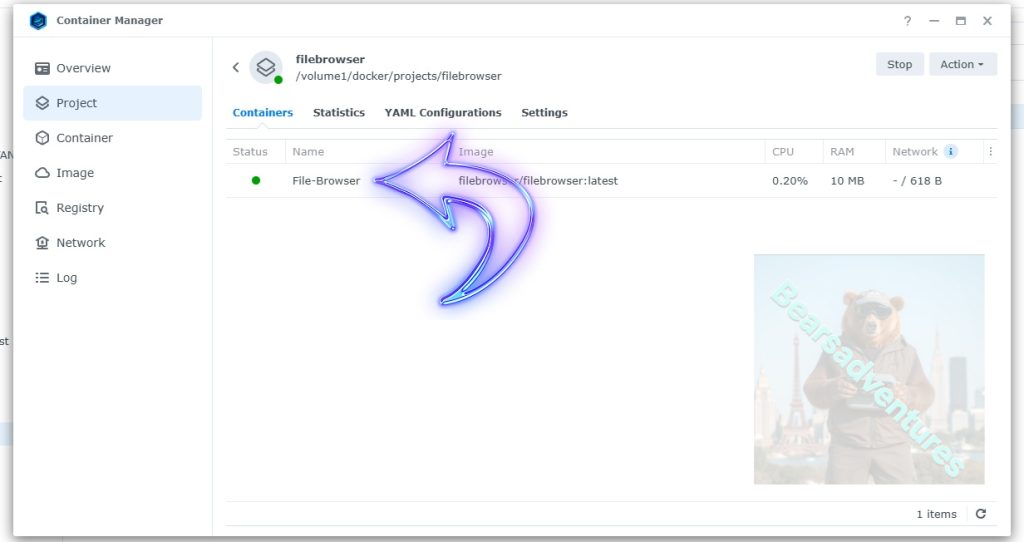
One last thing you can check to see if the docker is Green and showing no Errors, todo that just goto Container manager and on the left select Projects and FileBrowser will be there Status Colum should be green if not you will need to trouble shoot.
Step 12
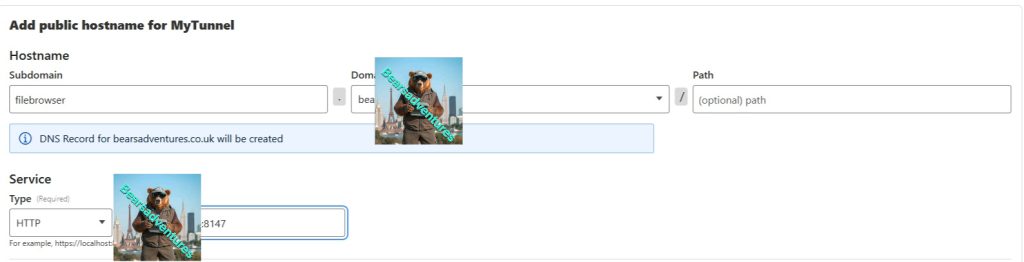
Create the tunnel on cloudflare so you can access the docker remotely
Step 13
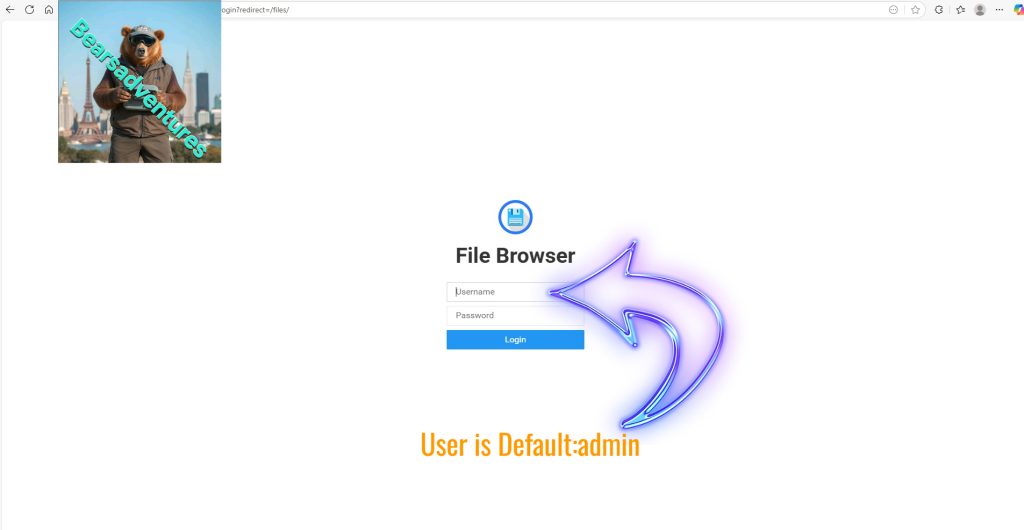
Tunnel and Docker is working. User is admin by default. Goto step 14 for the password
Step 14
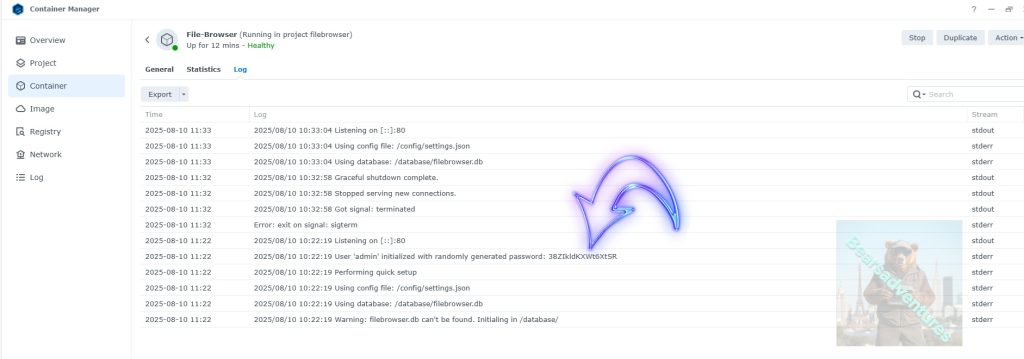
Head over to Docker / Container / File-browser / Log. in the log you should see a line for user and password. password is randomly generated password.
Step 14
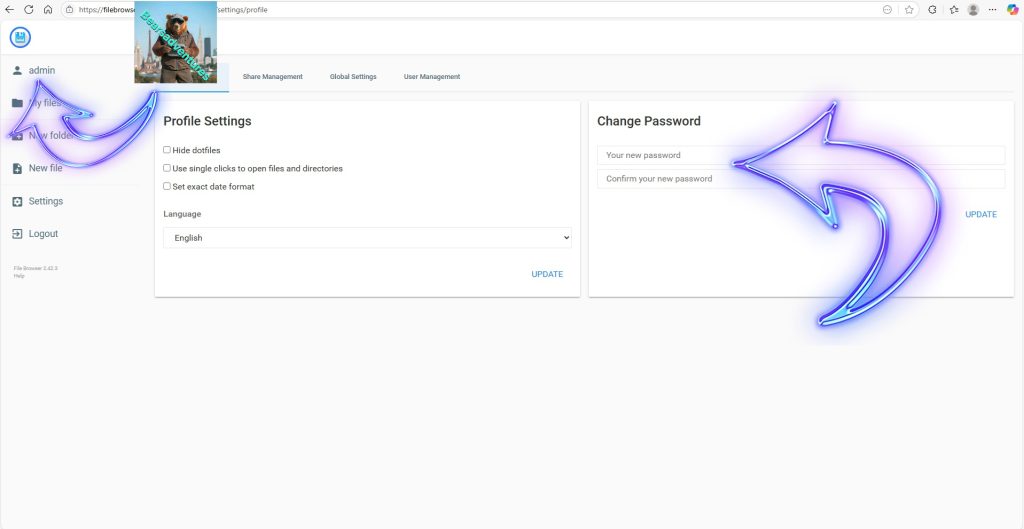
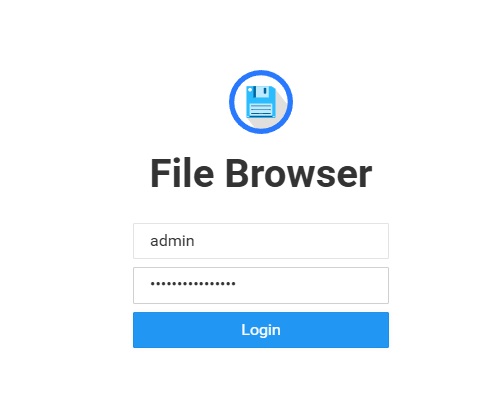
Now we are in. select admin top right so you can now change you password and add users if you like