





Linux host name change
A hostname is a label assigned to a device connected to a computer network. It is used to identify the device in various forms of electronic communication such as logging in, sending emails, or in network traffic. This name can be anything from a simple single-word string to a more complex string of numbers and letters.
Rules of Hostname
- The hostname will be a single word or phrase with no space.
- A Hostname consists of only a combination of letters, numbers, periods, or hyphens.
- The maximum length of the hostname will be 253 characters.
- DNS (Domain Name Space) may be appended to the hostname.
- The hostname cannot have an underscore.
Step 1) Firstly open your terminal on Linux.
Step 2) Command ”Hostname” is used in order to display hostname in Linux operating system as shown below:

- This command will display the current hostname of your system. This is the simplest way to find out what your system is recognized as in the network.
- Also, without typing the command hostname you can identify your Linux hostname.
- In the above image see 13ear so after @ you can identify your hostname which is: this is from a previous project i forgot to change back. Project here
OMV1
How to Display Domain Name?
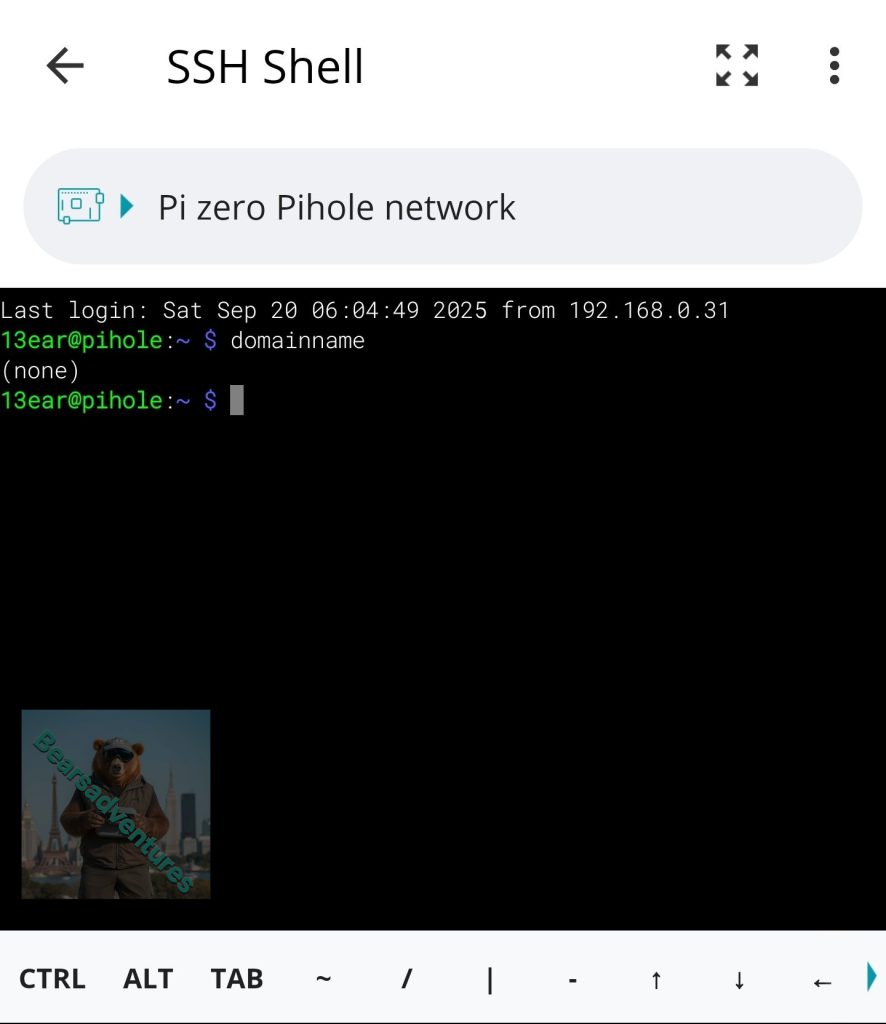
Command “Domainname” is used to return the domain name of the Linux System. If your Linux device domain name is set then you will get “none” message as output. Else you will get your Domain name. In my Linux system, I don’t have any domain name so it will result in none as shown:
How to display hostname with more detailed information?
In order to display hostname with more detailed information we will use hostnametcl command:
hostnamectl

How to Change or Set a hostname?
Step 1) Change the hostname using “hostnamectl” command using the command below:
sudo hostnamectl pihole
When we run the above command, the system will ask password and execute it as shown Below:
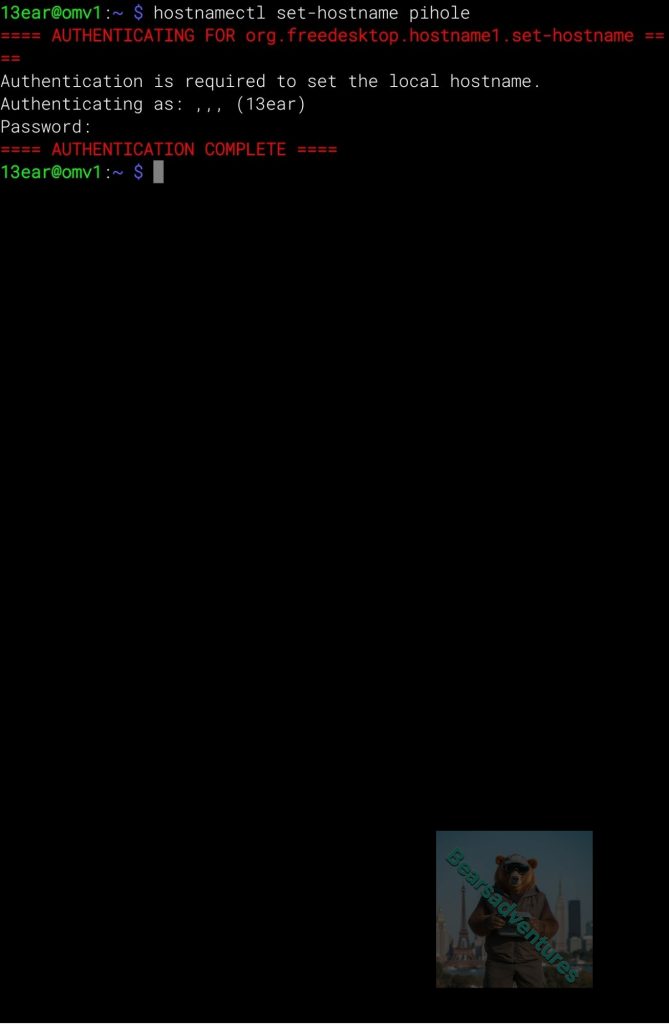
I Did not need to use SUDO on this command so i just did the below.
hostnamectl pihole
Step 2) After step 1, restart your Linux system “sudo restart”
Step 3) After restart, open the terminal
After login to the Terminal you will see 13ear@pihole in my instance.
This is the user and New Hostname.
You have completed host name change.

Why Set or Change a Hostname?
- Network Identification: A unique hostname helps in identifying a machine on a network. In larger networks, ensuring each computer has a distinct hostname is crucial for effective management and communication.
- Simplify Remote Management: For system administrators managing multiple servers, distinct hostnames simplify the process of maintaining these systems.
- Branding or Reorganization: Sometimes, in a corporate setting, hostnames are set to reflect the company’s branding or reorganized to adhere to new IT policies.
Final Thoughts
Changing or setting the hostname in Linux may seem like a small task, but it plays a big role in how your system is identified across networks. Whether you’re dealing with personal computers, business servers, or operating in cloud environments, a well-defined and distinct hostname simplifies system administration, enhances remote access, and makes network organization better.
With easy Linux commands such as hostname, hostnamectl, and domainname, you can look up, modify, or change your system name in a matter of steps—no expert skills required. These modifications assist with everything from network debugging to remote login and even enhance server tracing in corporate sectors.