



Beszel can automatically notify you as soon as certain limits are exceeded – perfect for detecting problems before they become serious.
You can configure notifications for:
- CPU or RAM usage above threshold X
- Too little free disk space
- High network utilization
- High system temperatures
- Container status (e.g. when an important container stops)
- General “Agent offline” status
These notifications are displayed directly in the web interface. You can also add your own notification integrations via webhooks (e.g. with Discord, Slack, ntfy or Pushover).
Step 1
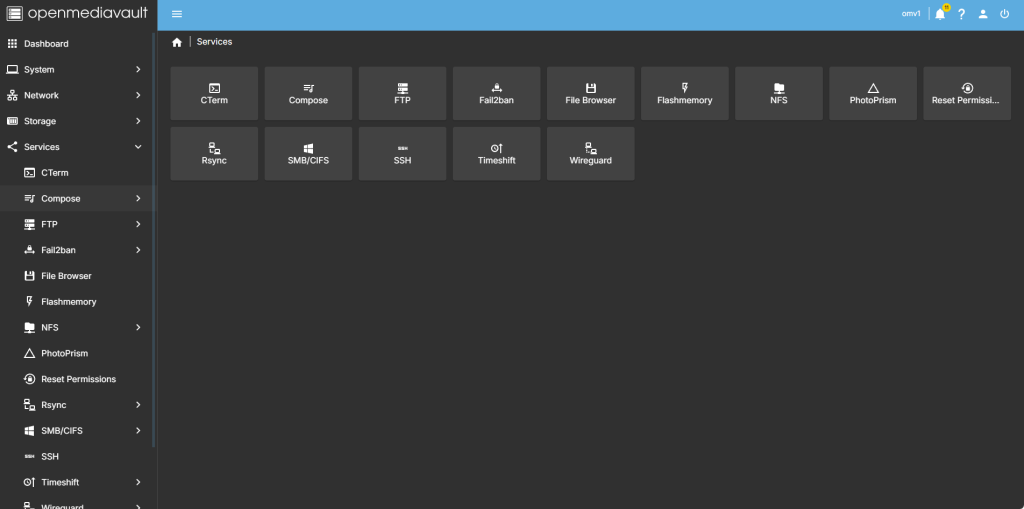
head over to services compose
step 2
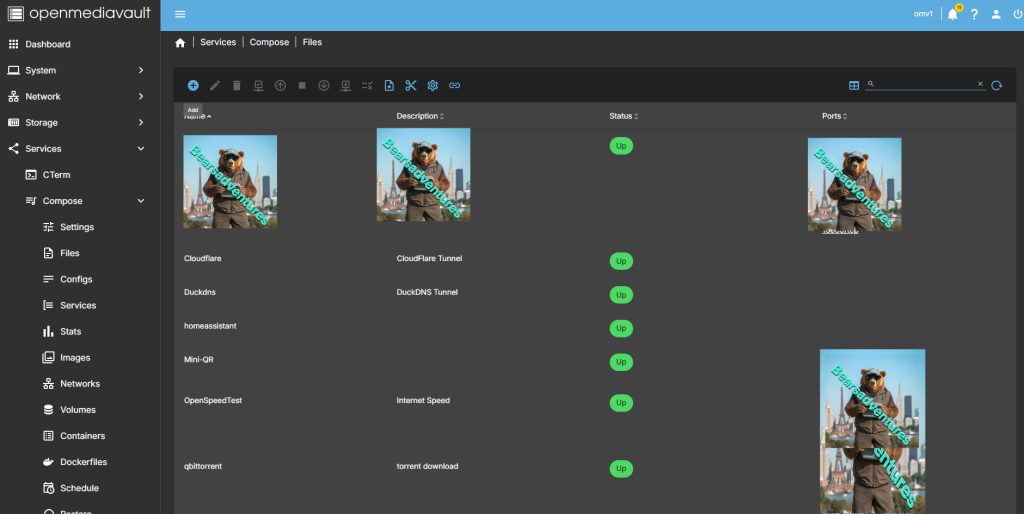
Now select file so we can create the compose file and deploy the container
step 3
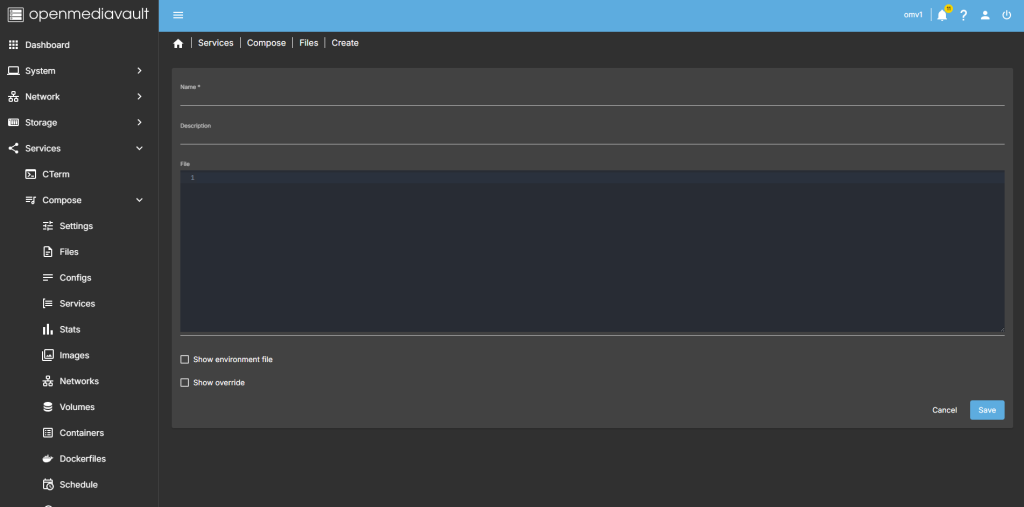
after you have selected the + symbel you will now see where you can add a name for the container and file details
step 4
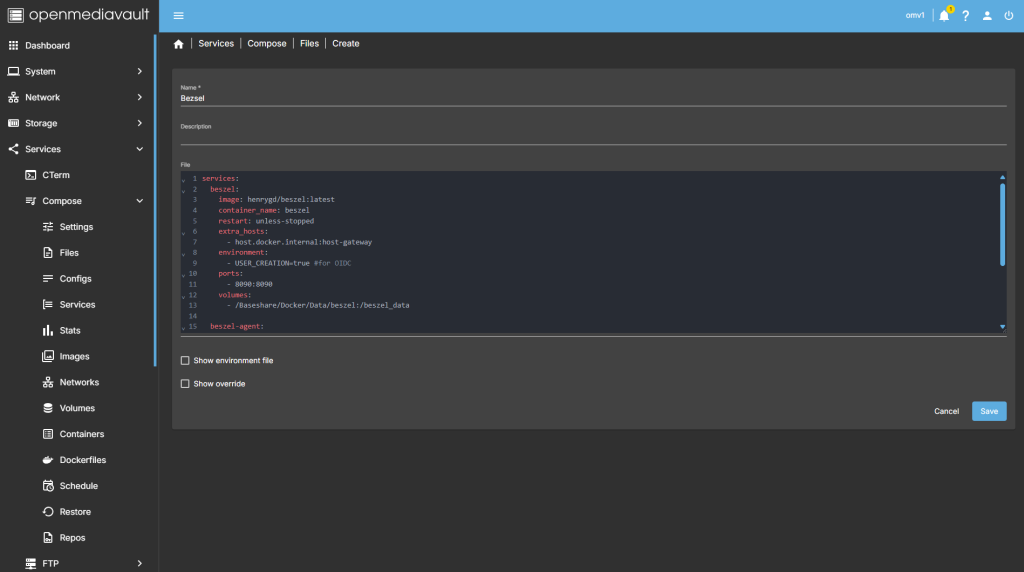
after filing in the details, you should have something like this
services:
  beszel:
    image: henrygd/beszel:latest
    container_name: beszel
    restart: unless-stopped
    extra_hosts:
      - host.docker.internal:host-gateway
    environment:
      - USER_CREATION=true #for OIDC
    ports:
      - 8090:8090
    volumes:
      - /Baseshare/Docker/Data/beszel:/beszel_data

  beszel-agent:
    image: henrygd/beszel-agent:latest
    container_name: beszel-agent
    restart: unless-stopped
    network_mode: host
    volumes:
      - /var/run/docker.sock:/var/run/docker.sock:ro
    environment:
      PORT: 45876
      KEY: "YOUR_PUBLIC_KEY"
networks: {}
step 5
all there is left todo is run the container,

step 6
after pressing the up button on the dashboard, you should have the container now running
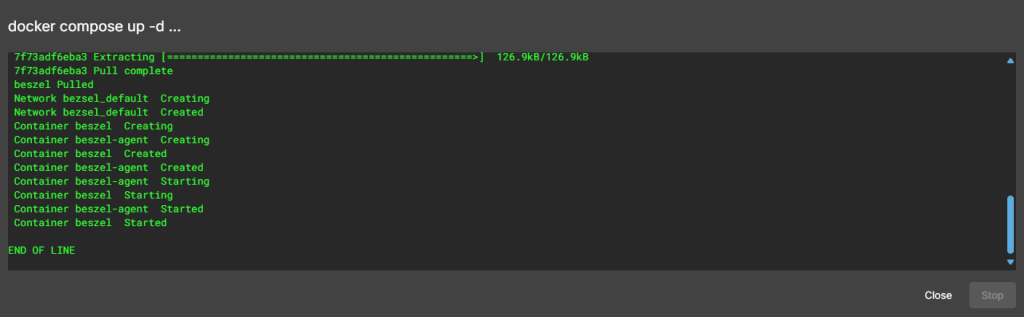
Running nicly port number is 8211

step 7
create a tunnel for the container
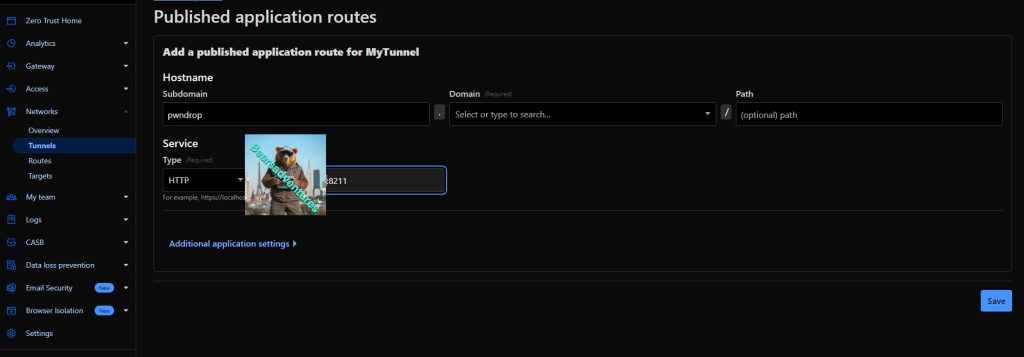
step 8 try the tunnel
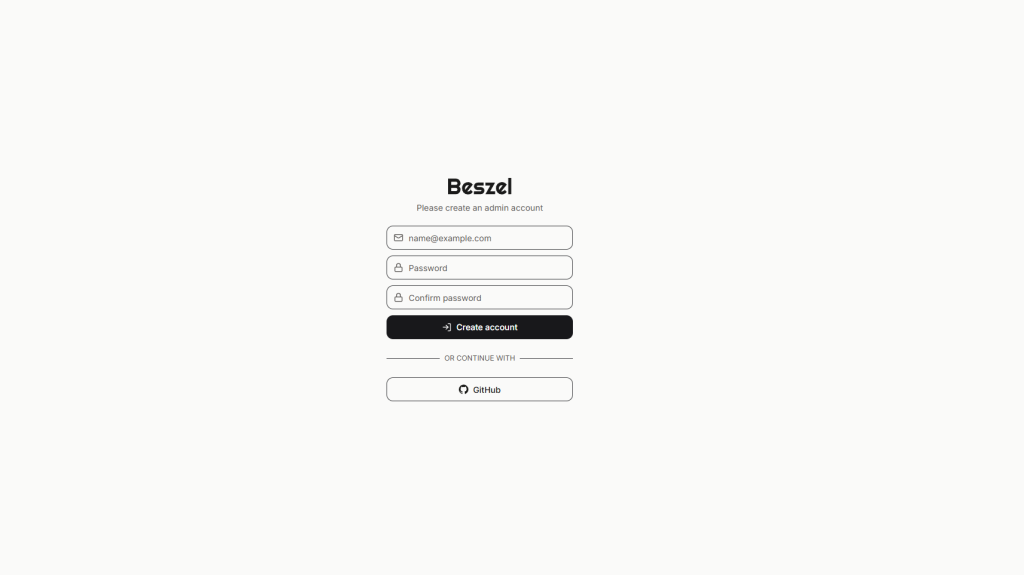
step 9
create a account
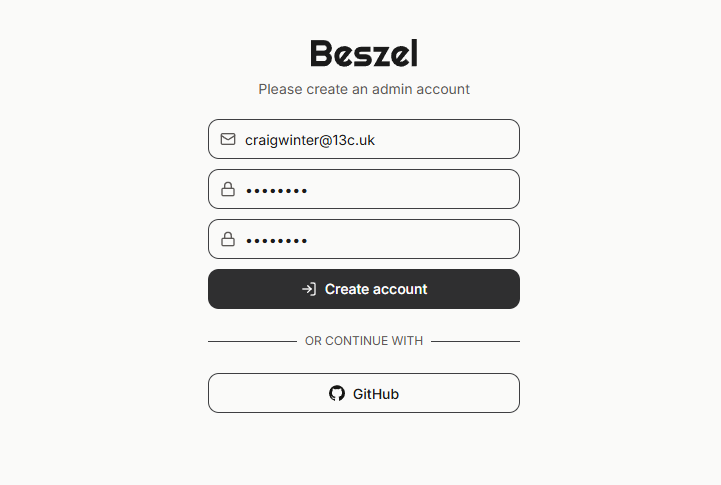
step 10
we are in
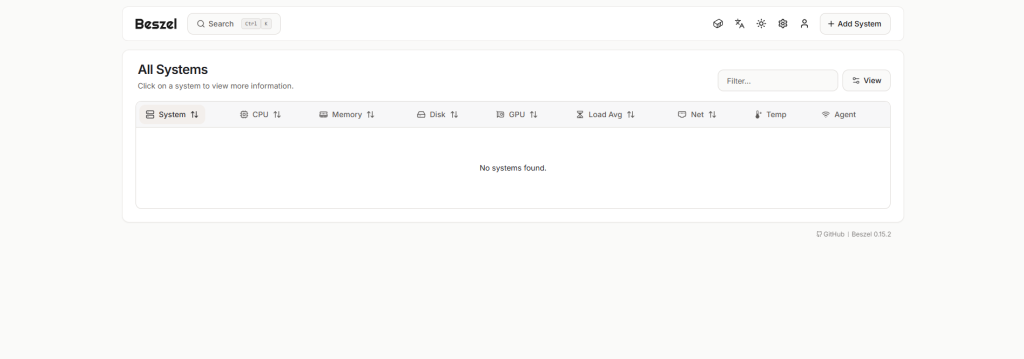
step 11
add system
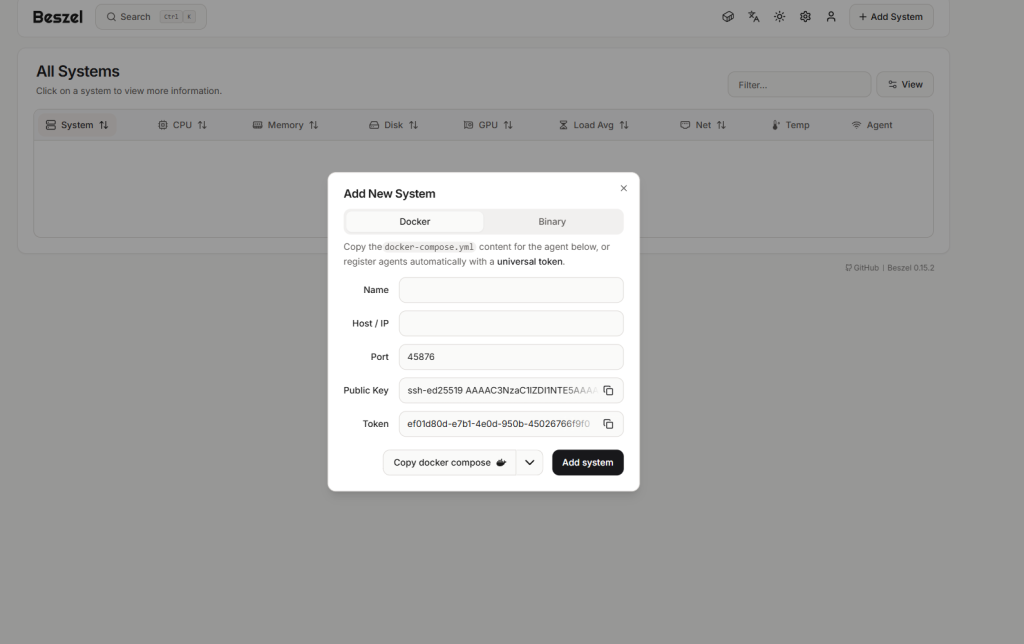
step 12
system added
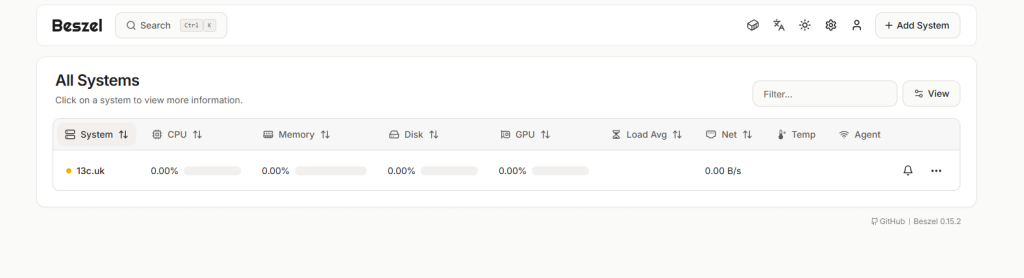
step 13
we need to add the key for this to work. as you can see orange status
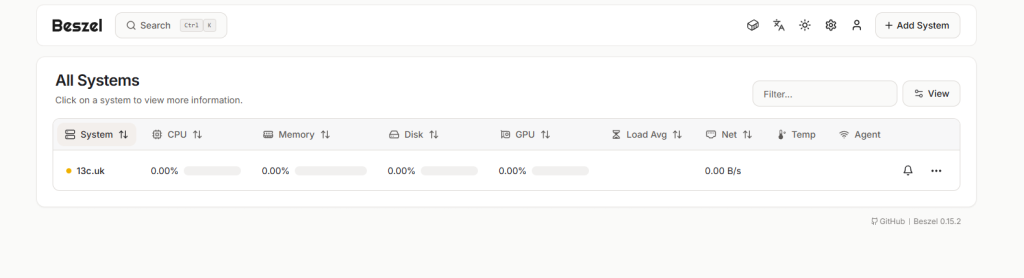
step 14
go back to composer. and add your key to the composer. like below. i have left some out for this example. after you have done this restart the docker for BEZSEL
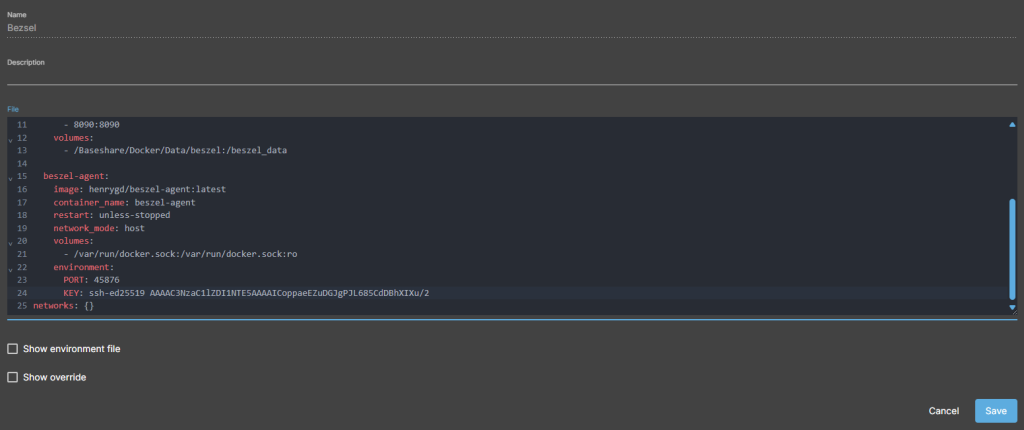
step 15
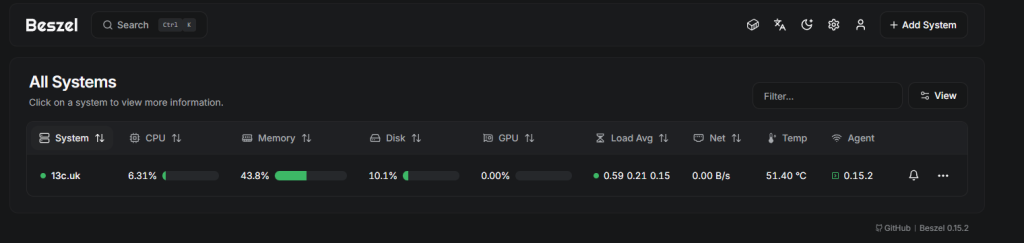
after restart the docker should be all green

step 16
now jump over to the webpage again and you should have a green light next to your Server like me.
Conclusion
Beszel offers you a simple and effective way to monitor your Homelab. With minimal effort, you get a powerful monitoring tool that can be seamlessly integrated into your existing infrastructure. Whether you want to keep an eye on your server resources or monitor Docker containers, Beszel is the right choice for you.
but Wait what if you want to add another server to your Bezsel Here is how Right Here
share : https://13ear.uk/ko8w