




Install OMV Docker Compose
What is docker?
“ A container is a standard unit of software that packages up code and all its dependencies so the application runs quickly and reliably from one computing environment to another. A Docker container image is a lightweight, standalone, executable package of software that includes everything needed to run an application: code, runtime, system tools, system libraries and settings.
Container images become containers at runtime and in the case of Docker containers – images become containers when they run on Docker Engine. Available for both Linux and Windows-based applications, containerized software will always run the same, regardless of the infrastructure. Containers isolate software from its environment and ensure that it works uniformly despite differences for instance between development and staging. ”
Step 1
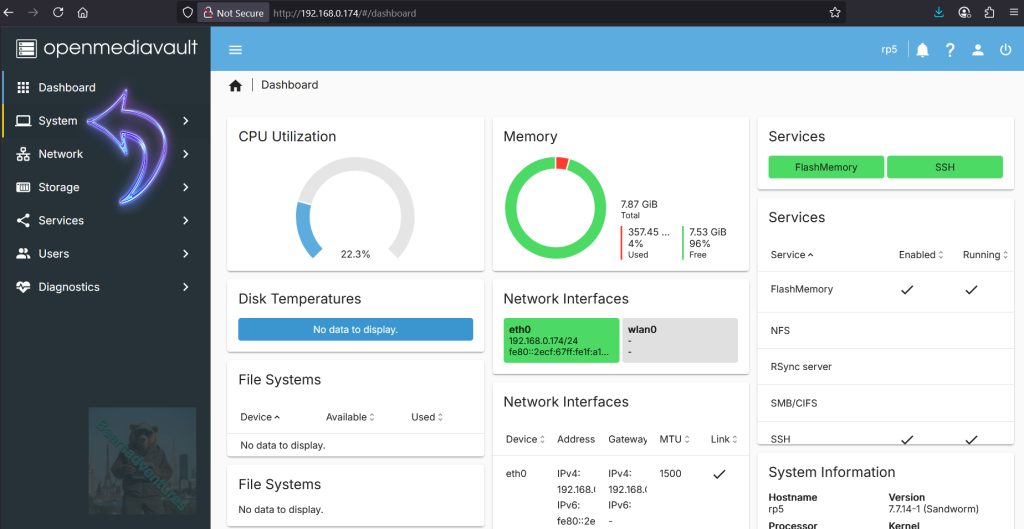
First we need to head over to System. This will give us a nice list of things, But we want OMV-Extras
Step 2
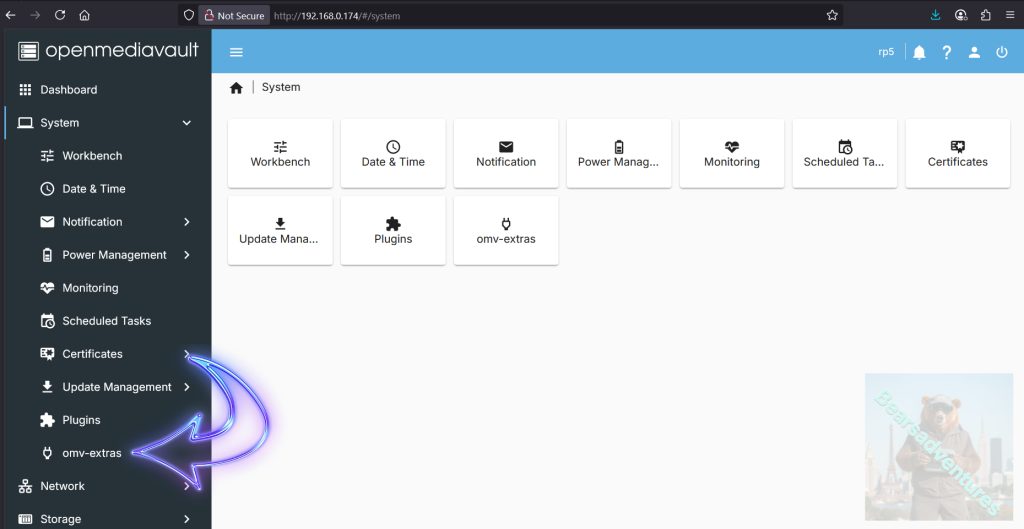
Now Select OMV-Extras. We need to add Docker Repo so we can install compose
Step 3
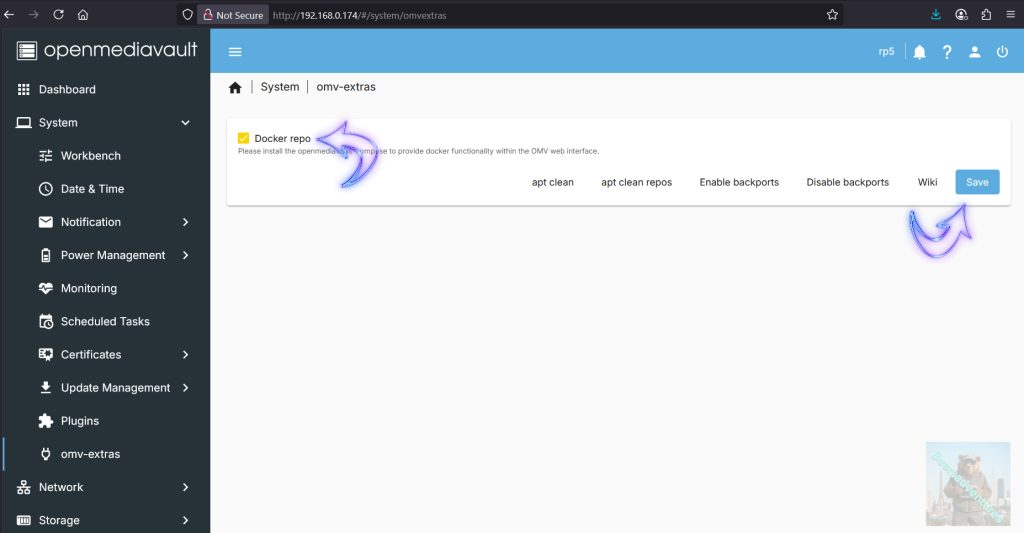
Select Docker Repo And Select save
Step 4
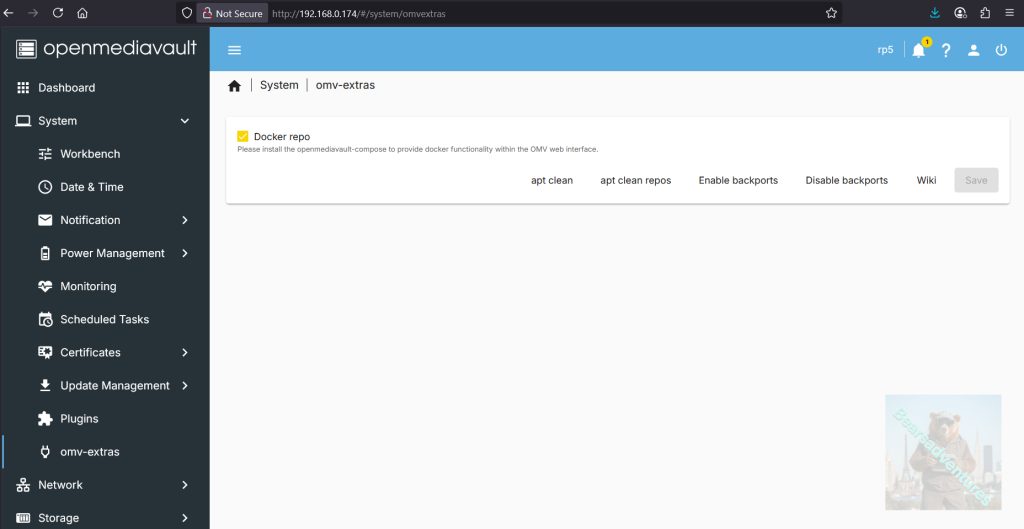
Docker Repo installed.
Step 5
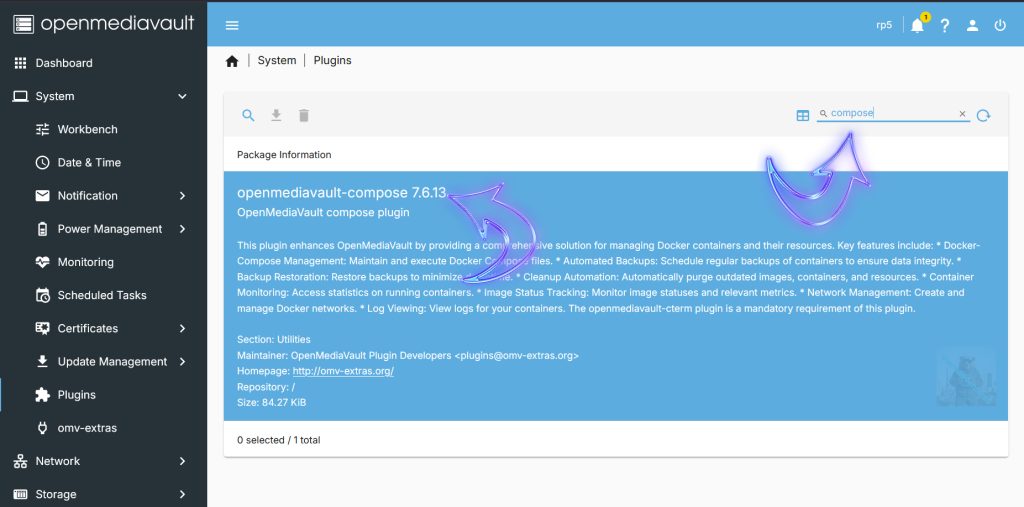
now select plugins on your left hand side and you should have a nice list of plugins
type compose in the search bar top right and compose should come up like below
Step 6
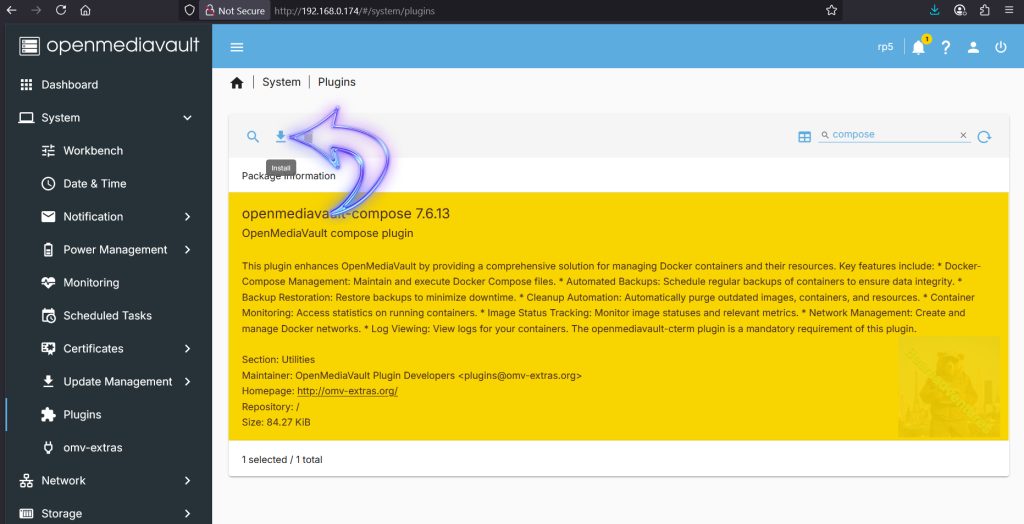
Select compose that has been found. and install OMV compose By selecting the arrow down button
Step 7
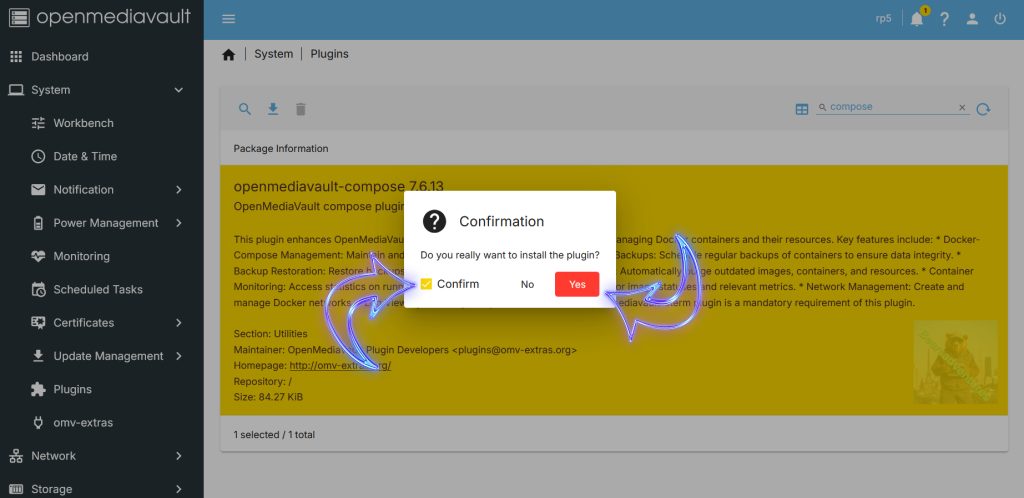
Confirm the install of the Plugin.
Step 8
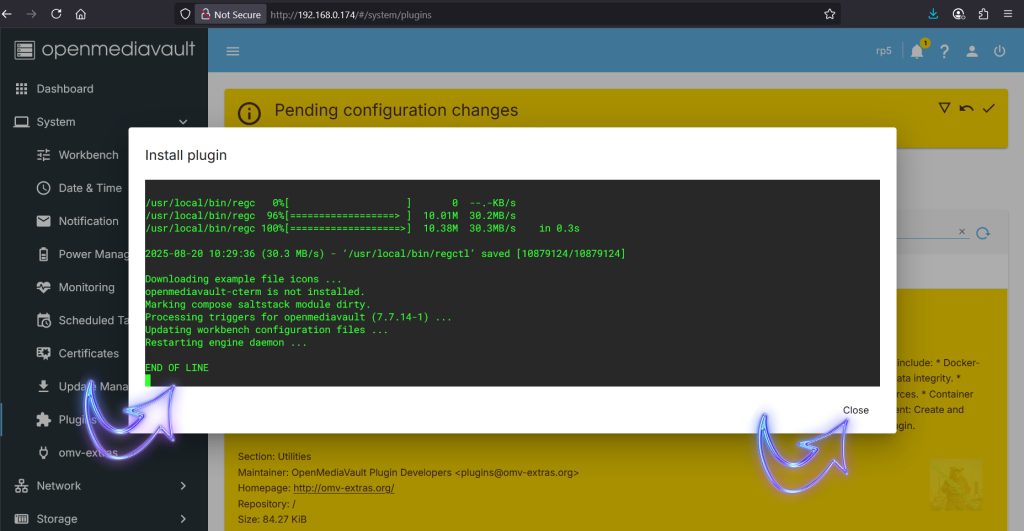
When the install is complete you will see END OF FILE and then you can close the window
Step 9
We Just Need to Confirm the changes the by press the Tick in the Yellow box.
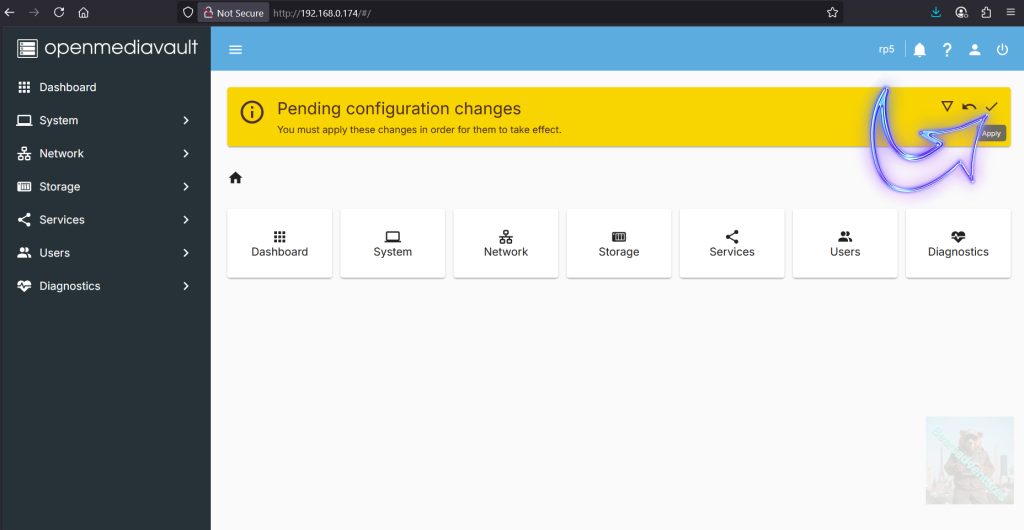
Step 10
Now we need to Create 3 folders for compose and these are all going tobe created in the Docker folder.
- Compose
- Backup
- Compose-data
Head over to Storage / Shared folders
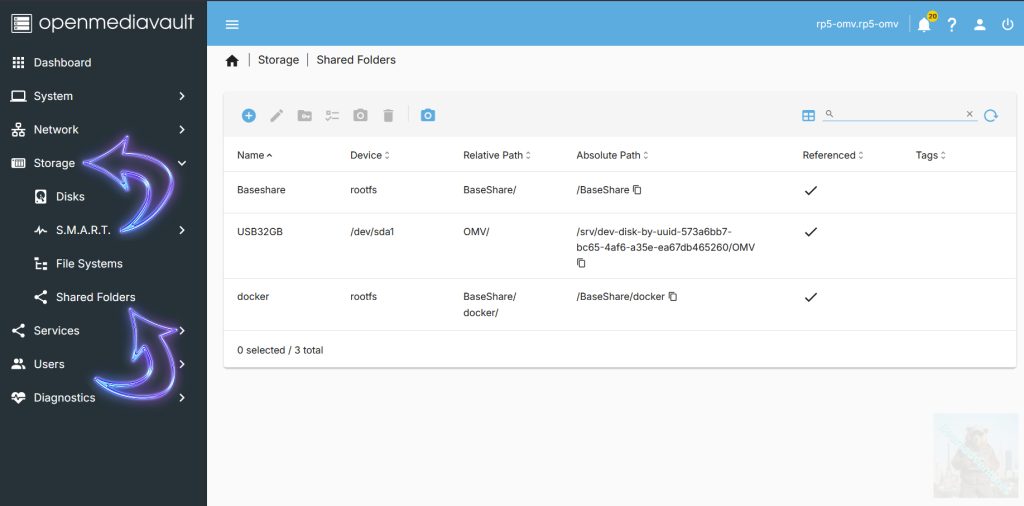
Step 11
create compose share folders.
Select + plus button and you will no be presented with a empty Share.
now fill it in like below and select Save to confirm
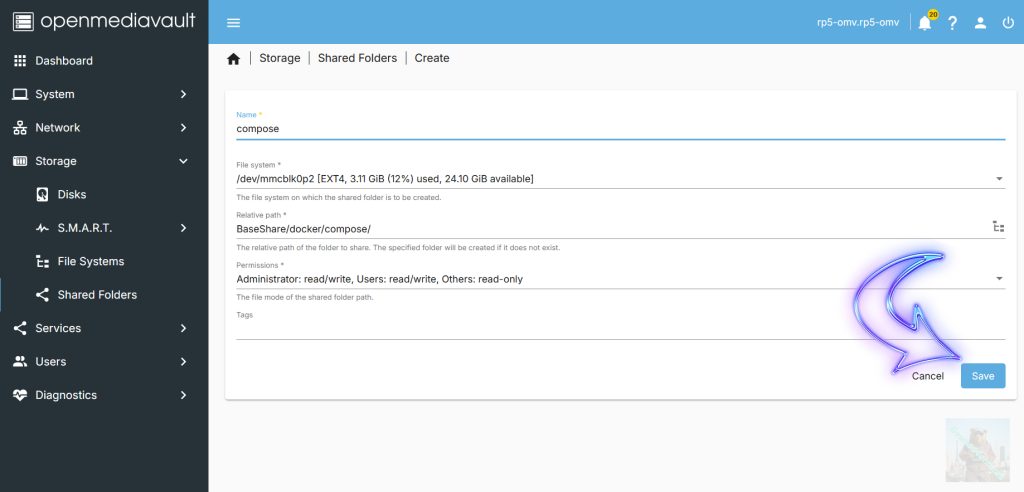
Step 12
Remember to select the tick in the top right corner to confirm changes.
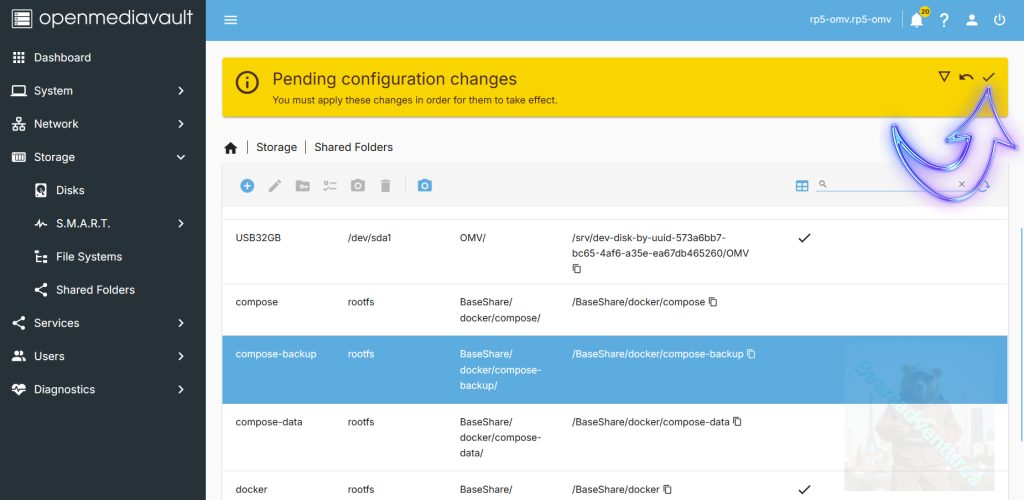
Step 13
Apply by selecting Yes
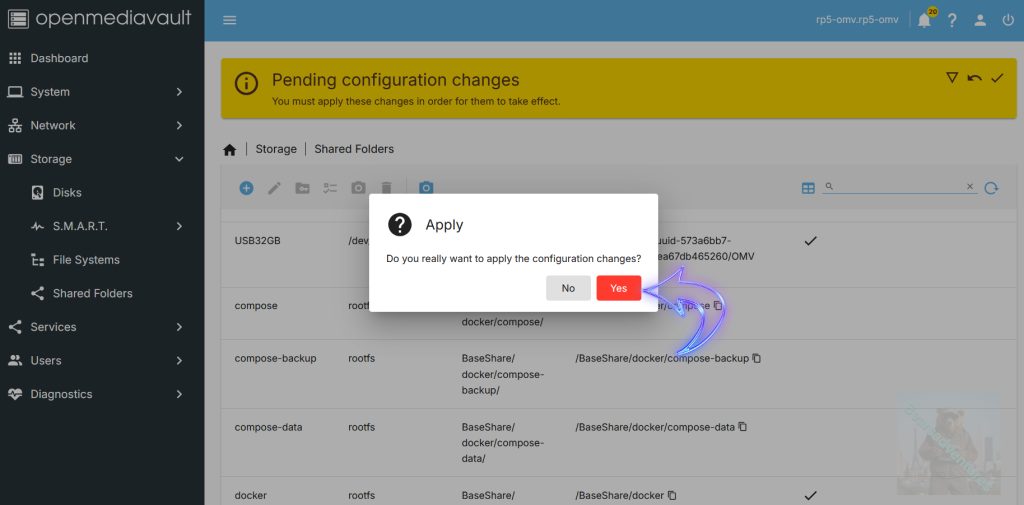
3 new share folders
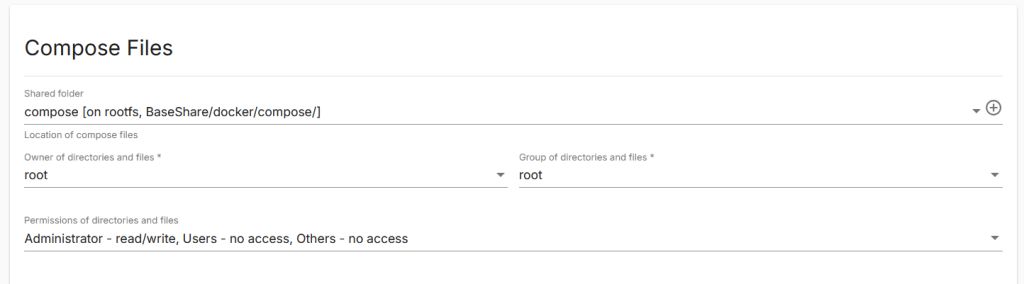


Step 14
now we need to add these shares to compose.
in Services / Compose / Settings
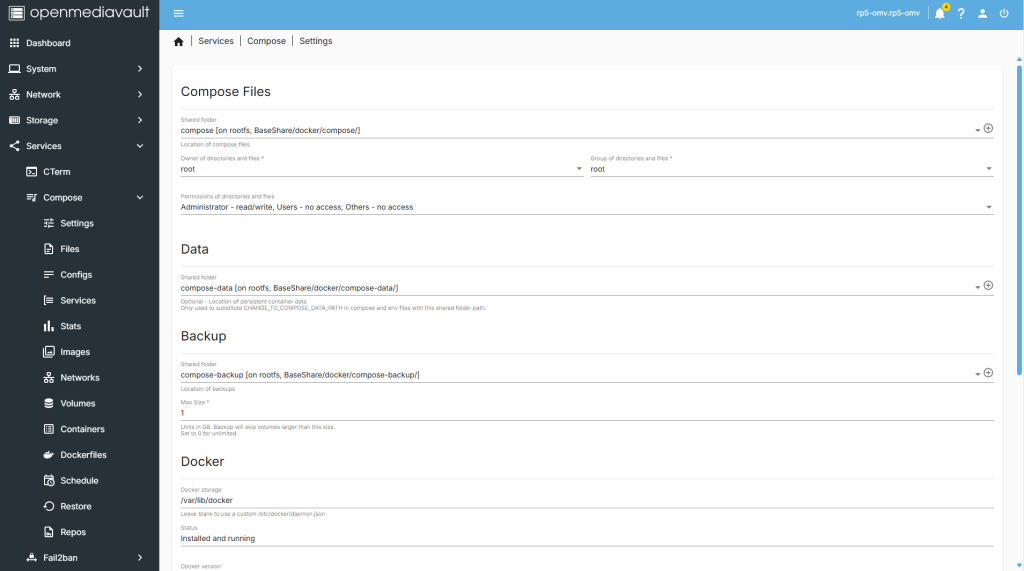
Step 15
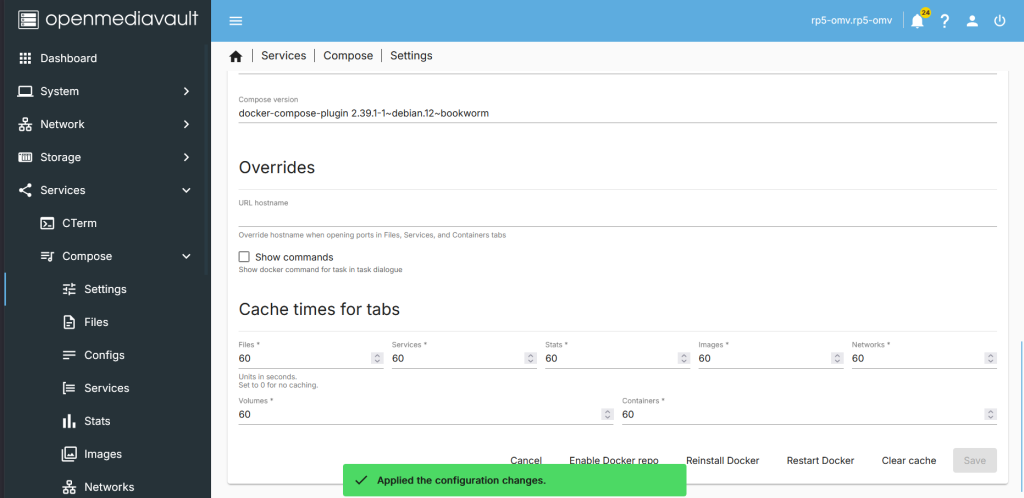
Remember to save after you have made the changes.
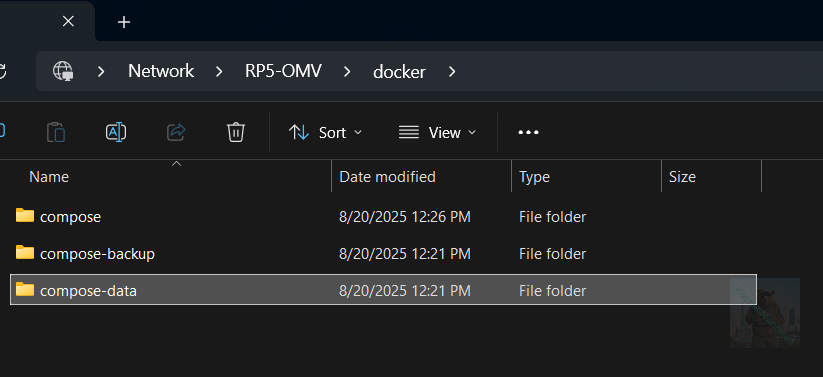
Head over the the Share on your computer and you should see somthng like the below. now ready to start creating Docker Compose projects
share : https://13b.uk/3ag3