
Double Commander is a free cross platform open source file manager with two panels side by side. You can easily explore, download and edit any file on your Synology NAS. In this step by step guide I will show you how to install Double Commander on your OMV NAS using Docker.
Step 1
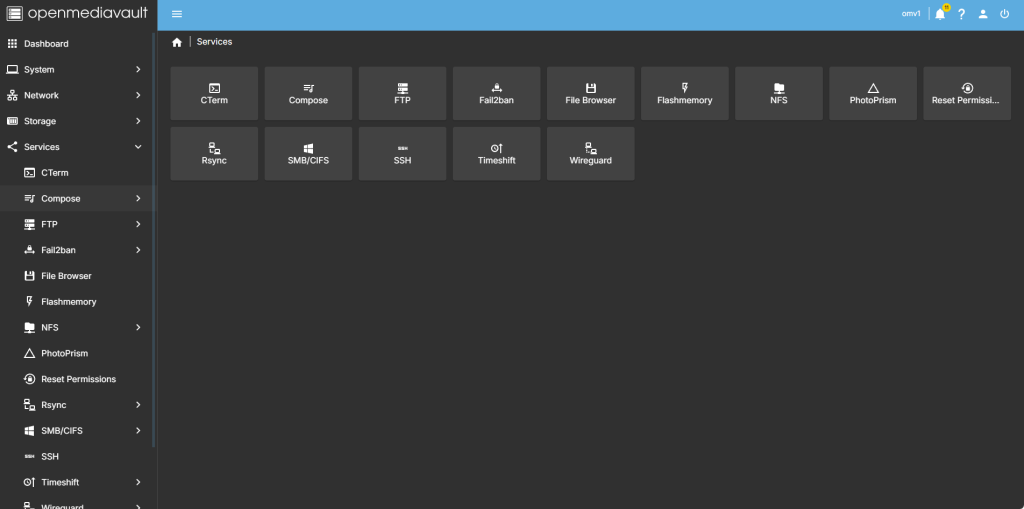
head over to services compose
step 2
Now select file so we can create the compose file and deploy the container
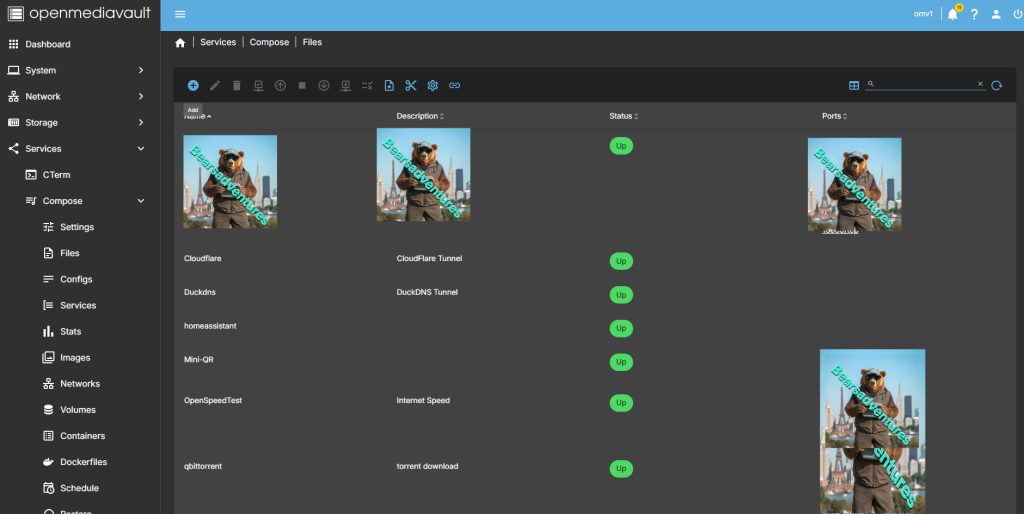
step 3
after you have selected the + symbel you will now see where you can add a name for the container and file details
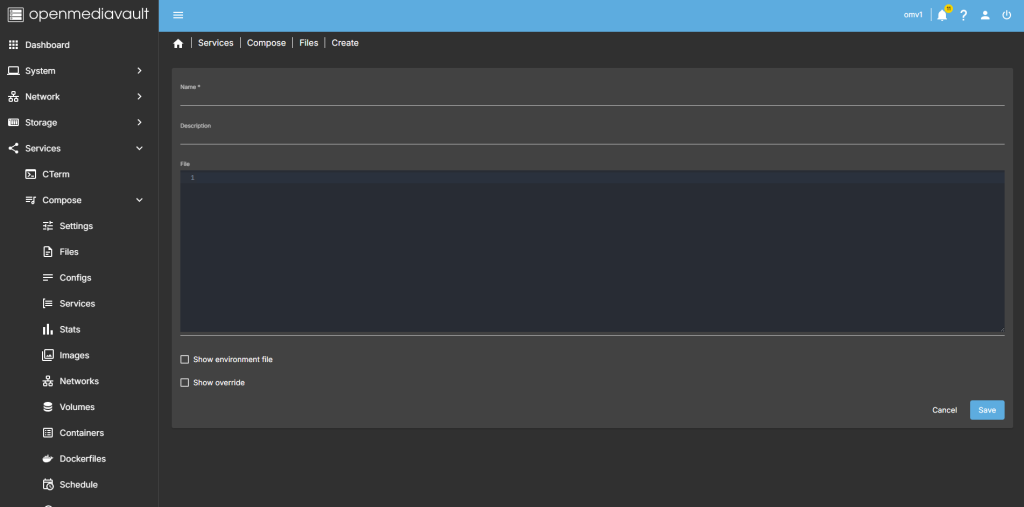
step 4
after filing in the details, you should have something like this
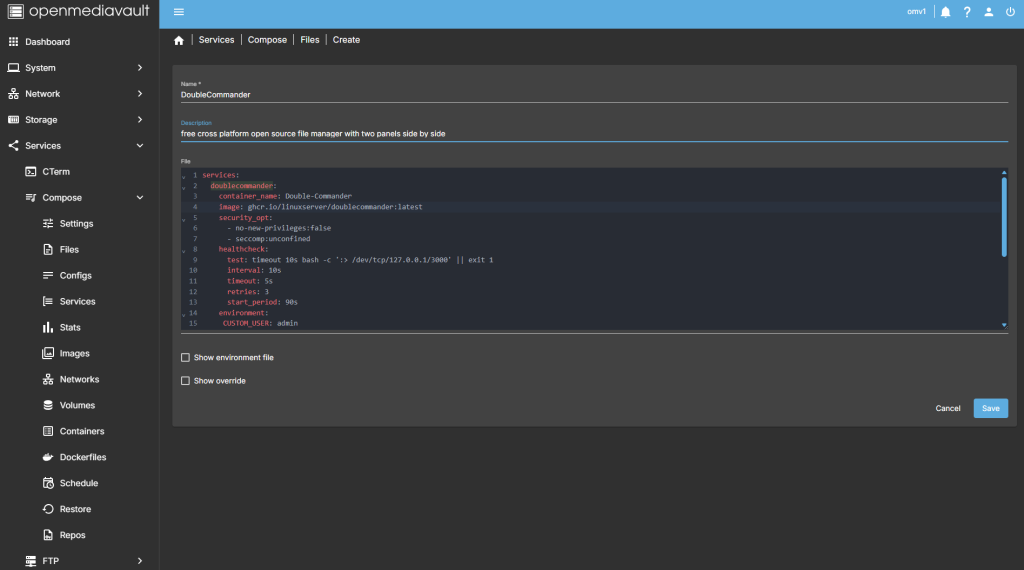
services:
  doublecommander:
    container_name: Double-Commander
    image: ghcr.io/linuxserver/doublecommander:latest
    security_opt:
      - no-new-privileges:false
      - seccomp:unconfined
    healthcheck:
      test: timeout 10s bash -c ':> /dev/tcp/127.0.0.1/3000' || exit 1
      interval: 10s
      timeout: 5s
      retries: 3
      start_period: 90s
    environment:
     CUSTOM_USER: admin
     PASSWORD: password
     TZ: EuropeLondon
     PUID: 1026
     PGID: 100
    volumes:
      - /Baseshare/Docker/Data/doublecommander/config:/config:rw
      - /Baseshare/Docker/Data/doublecommander/data:/data:rw
      - /volume1:/sata1:rw
    ports:
      - 3278:3000
      - 3279:3001
    restart: on-failure:5
step 5
all there is left todo is run the container,

step 6
after pressing the up button on the dashboard, you should have the container now running
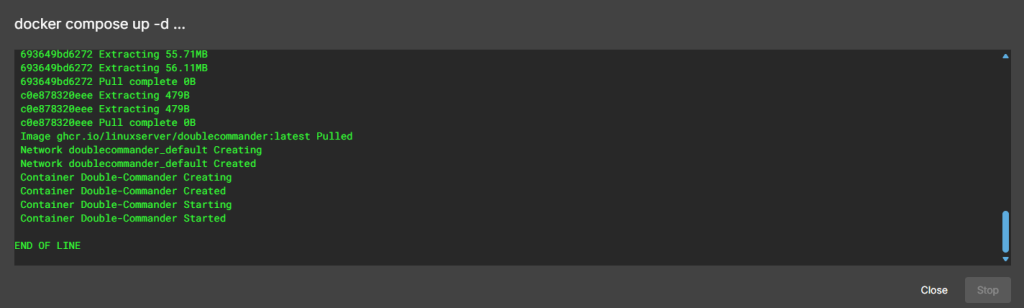
Running nicely port number is 3278

step 7
create a tunnel for the container
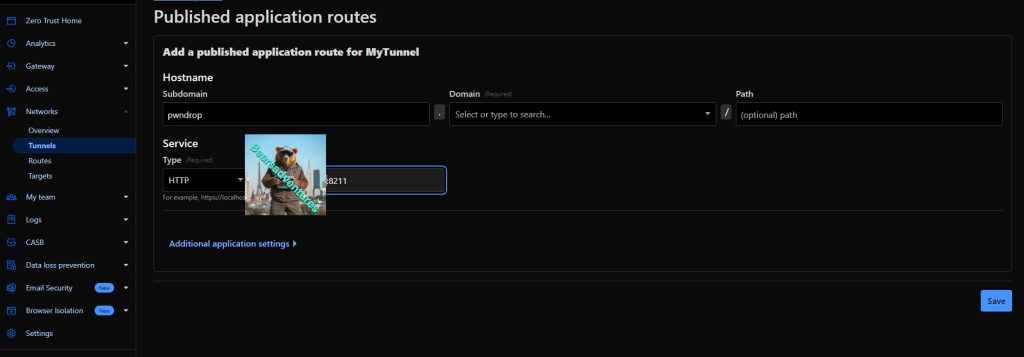
step 8
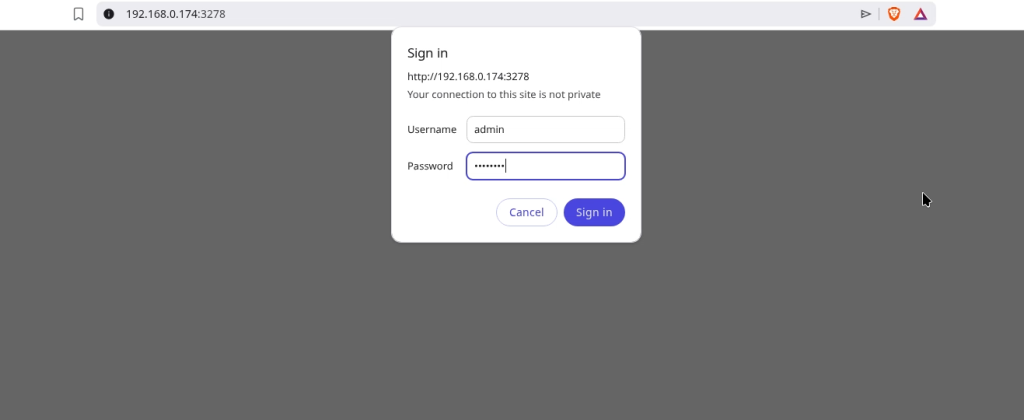
Now open your browser and type in http://Website:3278, The tunnel will now be working
step 9
To login use the login details we Putin the container file.
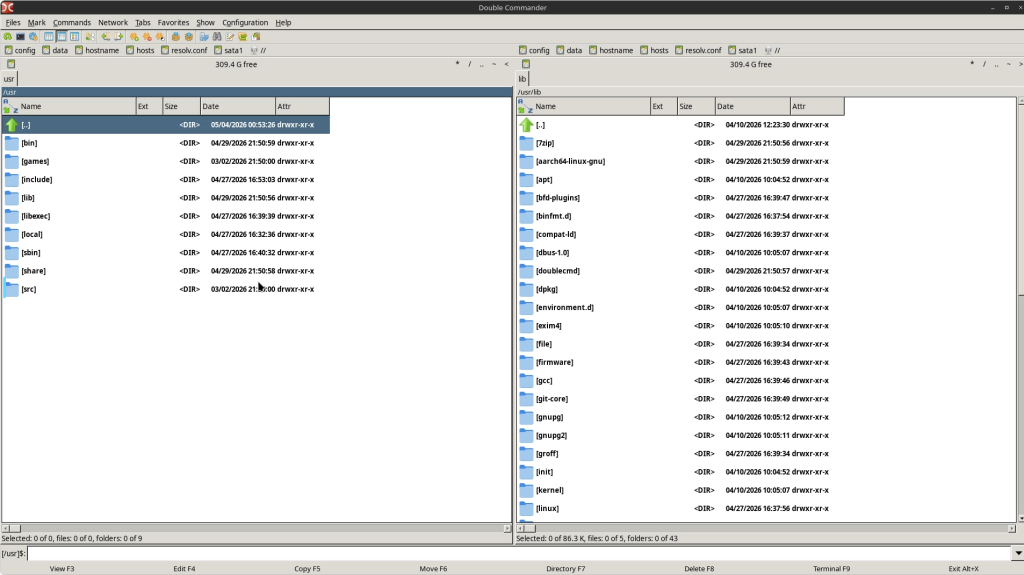
Now we are in, we will need to change the original password
step 10
Now we have changed the password we are in and can now starting using SnapOtter.

Step 11
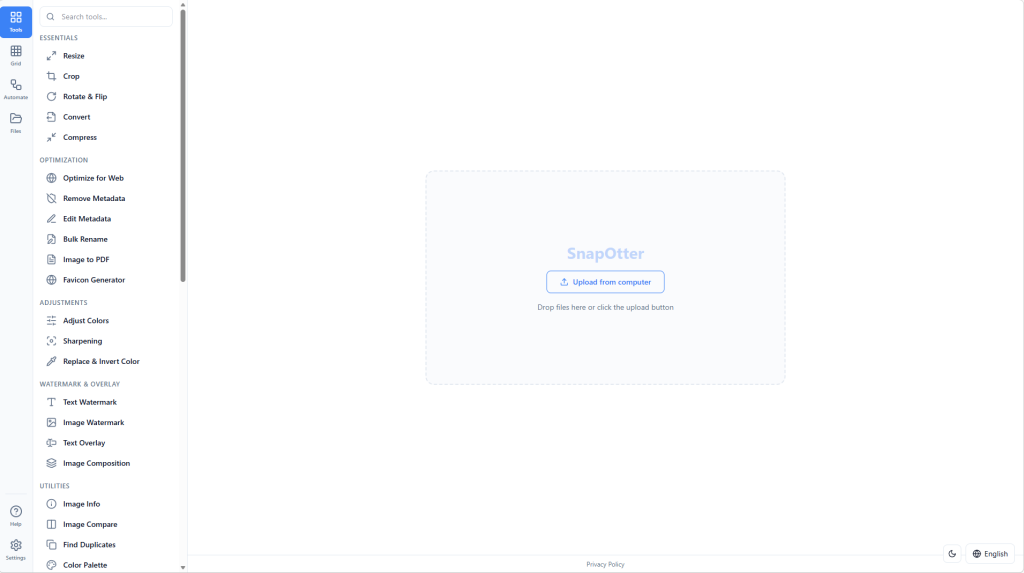
Now we are greeted with the main screen.
Step 12
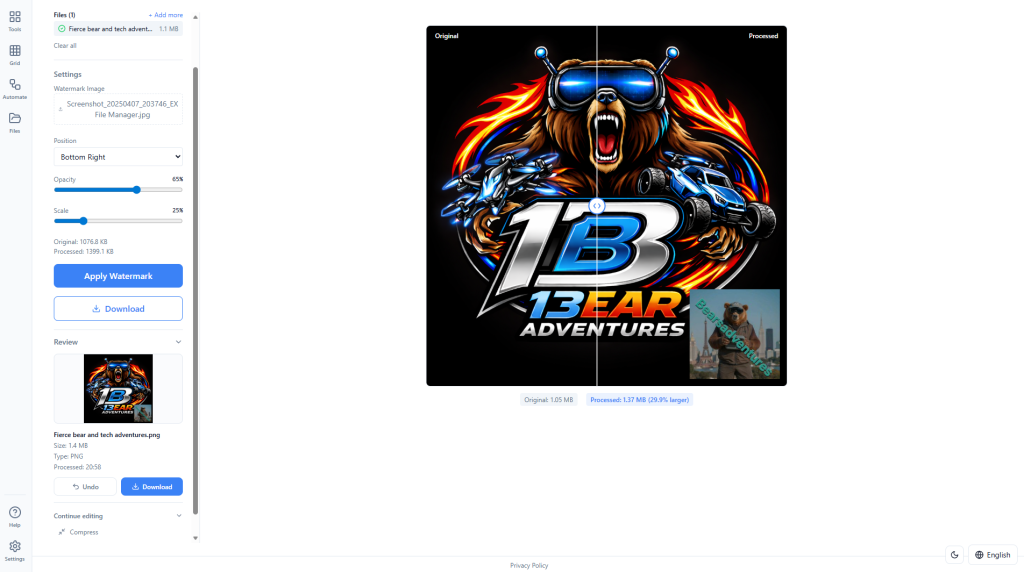
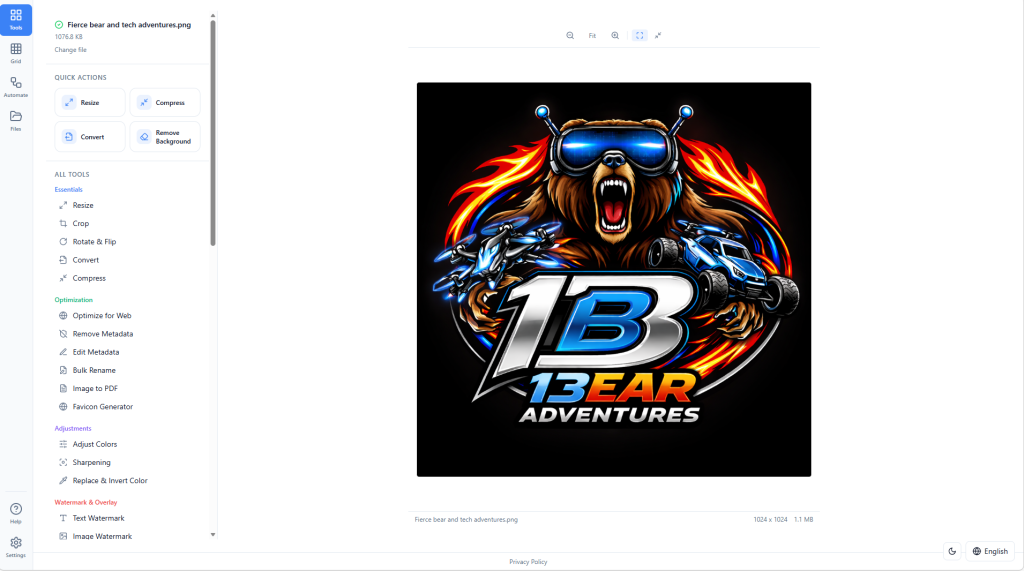
Drag and Drop a picture on the SnapOtter, Like i have. This is my Short web links webpage logo
Summary
The Main reason for using SnapOtter is to add watermarks to my pictures and screenshot on my websites. I love the feel of SnapOtter and there are some really good features im wanting to also use.