



OMV FileBrowser
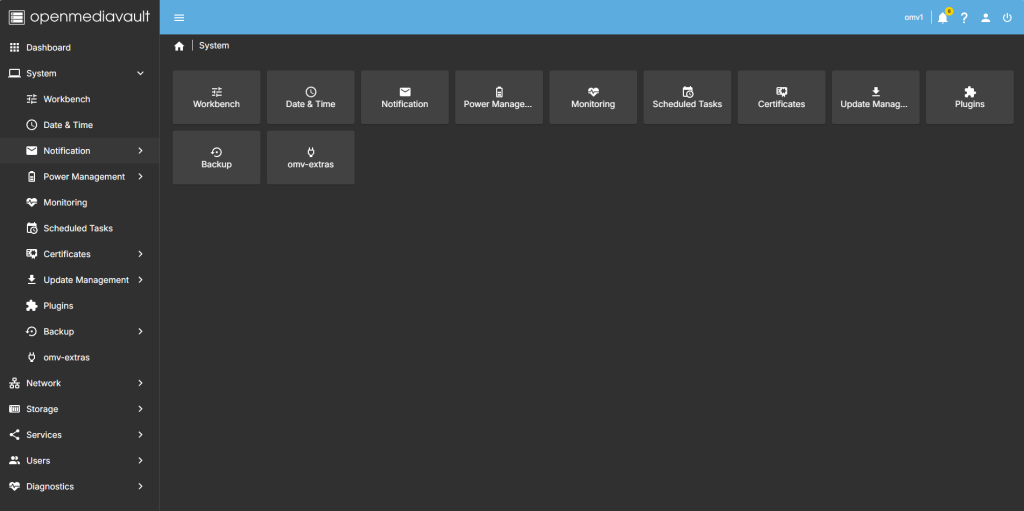
Lets install the Filebrowser plugin. Head over to System.
THen select Plugins and in the Search bar top right start typing filebrowser. The plugin will show up. or you can just scroll through the pluggins.
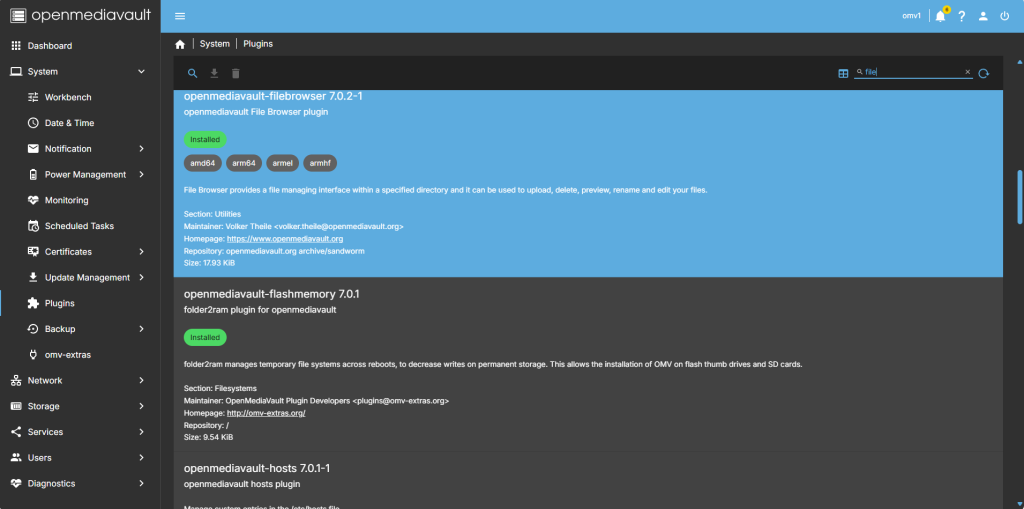
When you select the plugin you download button will show and then just select it to start the download.
Now filebrowser is installed head over to services
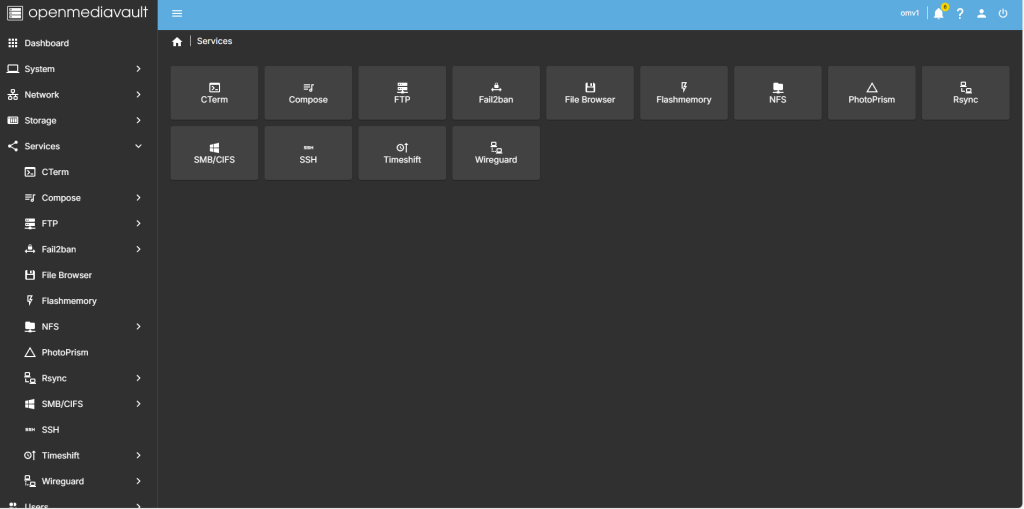
Select filebrowser down the left side, here you will need to enable the service make a note of the port number we are going to need this.
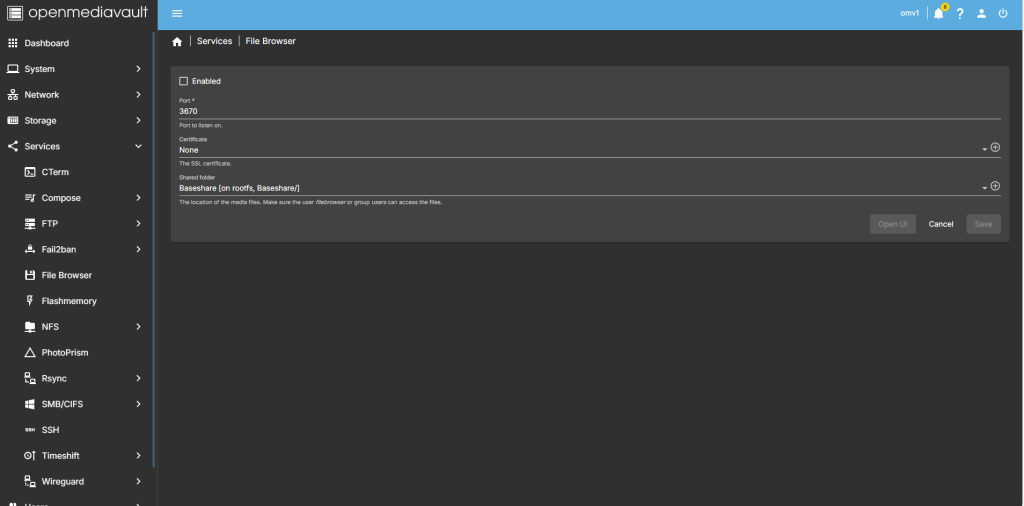
When you hit Save you will be promted to save changes
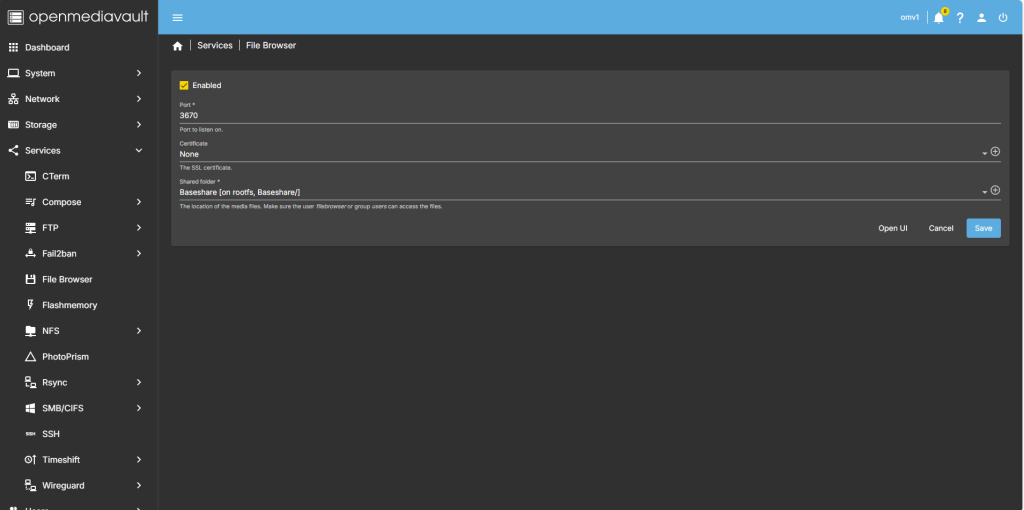
Soon as you have done this, filebrowser will be running.
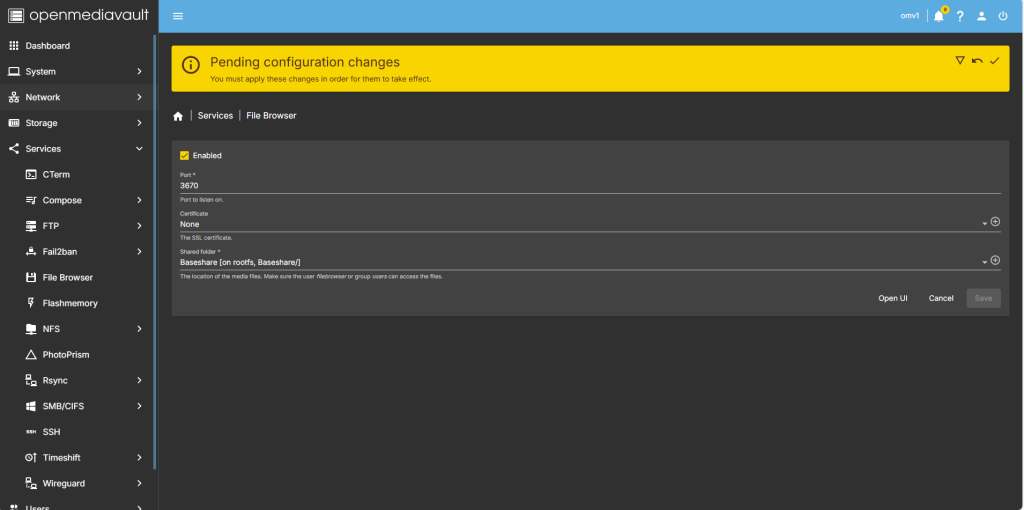
you can select the Open UI button or Type in your IP number in the explorer window like this http:192.168.0.174:3670
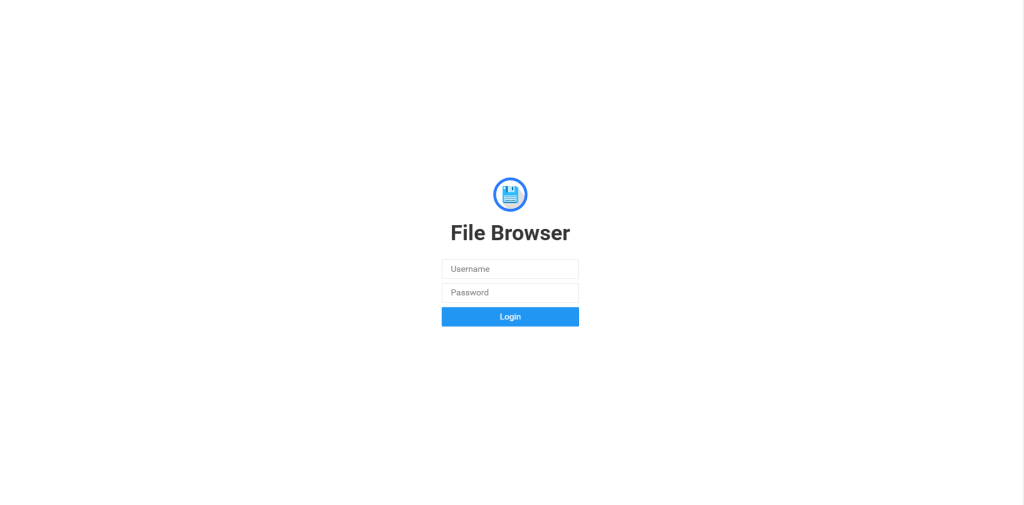
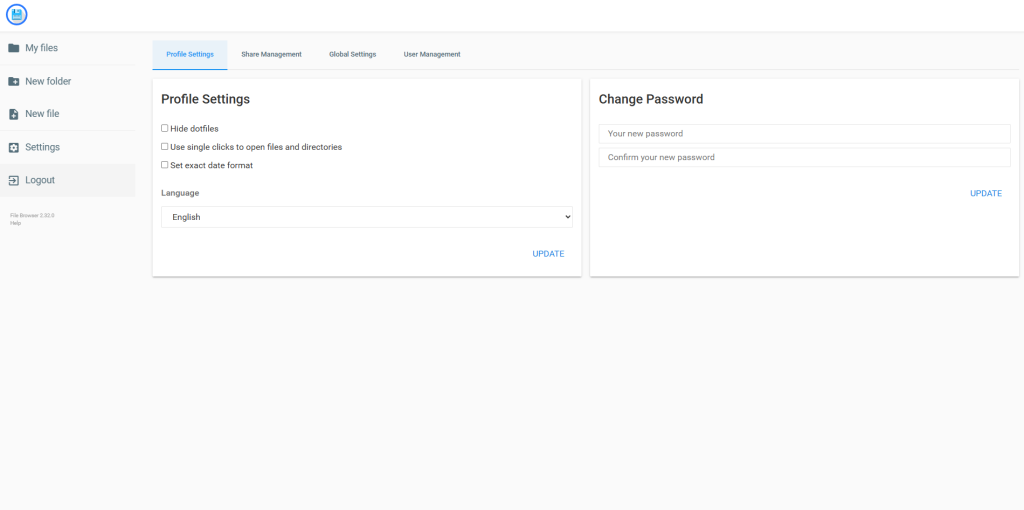
time you launch the page you will be greeted with this
Remember to change your password under Settings,
The first tie you login User:admin password:admin
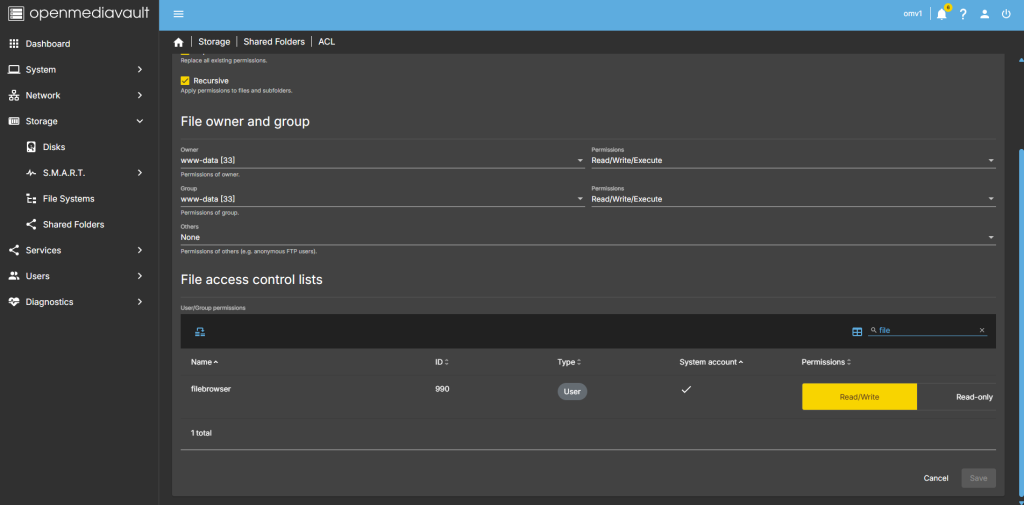
Shared folder under ACL, You need to add Filebrowser to the permissions to get access to the files/folders in File browser.
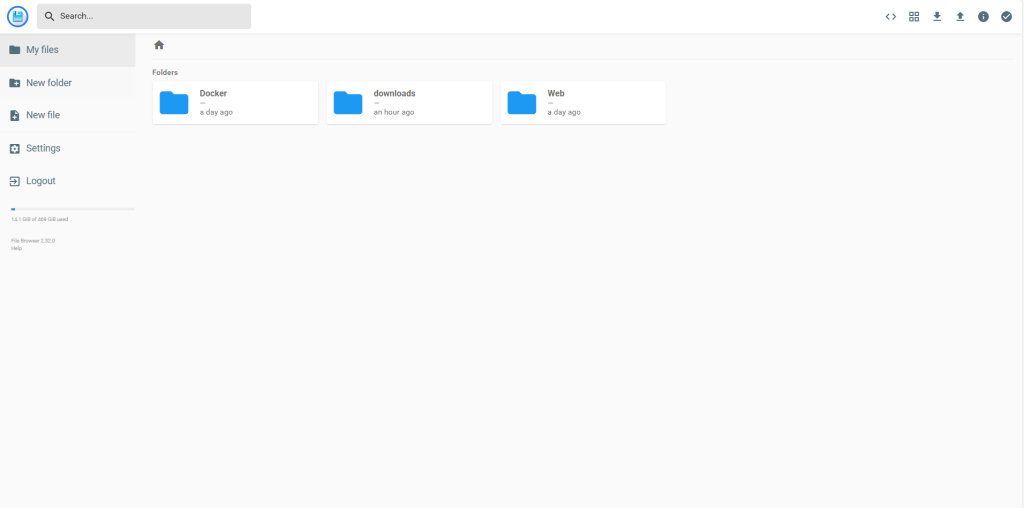
after login to filebrowser we now have folders visible
Share : https://13b.uk/3ag2