



Step 1
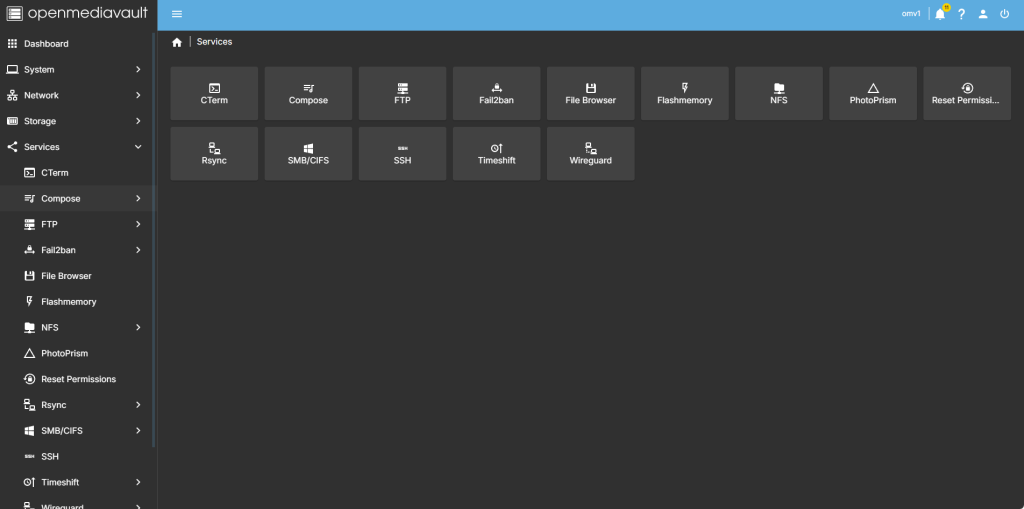
head over to services compose
step 2
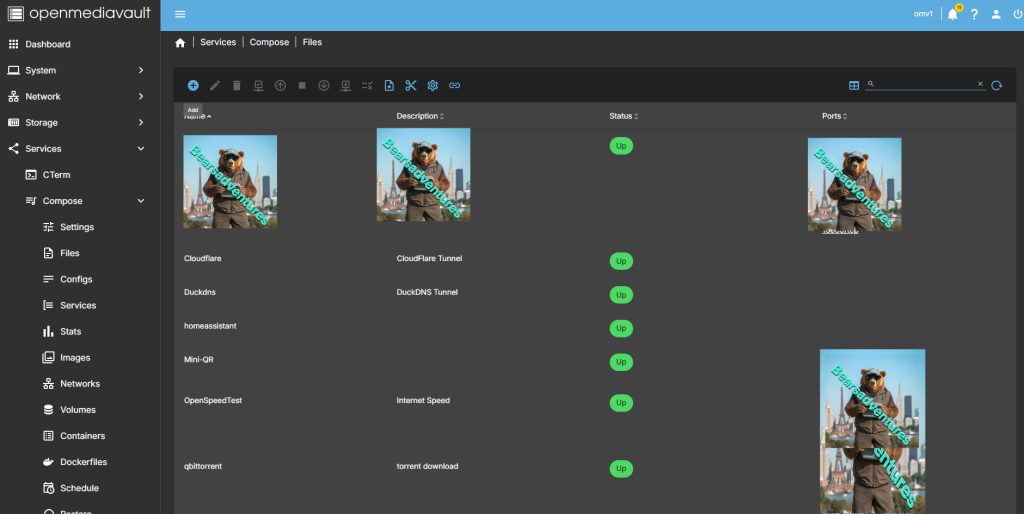
Now select file so we can create the compose file and deploy the container
step 3
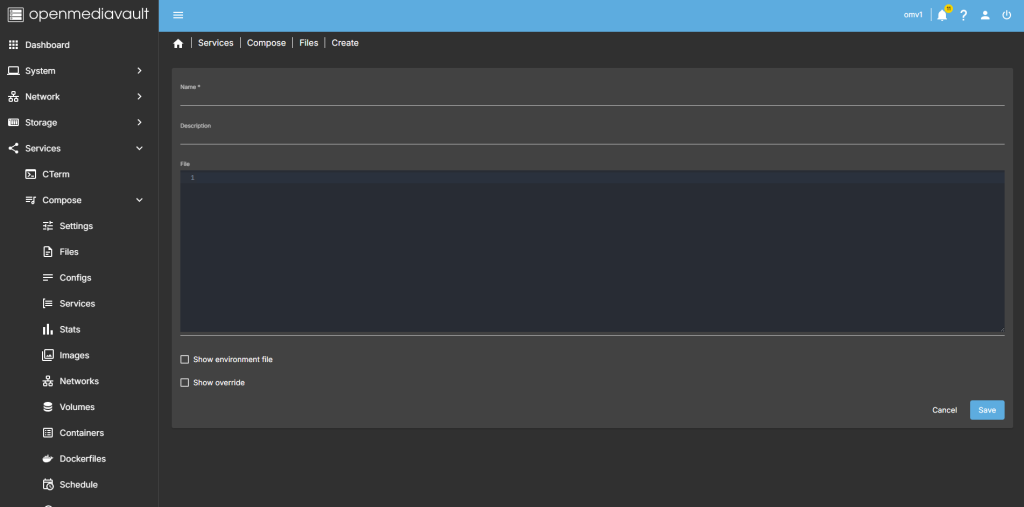
after you have selected the + symbel you will now see where you can add a name for the container and file details
step 4
after filing in the details, you should have something like this
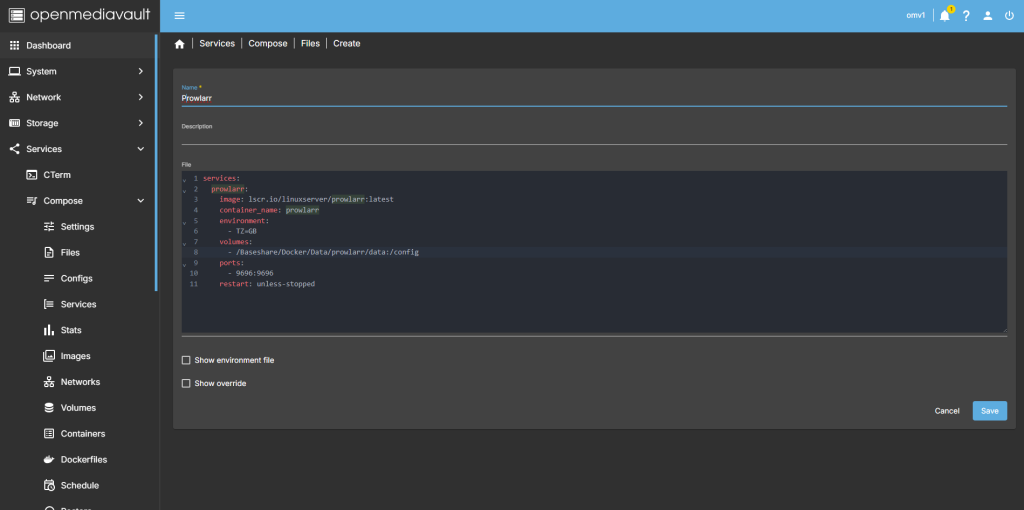
services:
  prowlarr:
    image: lscr.io/linuxserver/prowlarr:latest
    container_name: prowlarr
    environment:
      - TZ=GB
    volumes:
      - /Baseshare/Docker/Data/prowlarr/data:/config
    ports:
      - 9696:9696
    restart: unless-stopped
step 5
all there is left todo is run the container,

step 6
after pressing the up button on the dashboard, you should have the container now running
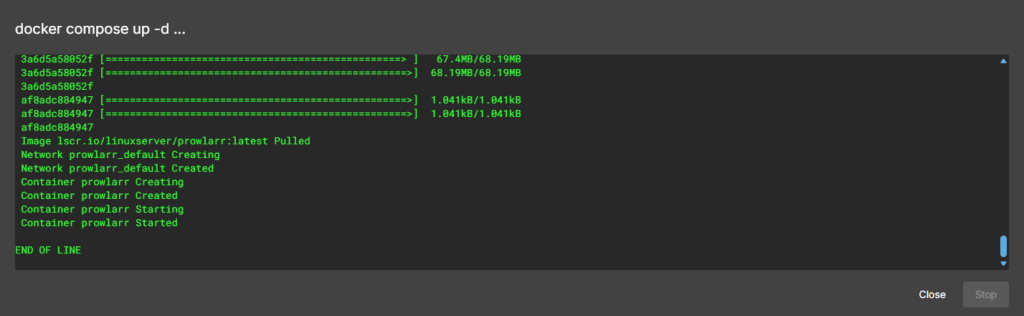
Running nicly port number is 9696

step 7
create a tunnel for the container
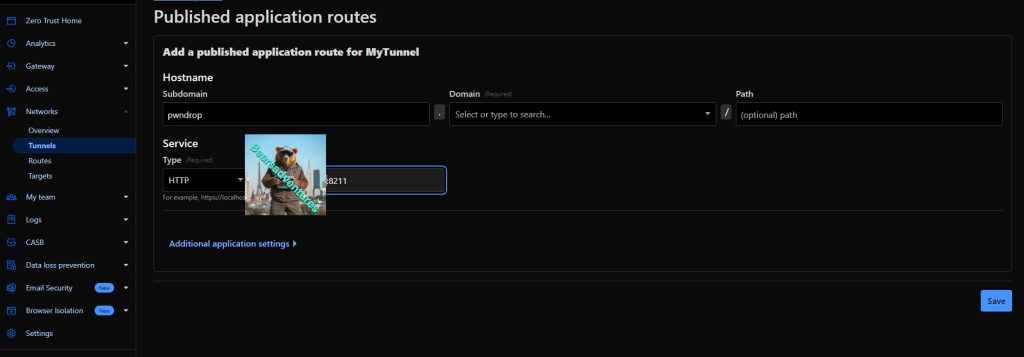
step 8 try the tunnel
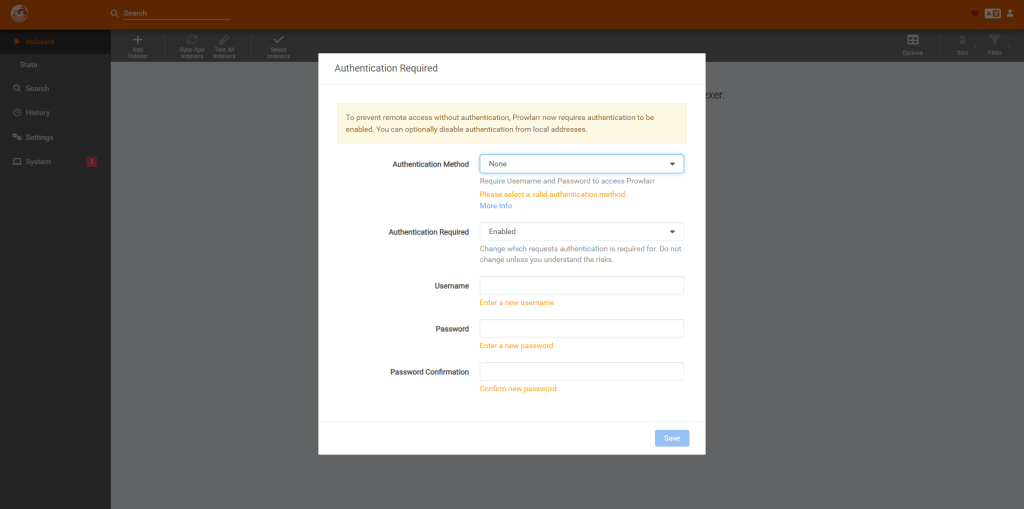
step 9
create a account
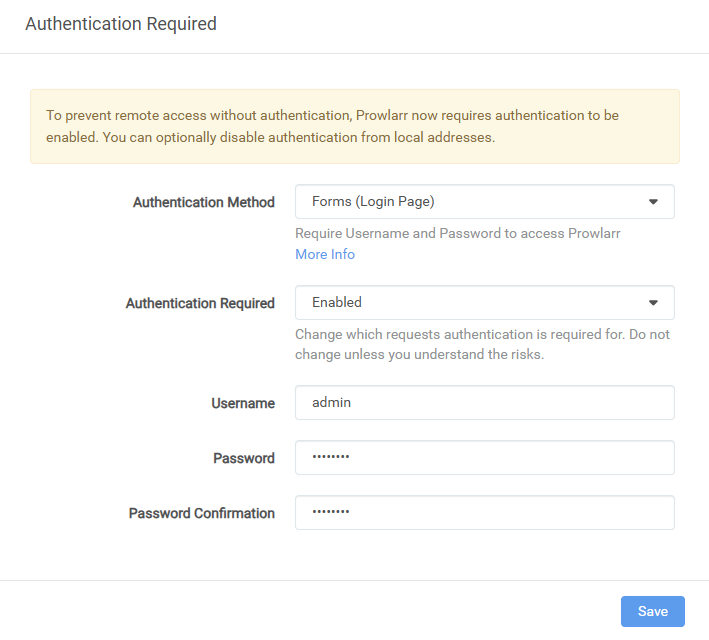
step 10
we are in
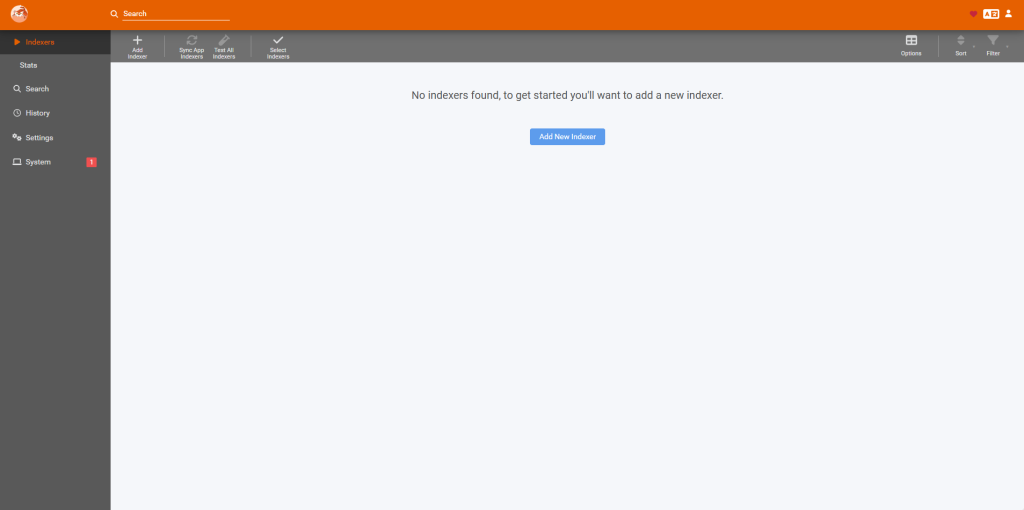
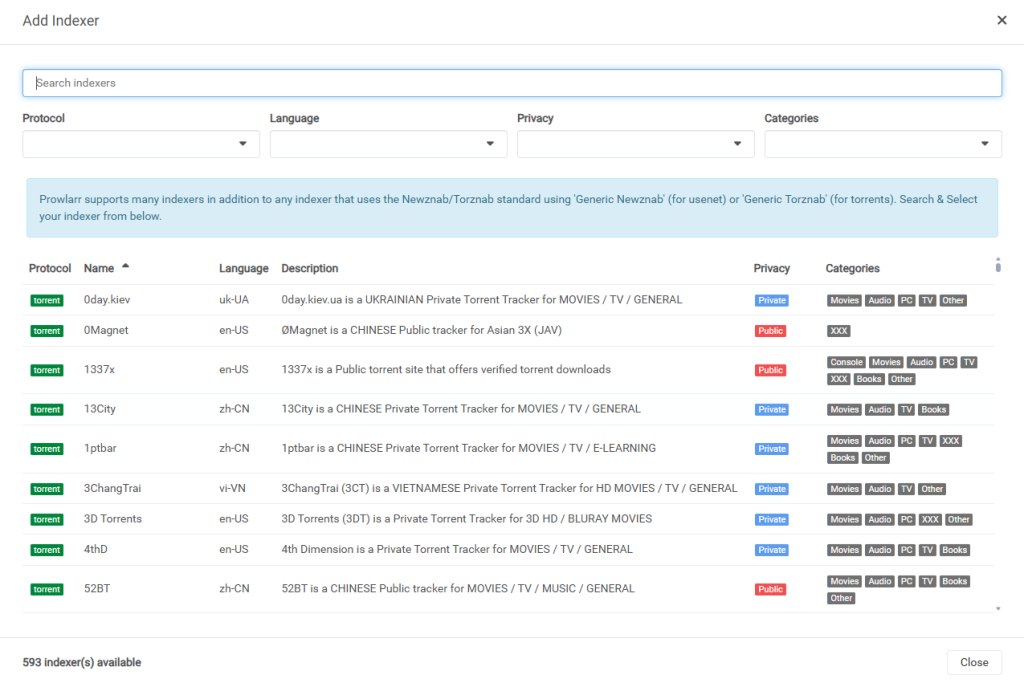
step 11
add a new indexer
step 12
system added
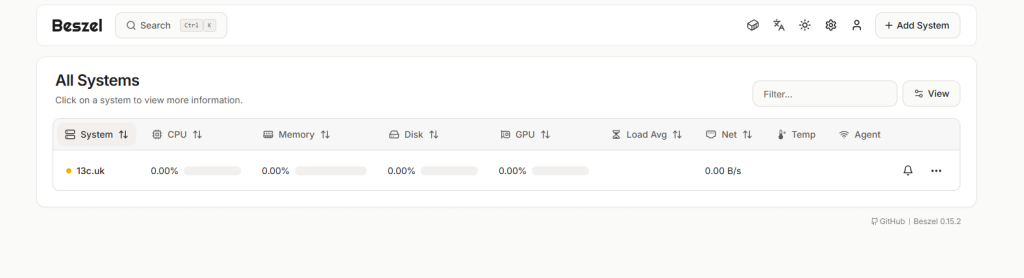
step 13
we need to add the key for this to work. as you can see orange status
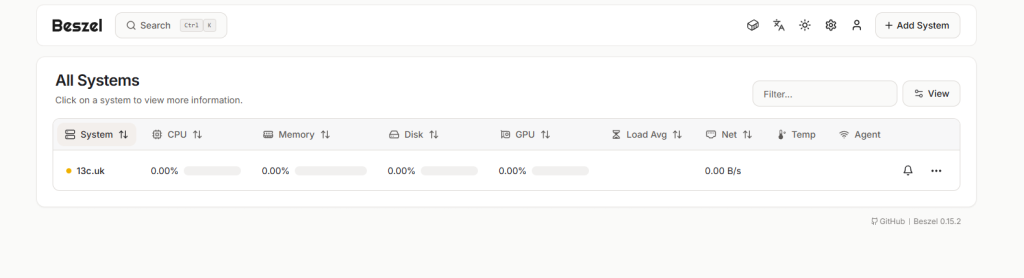
step 14
go back to composer. and add your key to the composer. like below. i have left some out for this example. after you have done this restart the docker for BEZSEL
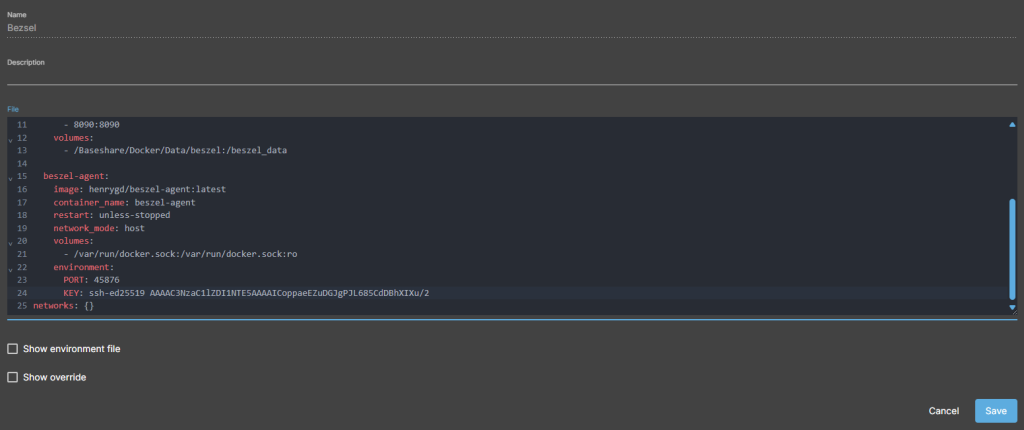
step 15
after restart the docker should be all green

step 16
Share: https://13ear.uk/g8qj