



sers to OpenMediaVault on your Raspberry Pi OMV

In this section, we are going to quickly run you through the process of adding new users within the OMV web interface. You will be able to use these users to access the shared folders you create on your Raspberry Pi with OpenMediaVault.
Step 1
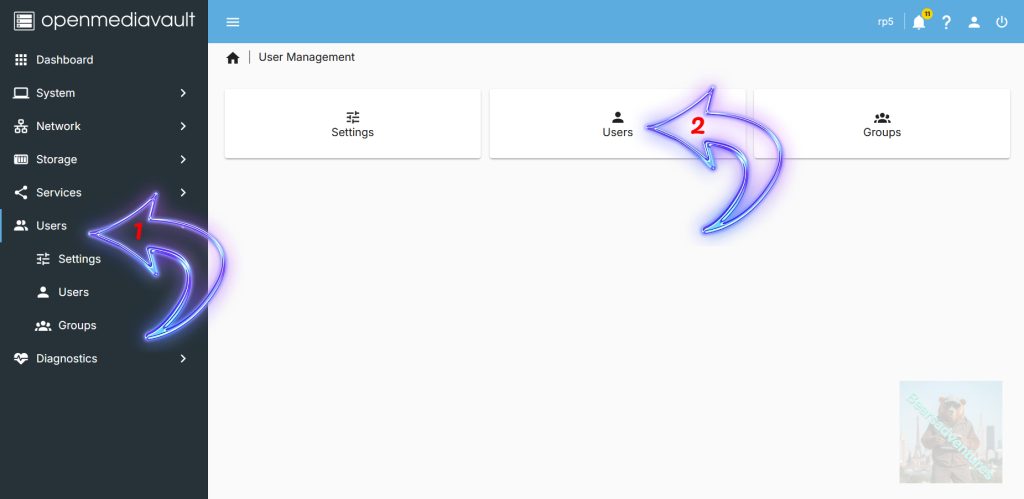
In the sidebar, you will want to click the “Users” option in the sidebar (Arrow with 1 inside).
Next, you will want to click the “Users” option on the “User Management” page (Arrow with 2 inside).
Step 2
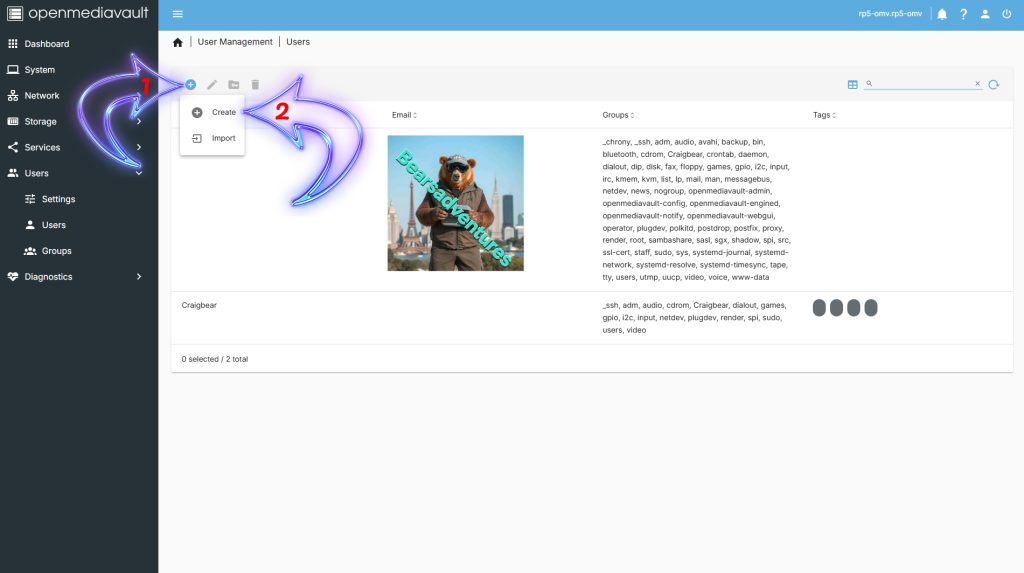
On this page, you will see a list of users that are already available to be used with the shared folders you created using OpenMediaVault. As this is a fresh installation you will only see your main user here. In our case this is the “pi” user.
To begin creating a new user on our Raspberry Pi using OpenMediaVault click the plus symbol button (Arrow with 1 inside) and then click the “Create” option (Arrow with 2 inside).
Step 3
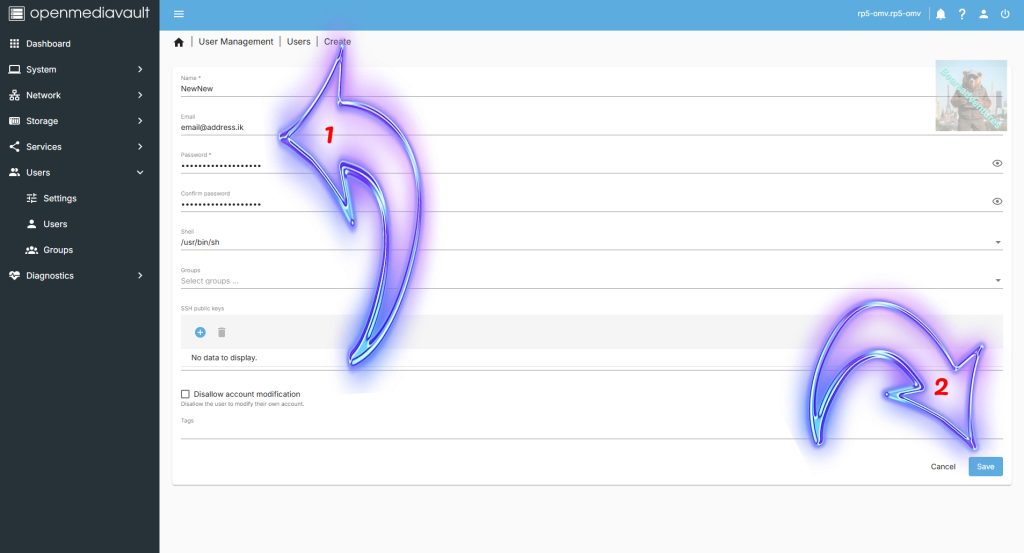
Within this dialog, you can specify the various details for your new user, such as their username and password (Arrow with 1 inside).
Once you have entered all the new user’s details, you need to click the “Save” button (Arrow with 1 inside).
Step 4
To confirm the addition of this new user to your system, click the tick icon in the yellow message box.
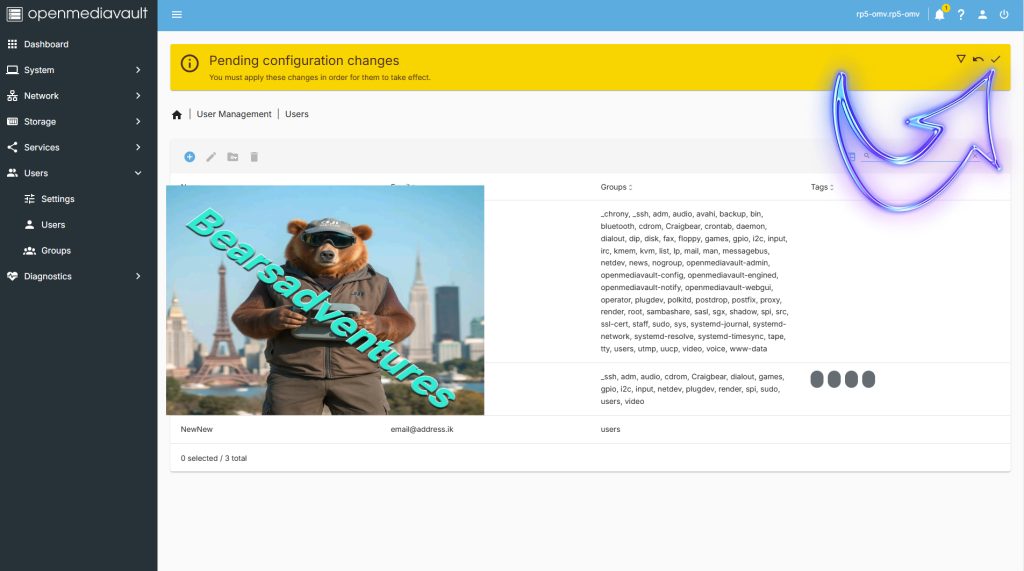
Step 5
Now confirm the addition of this new user to your OpenMediaVault installation by clicking the “Yes” button.
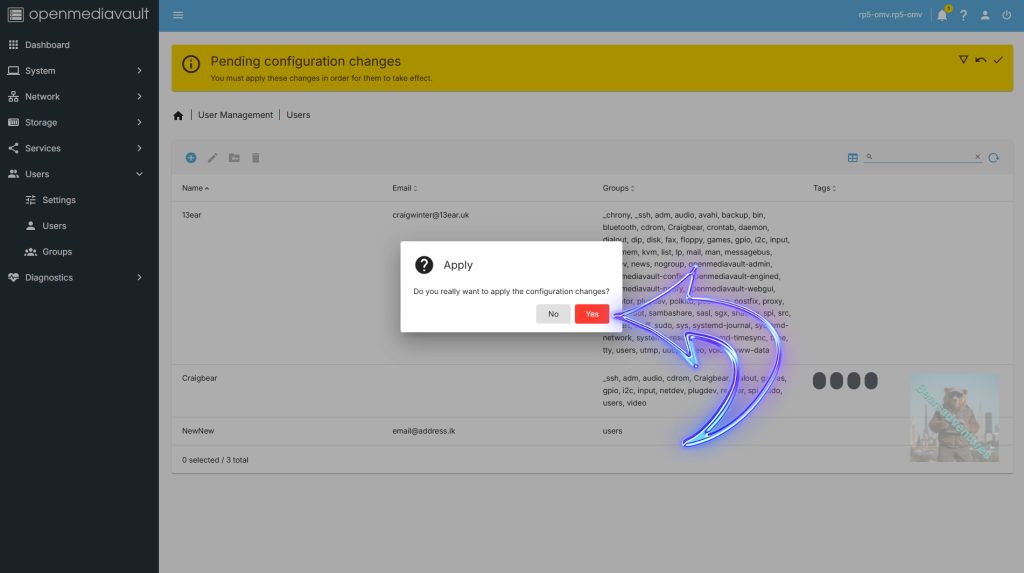
Step 6
If everything has worked correctly, you should now see your new user listed here.
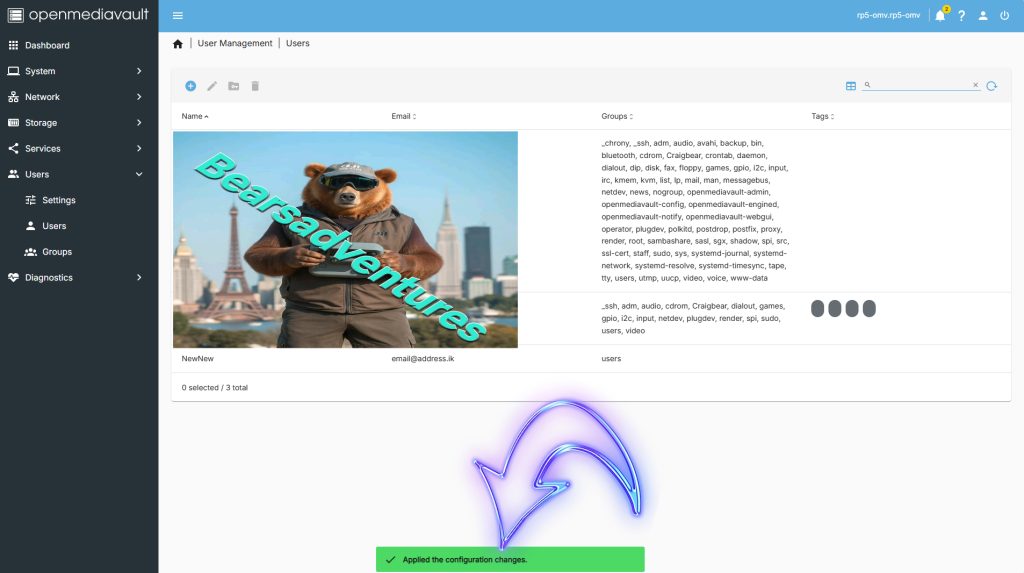
Step 7
Select the new use like i have and press the folder with a key on it(Arrow pointing at )
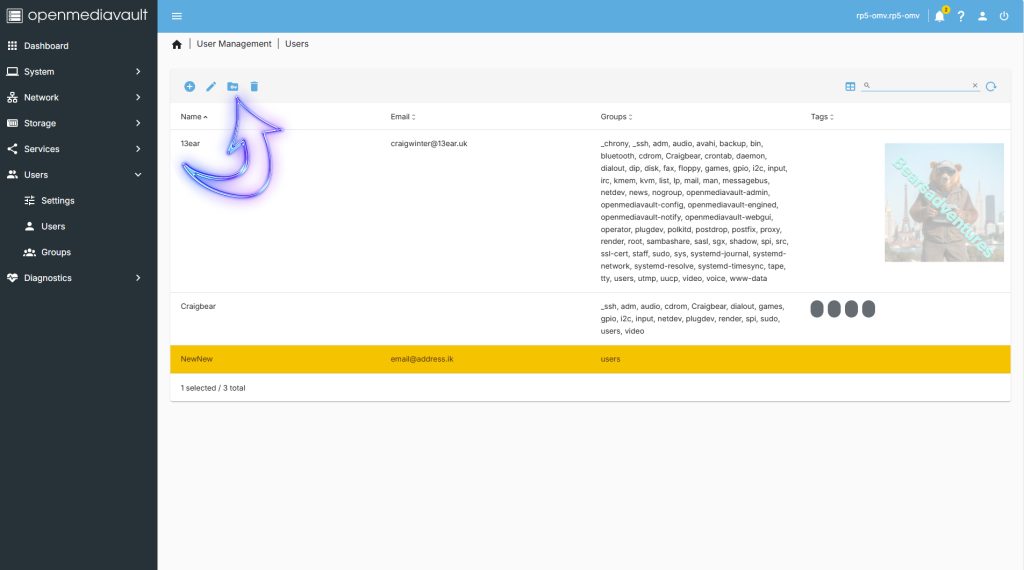
Step 8
Now Select what permissions you want to give the new user. highlighted in yellow.
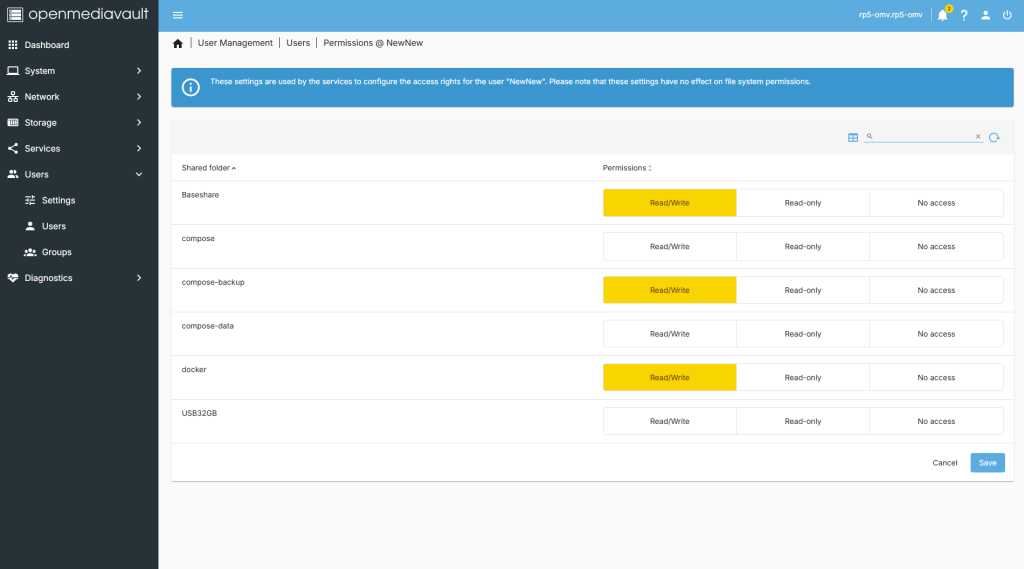
Step 9
After pressing save you will need to action pending Configuration. Tick in the Yellow Box.
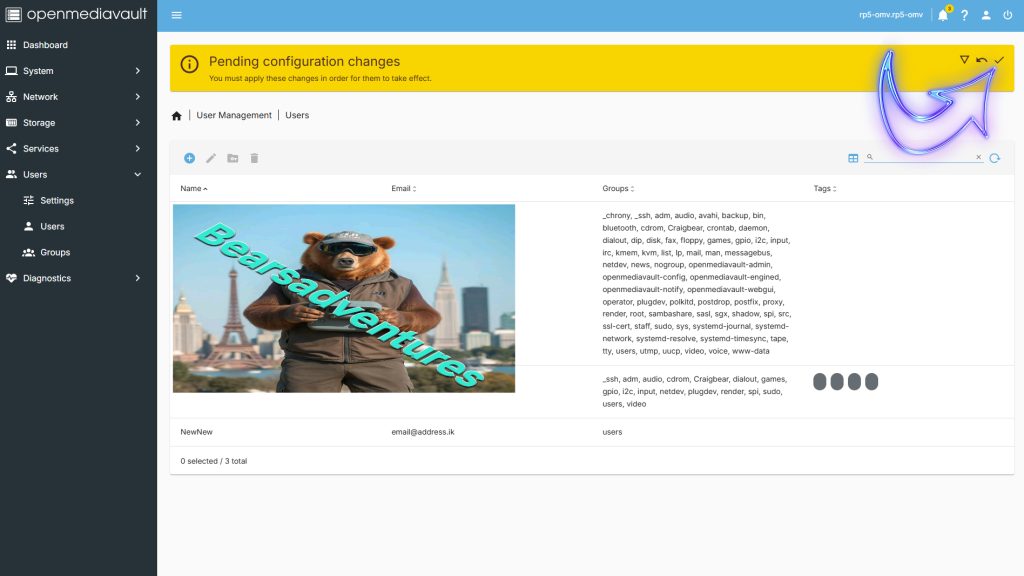
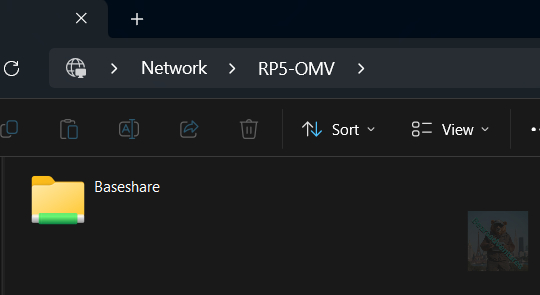
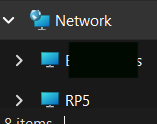
now that we have setup share and user lets see if its working head over to network on your computer windows in my case
Step 10
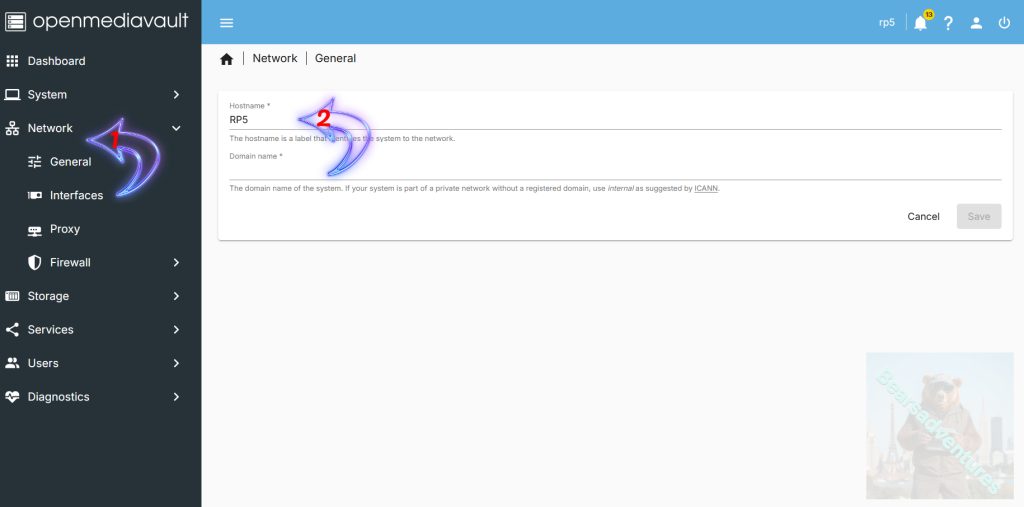
I Never did change the Server Name. time to change it.
Select Networkc(Arrow with 1 inside) down the left hand side, This will Display the Host Name(Arrow with 2 inside)
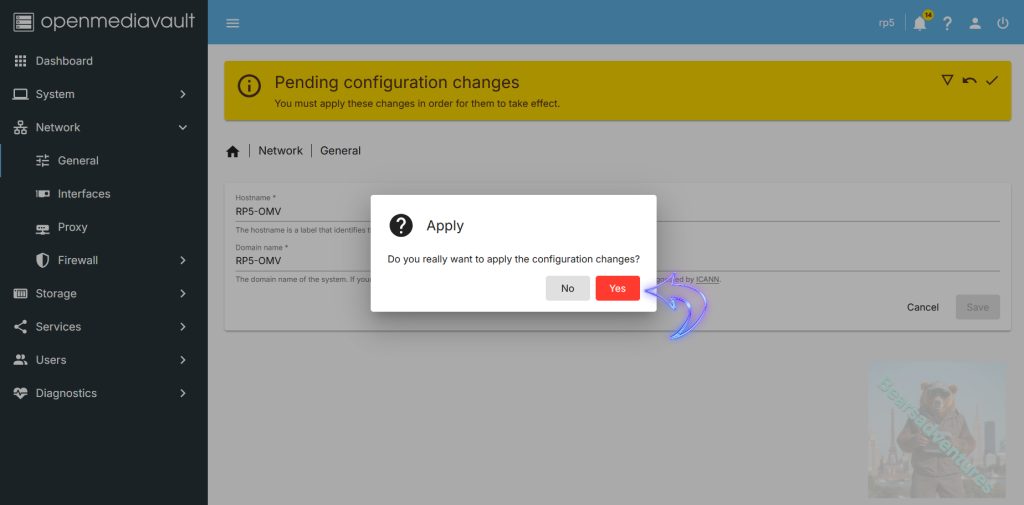
Apply By Selecting Yes
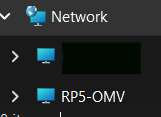
Now login to the Server using your using information on the windows PC.
You should have something that looks like below.