



PhotoPrism® is an AI-Powered Photos App for the Decentralized Web. It makes use of the latest technologies to tag and find pictures automatically without getting in your way. You can run it at home, on a private server, or in the cloud. I Have Found that Photoprism has not got a multiuser account feature.
Step 1
Install container manager, If you have already installed the manager jump to step 3
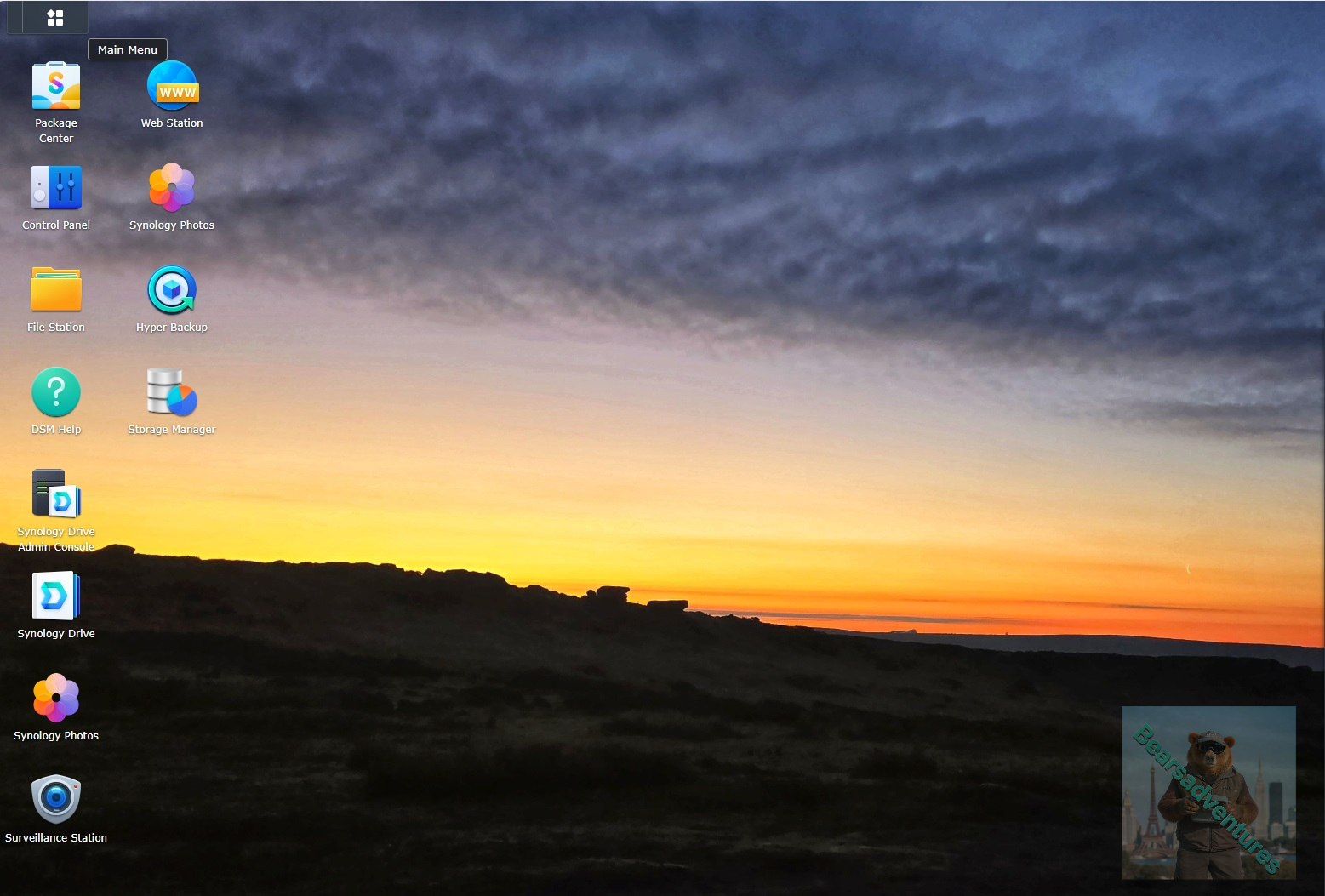
Select Main menu or the Package Center shortcut
Step 2
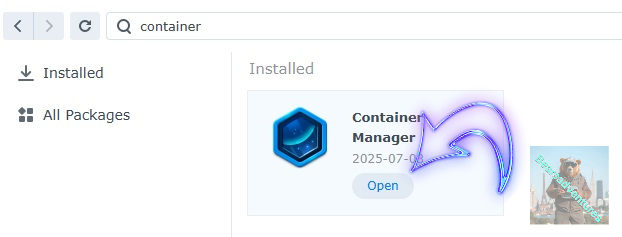
Type in Container in the Search bar and Press enter on your keyboard. Then you will See Container manager like below. in my case i have installed the Container manager already. Select install, wait a few second and then select open.
Step 3
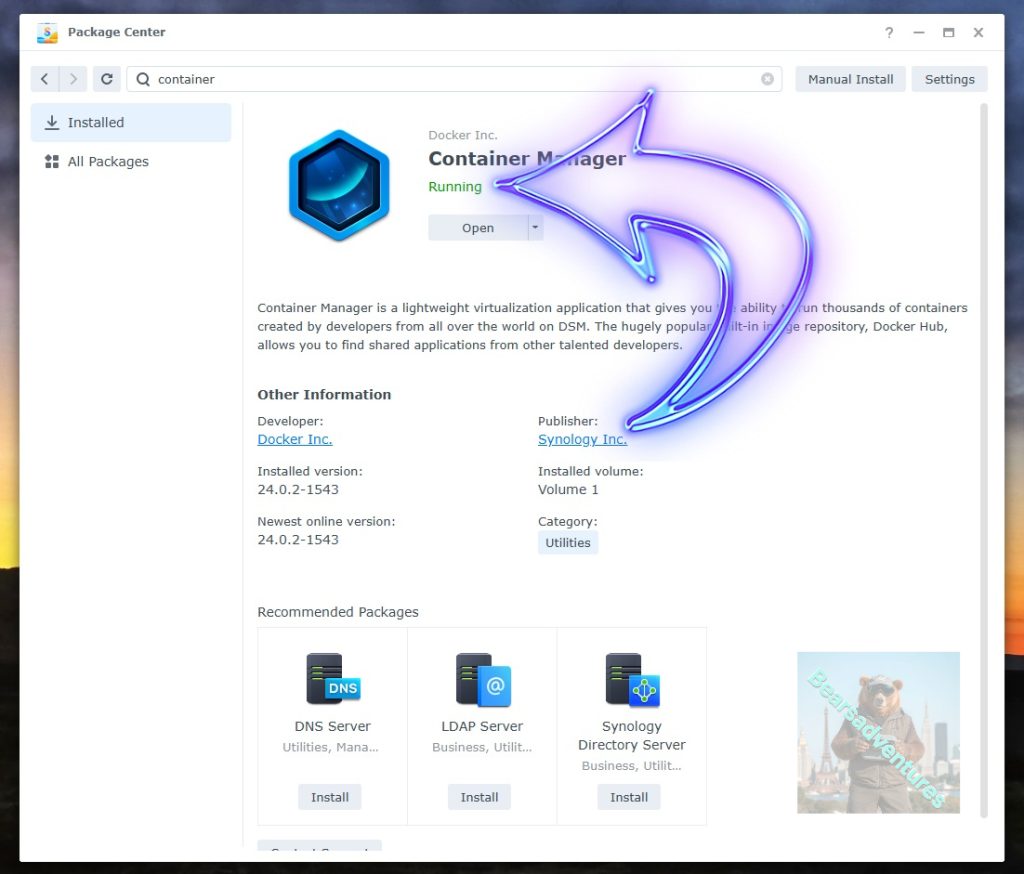
Now you have selected open you should see a screen like below and The Manager will say Running in green. Select open and move on to the next step.
Step 4
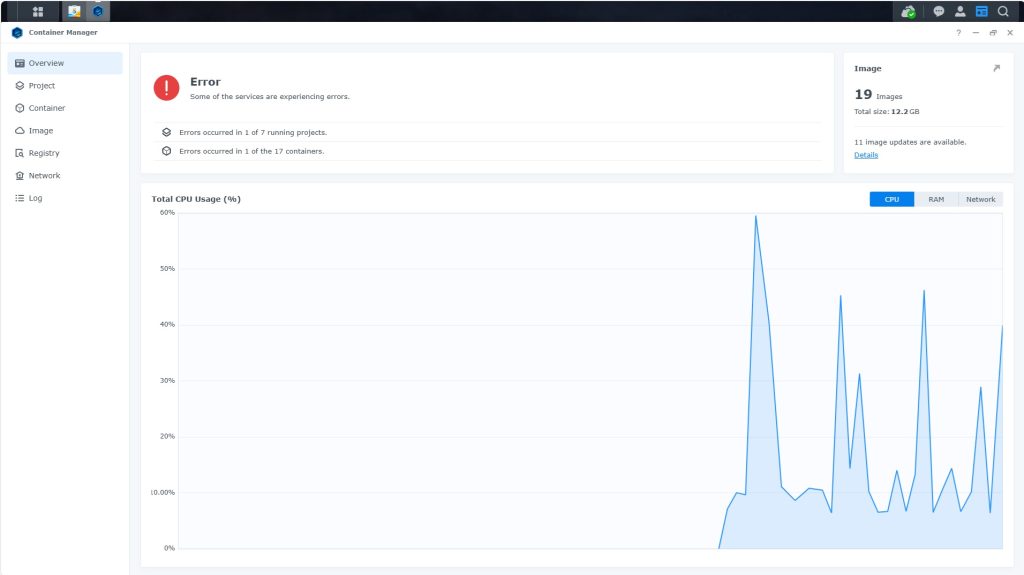
Now you will be Presented with the below. This is the Container manager over view of all your Containers and what’s happening in real time.
Step 5
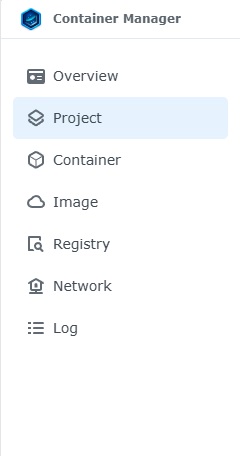
Now We need to Create a Project for PhotoPrism.
This project will do a number of things. download the image and setup the Project to Run all in one go.
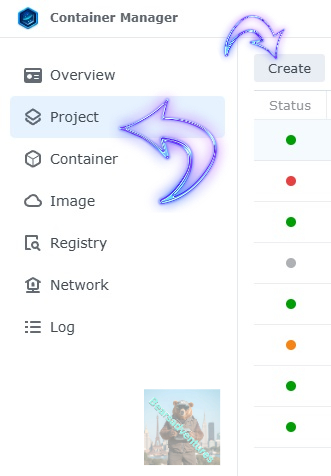
Select project from the menu down the side and then select Create button
Step 6
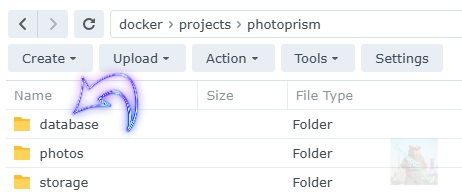
before we go any thurther we need to ensure we have our folders setup ready for the project.
I have a main folder on the Synology system just for docker projects. create the following folders using filestation in the photoprism folder
- Database
- Photos
- Storage
Step 7
now we have created the folders needed for the project we can go ahead and create the project in Container manager
Give the project a name, change source to Create docker-compose.yml and add the path. Project name is all lower case.
See below for before and after the code you will need is below also.
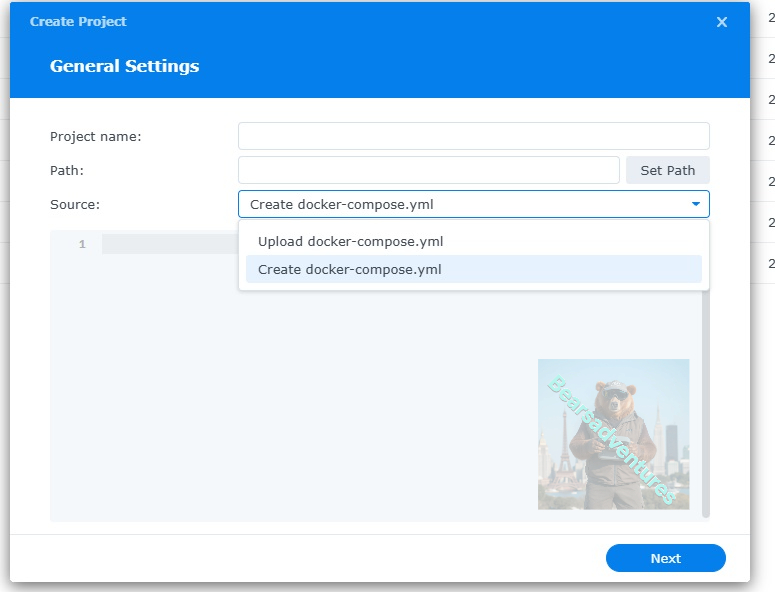
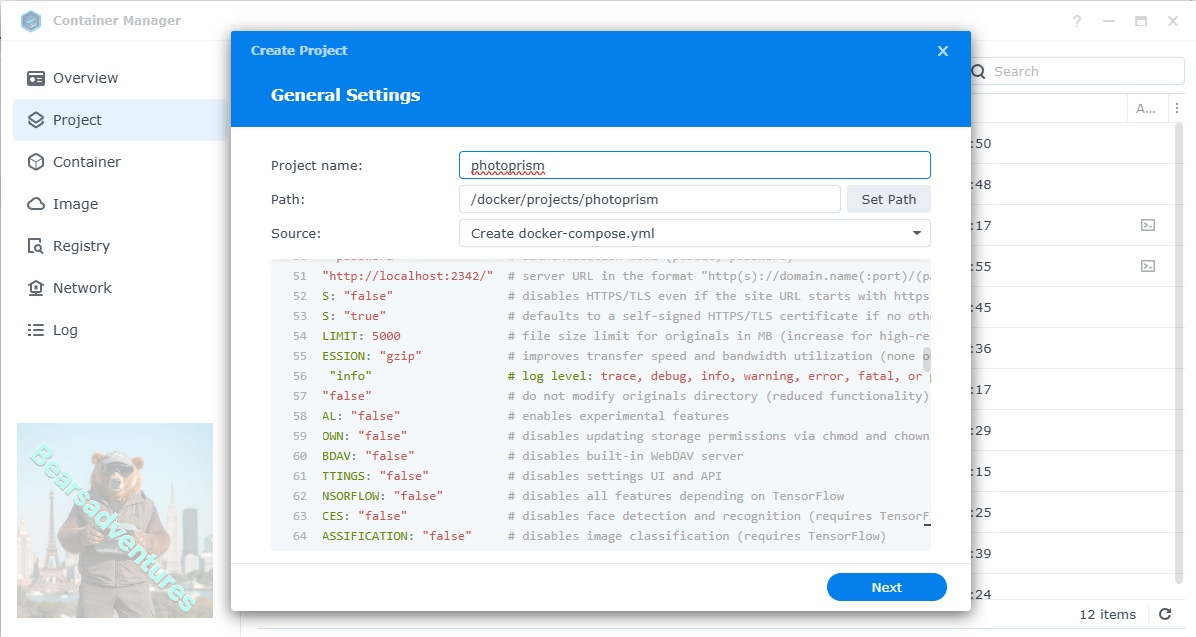
the volume path needs tobe exact or the project will return a fail.
services:
  photoprism:
   stop_grace_period: 10s
    depends_on:
      - mariadb
    security_opt:
      - seccomp:unconfined
      - apparmor:unconfined
ports:
      - "2342:2342"

    environment:
      PHOTOPRISM_ADMIN_USER: "User"                 # admin login username
      PHOTOPRISM_ADMIN_PASSWORD: "password"          # initial admin password (8-72 characters)
      PHOTOPRISM_AUTH_MODE: "password"               # authentication mode (public, password)
      PHOTOPRISM_SITE_URL: "http://localhost:2342/"  # server URL in the format "http(s)://domain.name(:port)/(path)"
      PHOTOPRISM_DISABLE_TLS: "false"                # disables HTTPS/TLS even if the site URL starts with https:// and a certificate is available
      PHOTOPRISM_DEFAULT_TLS: "true"                 # defaults to a self-signed HTTPS/TLS certificate if no other certificate is available
      PHOTOPRISM_ORIGINALS_LIMIT: 5000               # file size limit for originals in MB (increase for high-res video)
      PHOTOPRISM_HTTP_COMPRESSION: "gzip"            # improves transfer speed and bandwidth utilization (none or gzip)
      PHOTOPRISM_LOG_LEVEL: "info"                   # log level: trace, debug, info, warning, error, fatal, or panic
      PHOTOPRISM_READONLY: "false"                   # do not modify originals directory (reduced functionality)
      PHOTOPRISM_EXPERIMENTAL: "false"               # enables experimental features
      PHOTOPRISM_DISABLE_CHOWN: "false"              # disables updating storage permissions via chmod and chown on startup
      PHOTOPRISM_DISABLE_WEBDAV: "false"             # disables built-in WebDAV server
      PHOTOPRISM_DISABLE_SETTINGS: "false"           # disables settings UI and API
      PHOTOPRISM_DISABLE_TENSORFLOW: "false"         # disables all features depending on TensorFlow
      PHOTOPRISM_DISABLE_FACES: "false"              # disables face detection and recognition (requires TensorFlow)
      PHOTOPRISM_DISABLE_CLASSIFICATION: "false"     # disables image classification (requires TensorFlow)
      PHOTOPRISM_DISABLE_VECTORS: "false"            # disables vector graphics support
      PHOTOPRISM_DISABLE_RAW: "false"                # disables indexing and conversion of RAW images
      PHOTOPRISM_RAW_PRESETS: "false"                # enables applying user presets when converting RAW images (reduces performance)
      PHOTOPRISM_SIDECAR_YAML: "true"                # creates YAML sidecar files to back up picture metadata
      PHOTOPRISM_BACKUP_ALBUMS: "true"               # creates YAML files to back up album metadata
      PHOTOPRISM_BACKUP_DATABASE: "true"             # creates regular backups based on the configured schedule
      PHOTOPRISM_BACKUP_SCHEDULE: "daily"            # backup SCHEDULE in cron format (e.g. "0 12 * * *" for daily at noon) or at a random time (daily, weekly)
      PHOTOPRISM_INDEX_SCHEDULE: ""                  # indexing SCHEDULE in cron format (e.g. "@every 3h" for every 3 hours; "" to disable)
      PHOTOPRISM_AUTO_INDEX: 300                     # delay before automatically indexing files in SECONDS when uploading via WebDAV (-1 to disable)
      PHOTOPRISM_AUTO_IMPORT: -1                     # delay before automatically importing files in SECONDS when uploading via WebDAV (-1 to disable)
      PHOTOPRISM_DETECT_NSFW: "false"                # automatically flags photos as private that MAY be offensive (requires TensorFlow)
      PHOTOPRISM_UPLOAD_NSFW: "true"                 # allows uploads that MAY be offensive (no effect without TensorFlow)
      # PHOTOPRISM_DATABASE_DRIVER: "sqlite"         # SQLite is an embedded database that does not require a separate database server
      PHOTOPRISM_DATABASE_DRIVER: "mysql"            # MariaDB 10.5.12+ (MySQL successor) offers significantly better performance compared to SQLite
      PHOTOPRISM_DATABASE_SERVER: "mariadb:3306"     # MariaDB database server (hostname:port)
      PHOTOPRISM_DATABASE_NAME: "photoprism"         # MariaDB database schema name
      PHOTOPRISM_DATABASE_USER: "photoprism"         # MariaDB database user name
      PHOTOPRISM_DATABASE_PASSWORD: "password"       # MariaDB database user password
      PHOTOPRISM_SITE_CAPTION: "AI-Powered Photos App"
      PHOTOPRISM_SITE_DESCRIPTION: ""                # meta site description
      PHOTOPRISM_SITE_AUTHOR: ""                     # meta site author
 volumes:
      # "/host/folder:/photoprism/folder"                # Example
      - "/volume1/docker/projects/photoprism/photos:/photoprism/originals"               # Original media files (DO NOT REMOVE)
      # - "/example/family:/photoprism/originals/family" # *Additional* media folders can be mounted like this
      # - "~/Import:/photoprism/import"                  # *Optional* base folder from which files can be imported to originals
      - "./storage:/photoprism/storage"                  # *Writable* storage folder for cache, database, and sidecar files (DO NOT REMOVE)

  image: mariadb:11
    ## If MariaDB gets stuck in a restart loop, this points to a memory or filesystem issue:
    ## https://docs.photoprism.app/getting-started/troubleshooting/#fatal-server-errors
    restart: unless-stopped
    stop_grace_period: 5s
    security_opt: # see https://github.com/MariaDB/mariadb-docker/issues/434#issuecomment-1136151239
      - seccomp:unconfined
      - apparmor:unconfined
    command: --innodb-buffer-pool-size=512M --transaction-isolation=READ-COMMITTED --character-set-server=utf8mb4 --collation-server=utf8mb4_unicode_ci --max-connections=512 --innodb-rollback-on-timeout=OFF --innodb-lock-wait-timeout=120
    ## Never store database files on an unreliable device such as a USB flash drive, an SD card, or a shared network folder:
    volumes:
      - "./database:/var/lib/mysql" # DO NOT REMOVE
    environment:
      MARIADB_AUTO_UPGRADE: "1"
      MARIADB_INITDB_SKIP_TZINFO: "1"
      MARIADB_DATABASE: "photoprism"
      MARIADB_USER: "photoprism"
      MARIADB_PASSWORD: "PASSWORD"
      MARIADB_ROOT_PASSWORD: "PASSWORD"

watchtower:
    restart: unless-stopped
    image: containrrr/watchtower
    profiles: ["update"]
    environment:
      WATCHTOWER_CLEANUP: "true"
      WATCHTOWER_POLL_INTERVAL: 7200 # checks for updates every two hours
    volumes:
      - "/var/run/docker.sock:/var/run/docker.sock"
      - "~/.docker/config.json:/config.json" # optional, for authentication if you have a Docker Hub account
press next when you are happy with the code, Remember to change the users and passwords accordingly.
Step 8
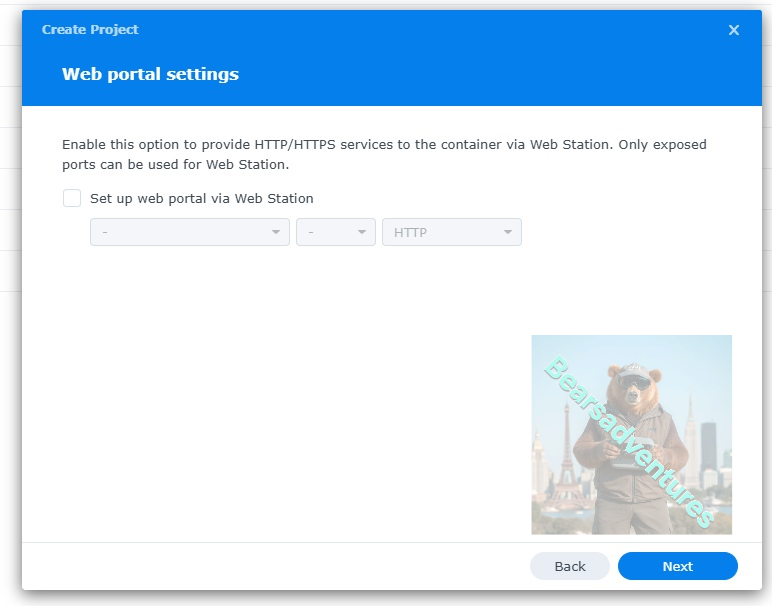
setup a web portal if you like . I would not advise it. and press next
Step 9
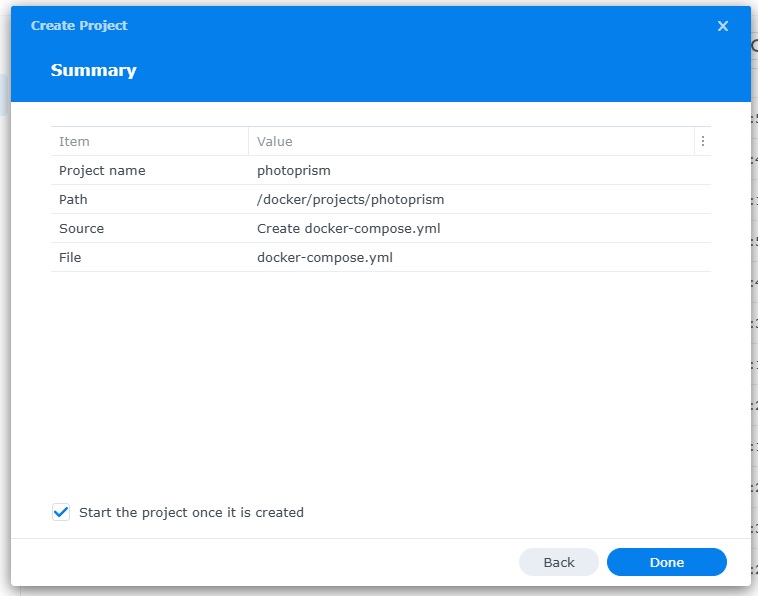
Thats it for this section, time to create the project.
Select Done
Step 10
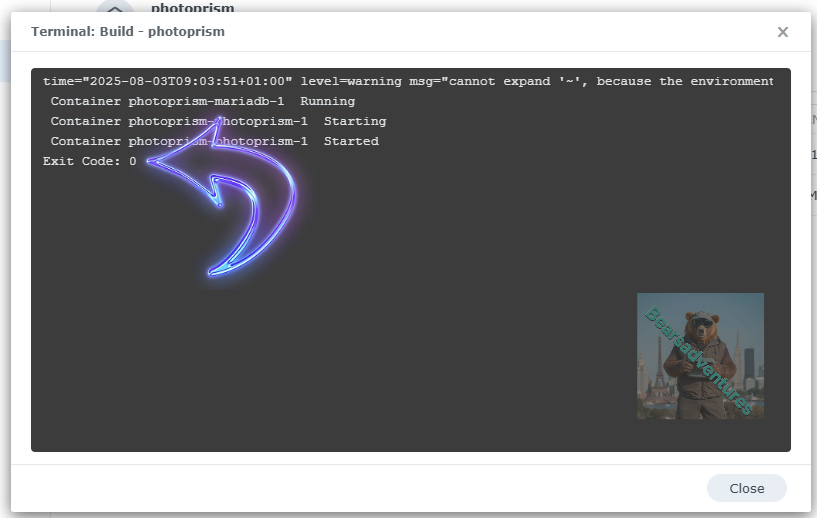
If you have a Exit Code of 0 like i have below then you are done. project created. if you have a Exit code 1 you have a error and need to visit the code again and trouble shoot.
Step 11
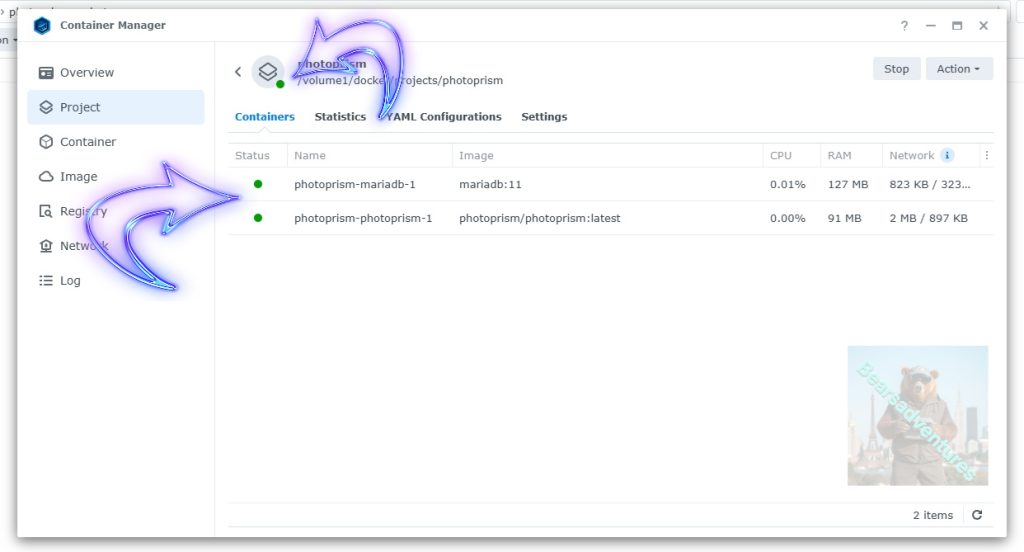
One last thing you can check to see if the docker is Green and showing no Errors, todo that just goto Container manager and on the left select Projects and photoprism will be there Status Colum should be green if not you will need to trouble shoot.
Step 12
now you can access you photoprism using your broswer.
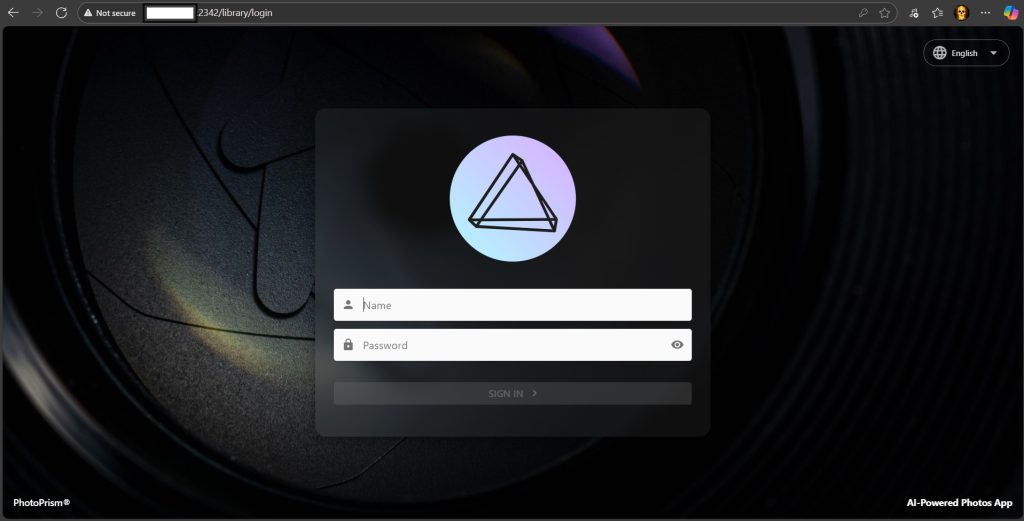
Type into your explorer your Docker IP Number and port number we setup. in my case 111.111.0.11:2342
Enter you user and password that you used in the setup process in docker
If you have added your own folders in volumes section remember to index the folders
volumes:
      # "/host/folder:/photoprism/folder"                # Example
      - "/volume1/docker/projects/photoprism/photos:/photoprism/originals"               # Original media files (DO NOT REMOVE)
      - "/volume1/photo:/photoprism/originals/photoworld" # *photoworld all my stuff     # this is the default folder in DSM
To index new folders or even do a full index select Library under the colum on the left hand side and select Start. this will collect all the information of your pictures and import it into Photoprism
