qBittorrent is a well established open-source BitTorrent client. qBittorrent features a light footprint, whilst providing all the features you may need. It uses the high-tech libtorrent-rasterbar library, which means greater download and upload speed, as well as excellent support of the latest features in the BitTorrent protocol.
Step 1
Install container manager, If you have already installed the manager jump to step 3
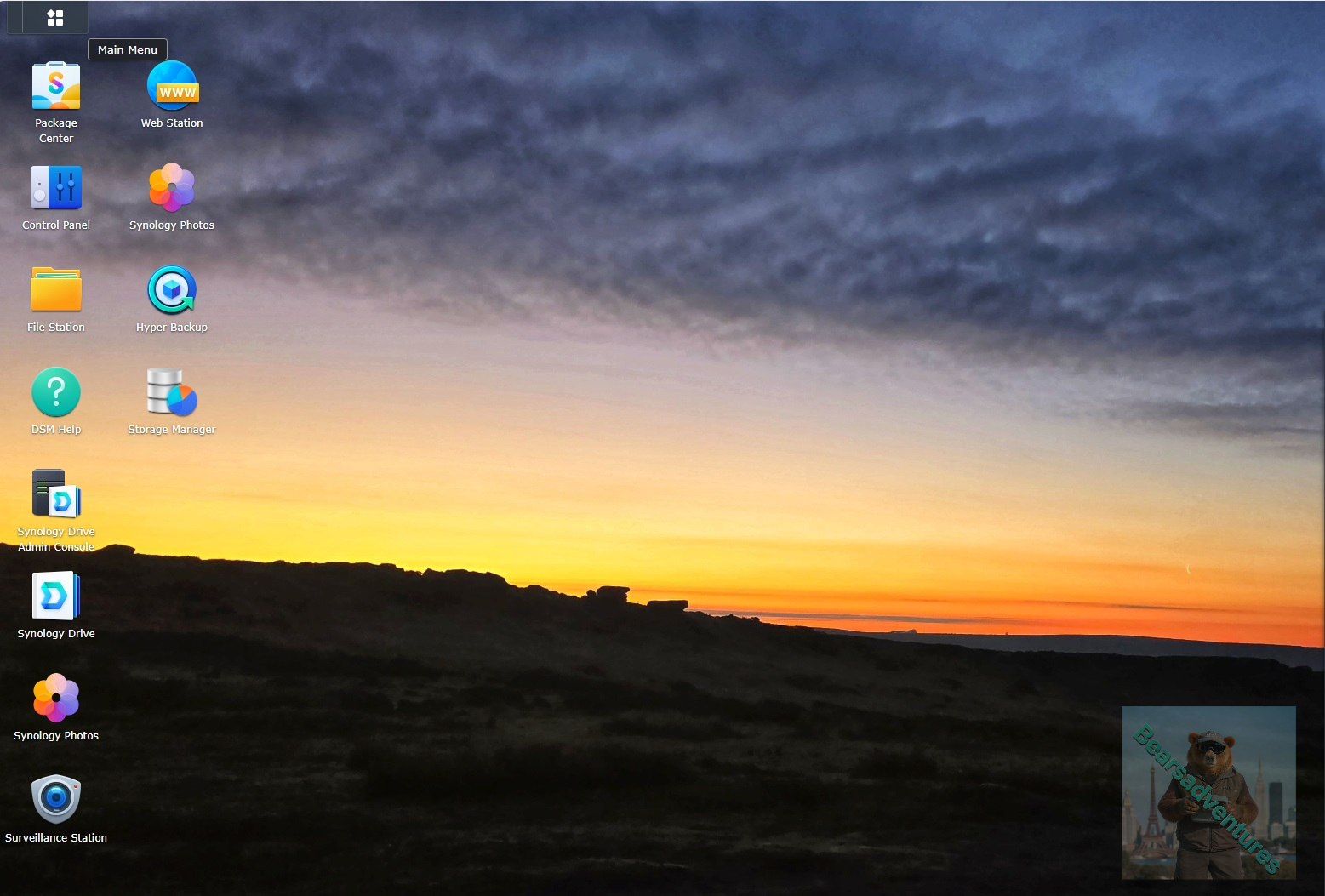
Select Main menu or the Package Center shortcut
Step 2
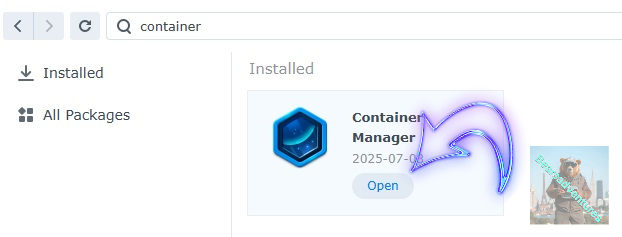
Type in Container in the Search bar and Press enter on your keyboard. Then you will See Container manager like below. in my case i have installed the Container manager already. Select install, wait a few second and then select open.
Step 3
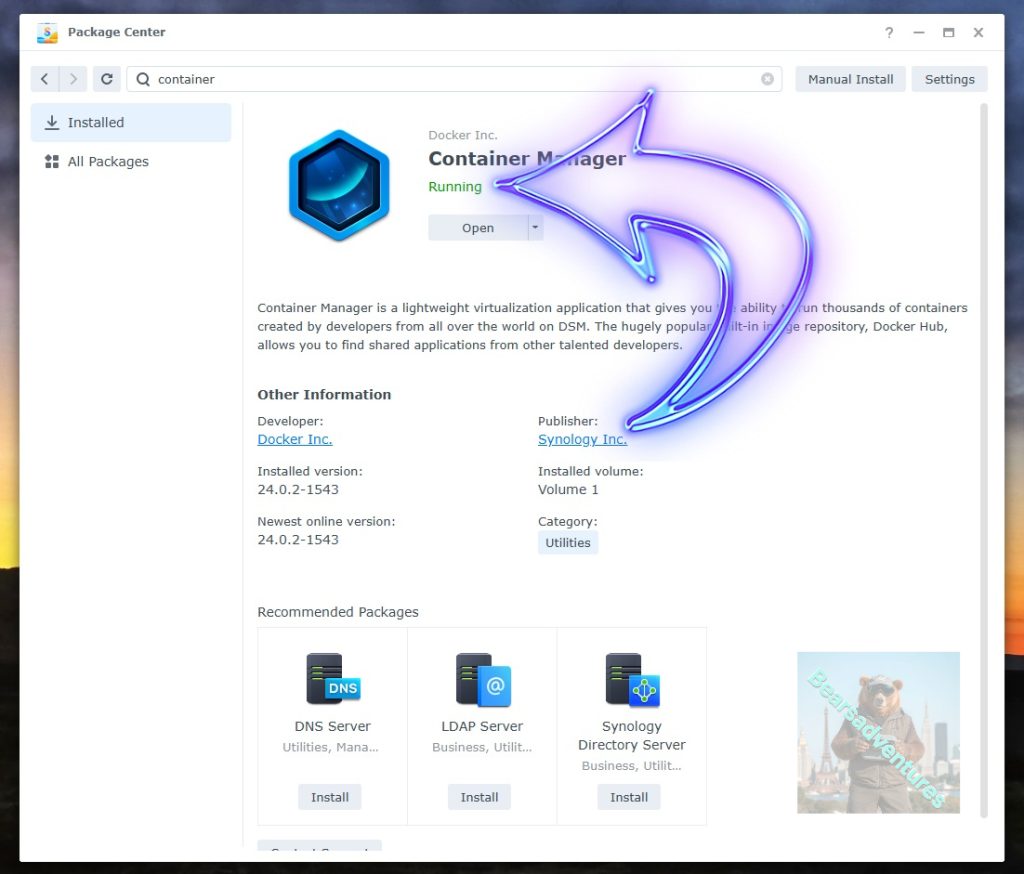
Now you have selected open you should see a screen like below and The Manager will say Running in green. Select open and move on to the next step.
Step 4
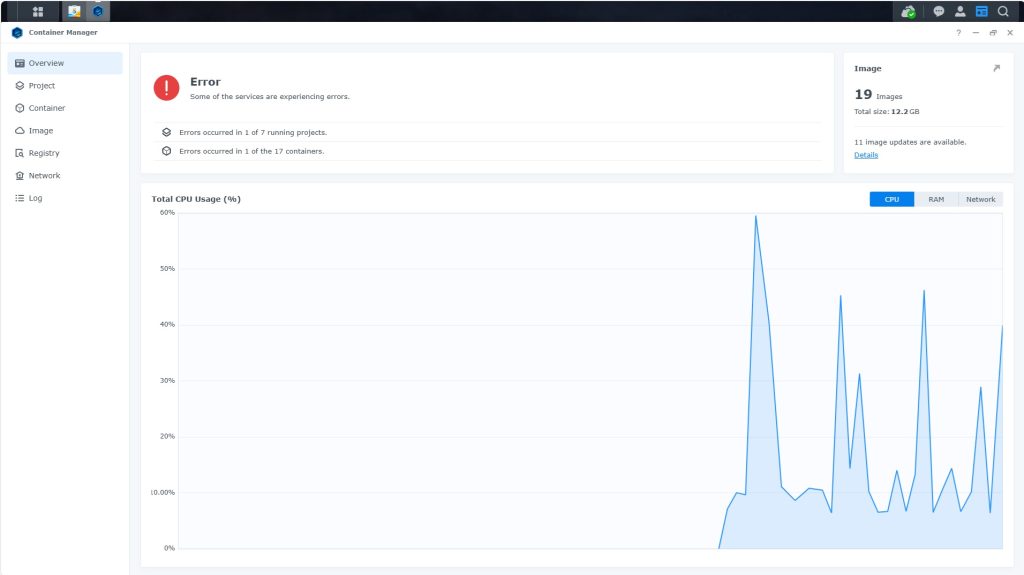
Now you will be Presented with the below. This is the Container manager over view of all your Containers and what’s happening in real time.
Step 5
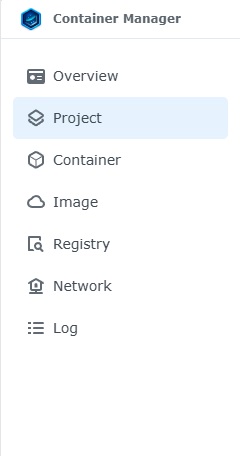
Now We need to Create a Project for qBittorrent.
This project will do a number of things. download the image and setup the Project to Run all in one go.
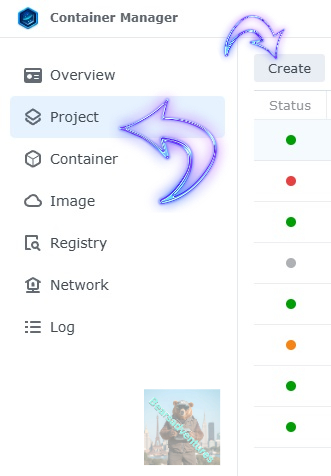
Select project from the menu down the side and then select Create button
Step 6
before we go any thurther we need to ensure we have our folders setup ready for the project.
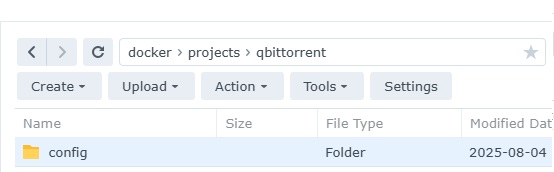
I have a main folder on the Synology system just for docker projects. create the following folders using filestation so my path for qbttorrent will look like this
also we have a download folder but i have set this to the download folder of the server /volume1/Download
- config
Step 7
now we have created the folders needed for the project we can go ahead and create the project in Container manager
Give the project a name, change source to Create docker-compose.yml and add the path. Project name is all lower case.
See below for before and after the code you will need is below also.
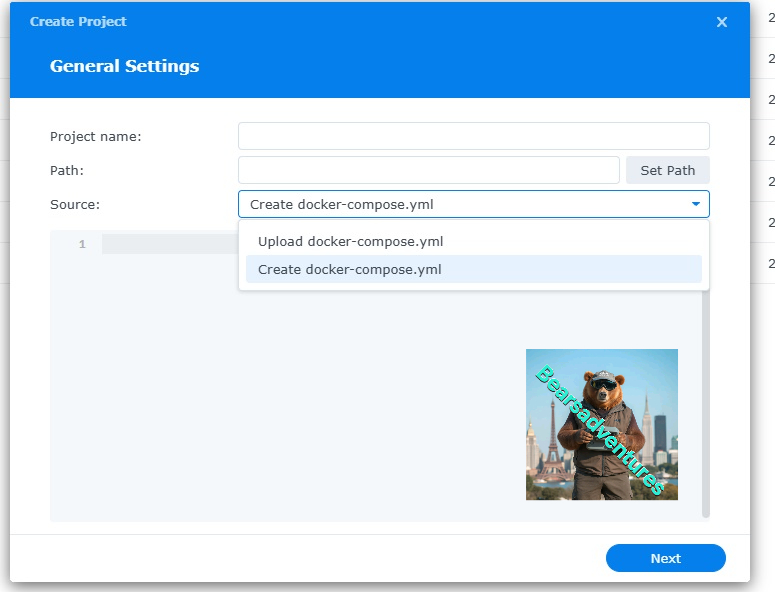
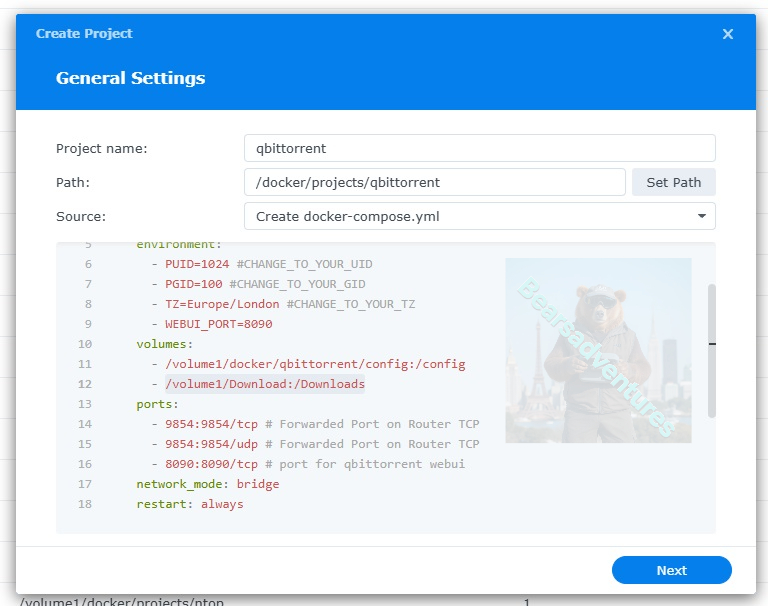
the volume path needs tobe exact or the project will return a fail. like above i missed out projects folder so i got a error and had to trouble shoot.
services:
  qbittorrent:
    image: linuxserver/qbittorrent:latest
    container_name: qbittorrent
    environment:
      - PUID=1024 #CHANGE_TO_YOUR_UID
      - PGID=100 #CHANGE_TO_YOUR_GID
      - TZ=Europe/London #CHANGE_TO_YOUR_TZ
      - WEBUI_PORT=8090
    volumes:
      - /volume1/docker/projects/qbittorrent/config:/config
      - /volume1/Download:/Downloads
    ports:
      - 9854:9854/tcp # Forwarded Port on Router TCP
      - 9854:9854/udp # Forwarded Port on Router TCP
      - 8090:8090/tcp # port for qbittorrent webui
    network_mode: bridge
    restart: always
press next when you are happy with the code
Step 8
setup a web portal if you like . I would not advise it. and press next
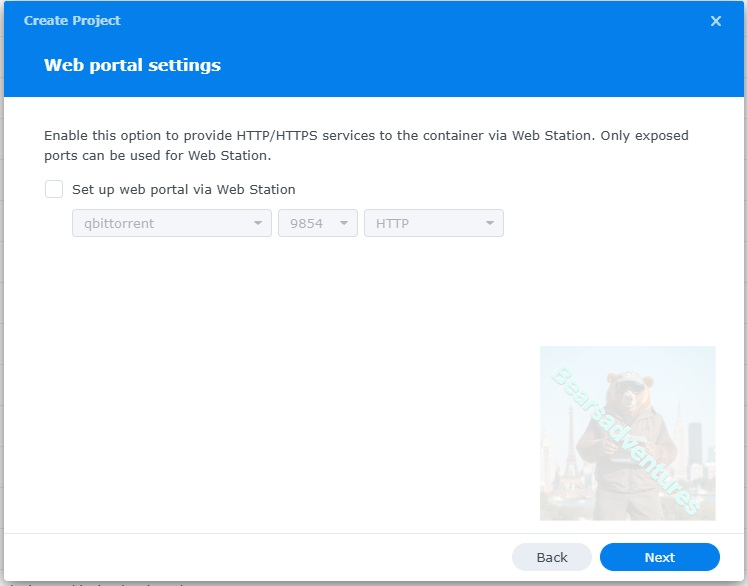
Step 9
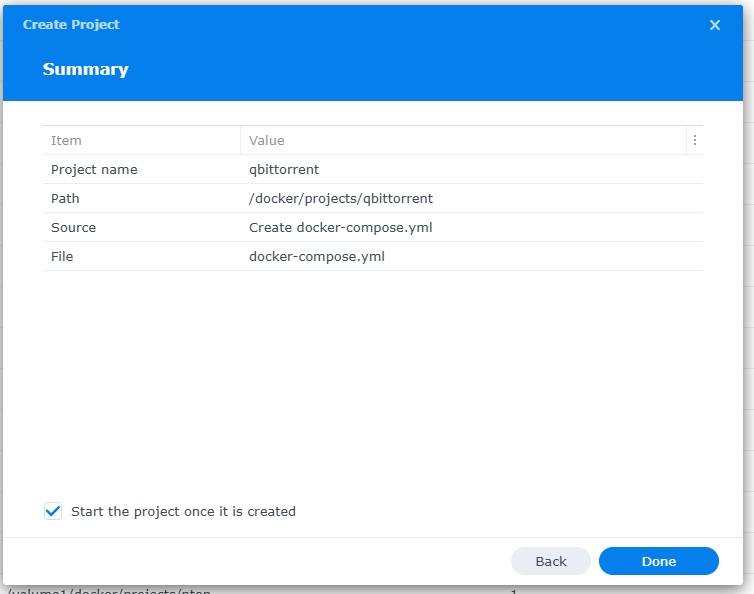
Thats it for this section, time to create the project.
Select Done
Step 10
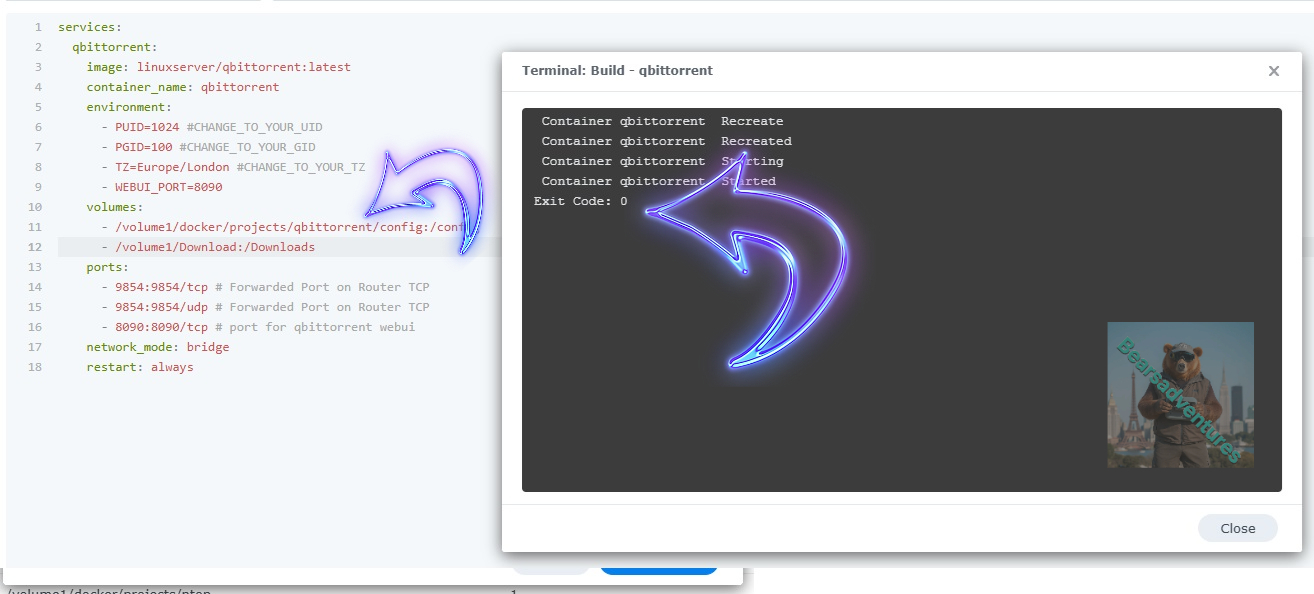
If you have a Exit Code of 0 like i have below then you are done. project created. if you have a Exit code 1 you have a error and need to visit the code again and trouble shoot.
Like i mentioned above. I Missed out Project folder, I added it in the container and it worked. see code and build complete below.
Step 11
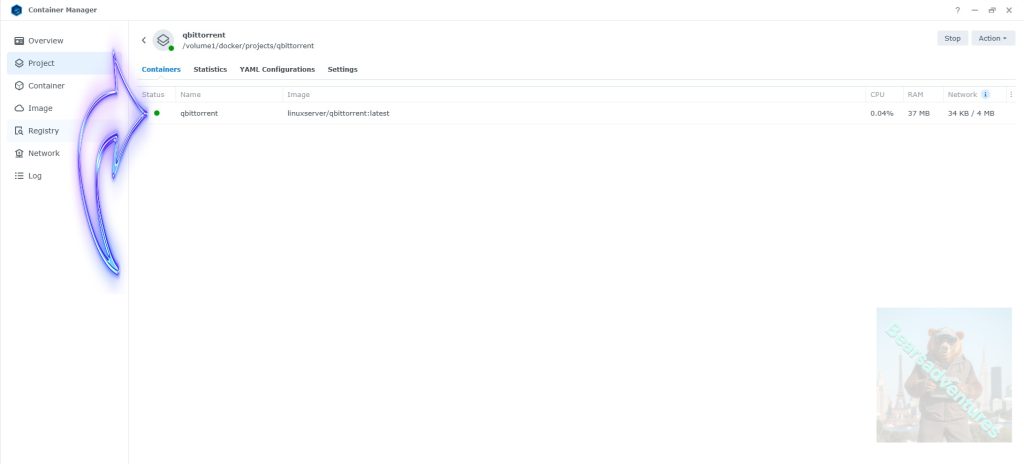
One last thing you can check to see if the docker is Green and showing no Errors, todo that just goto Container manager and on the left select Projects and ntop will be there Status Colum should be green if not you will need to trouble shoot.
Step 12
now Qbittorrent is running you are going to need your temporary password and togo this head over to the container section and select Qbittorrent

Step 13
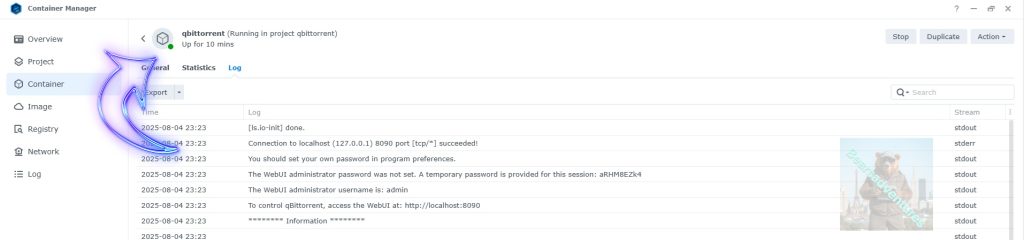
now Head over the the log Tab and on the 4th line i can see a temporary password
The WebUI administrator password was not set. A temporary password is provided for this session: aRHM8EZk4
Step 14
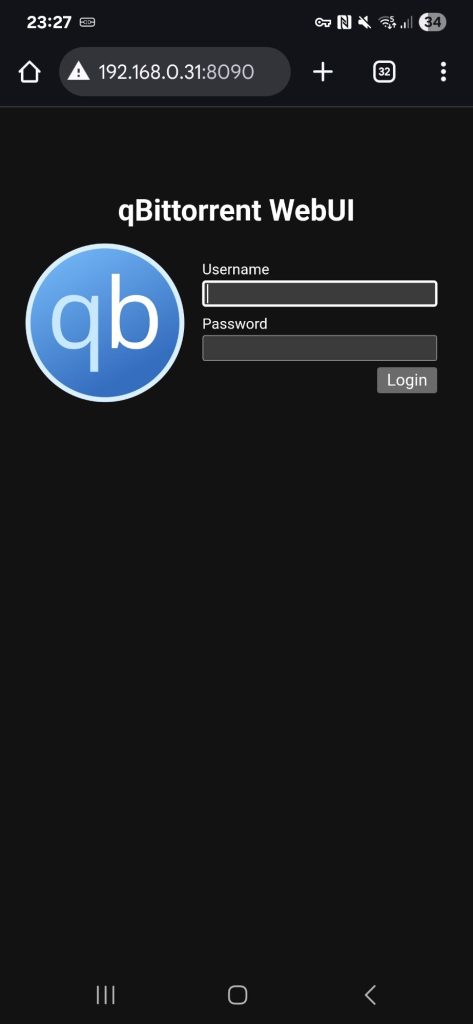
in my case these are my details
user : admin
password : aRHM8EZk4
Step 15
now you can access you qBittorrent using your browser.
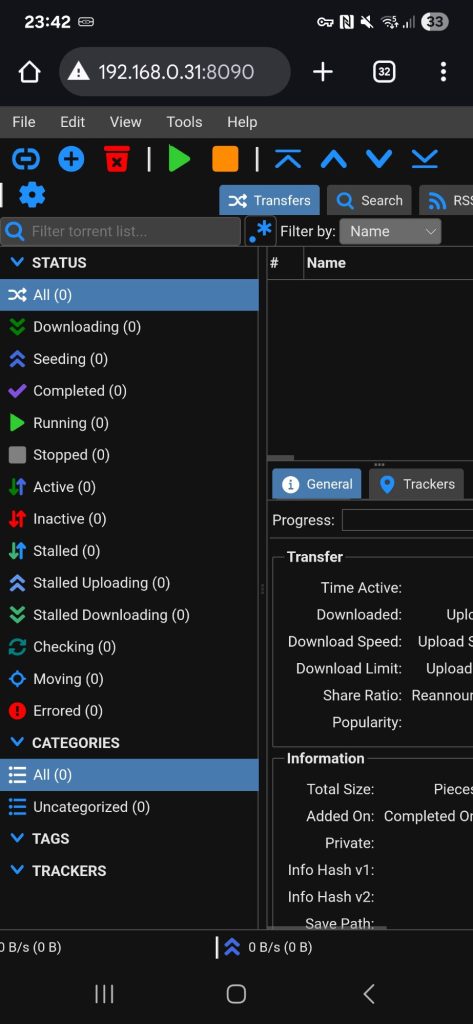
We are in.
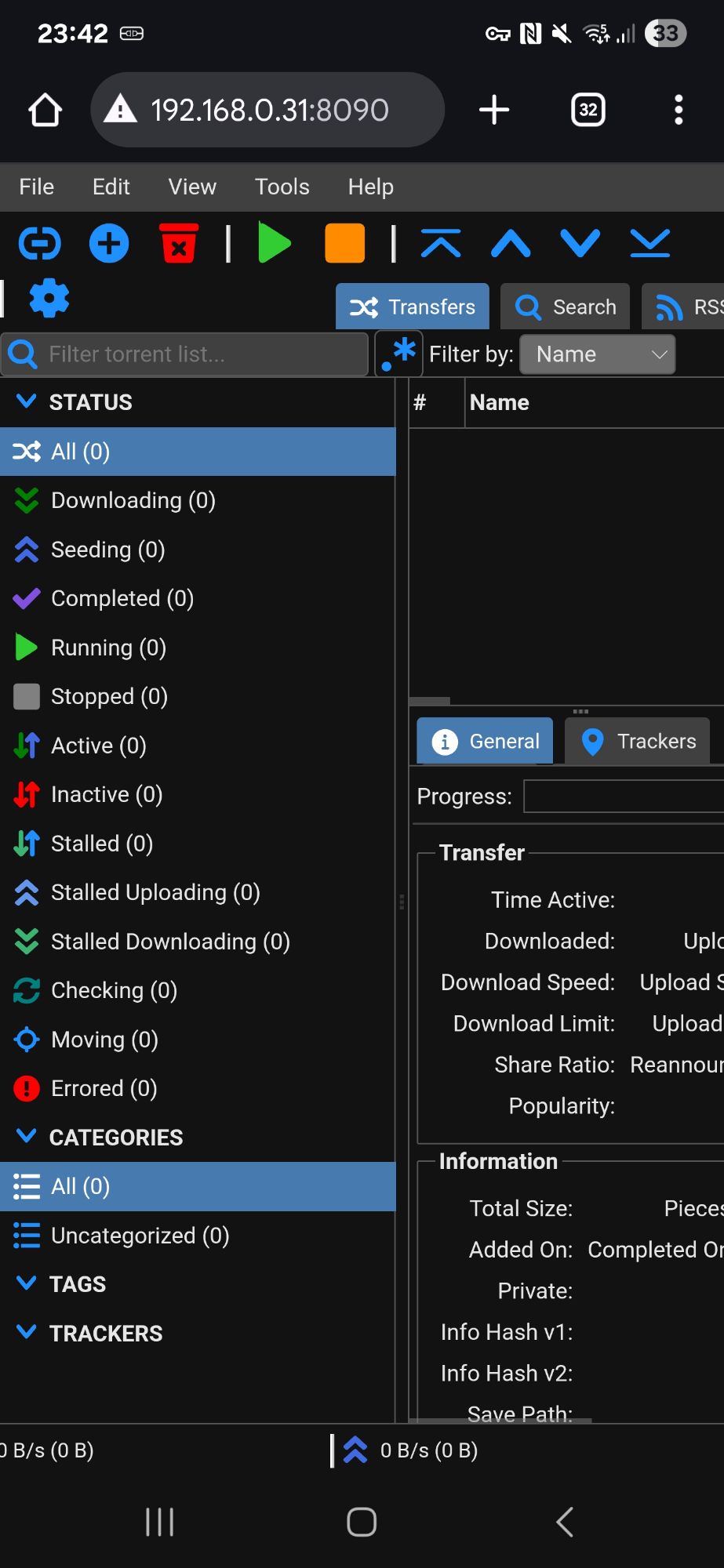
Now we are in, we need to change the password and user.
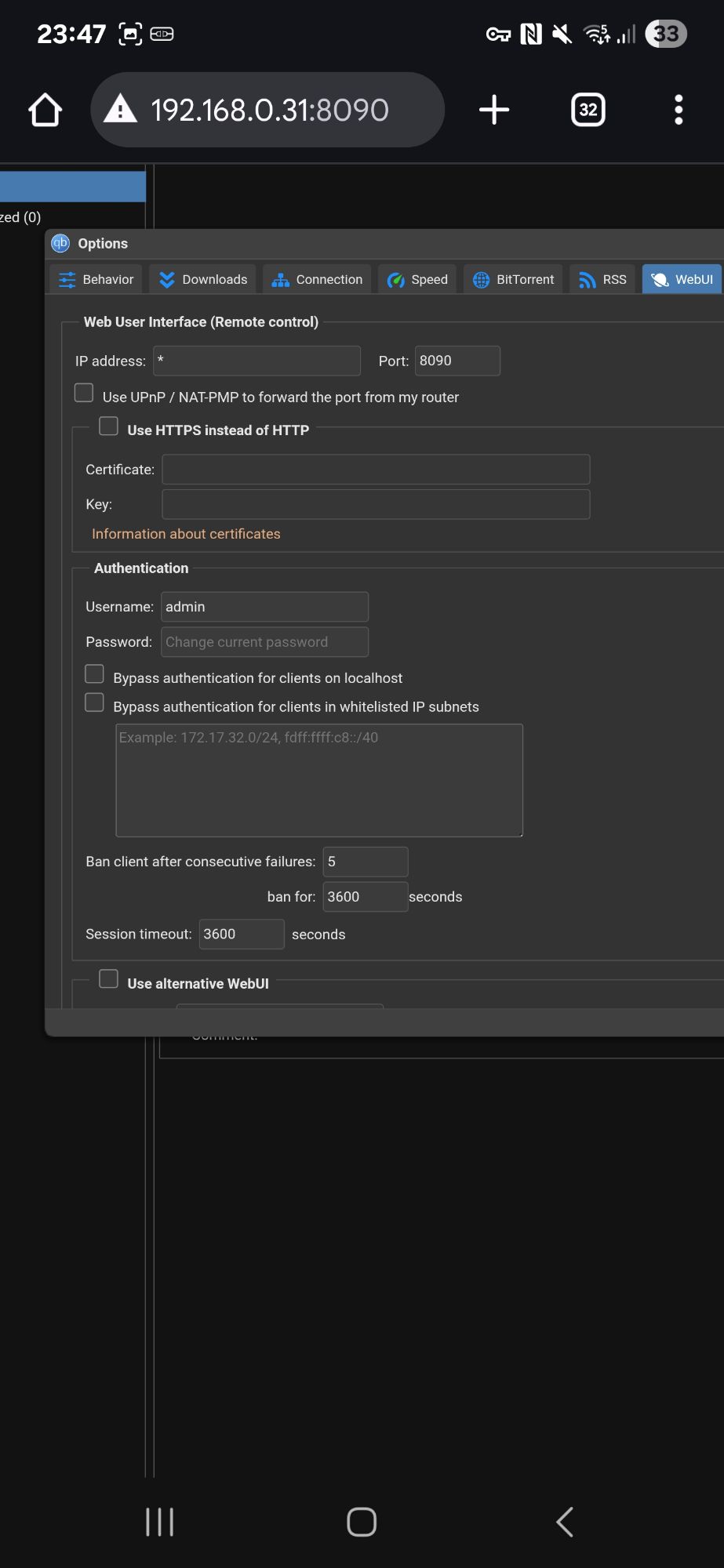
goto Tools / options / webui / Authentication
enter a new user and password.
Remember to hit save at the bottom of the page. and that it. your done.
I like the use the app to access my files.