




Install a Fresh Image on your SSD
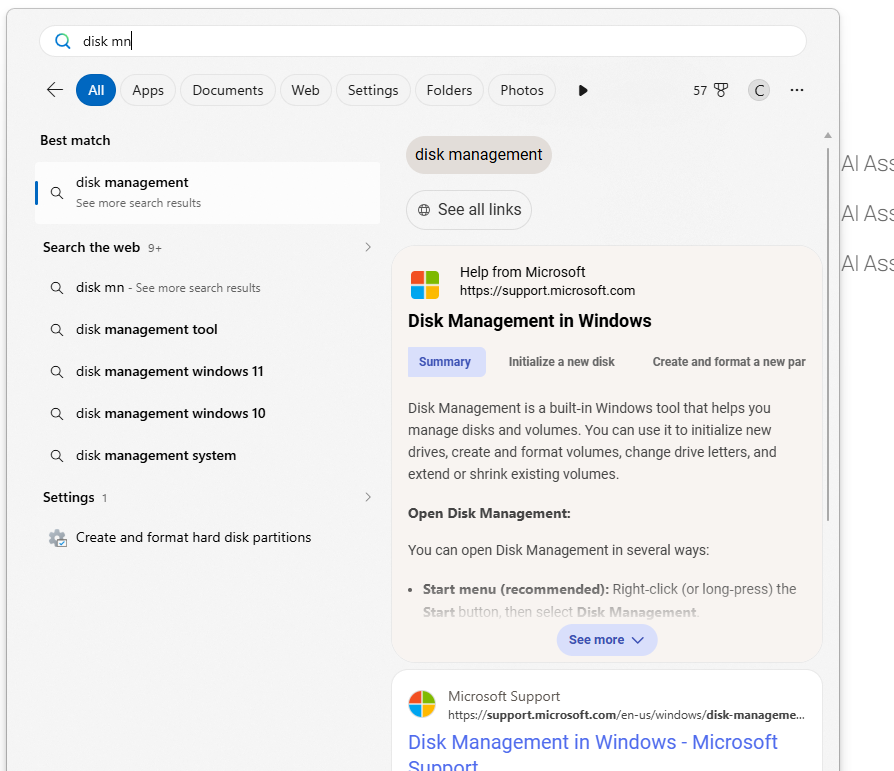
Im using windows for this Guide, Find Disk management.
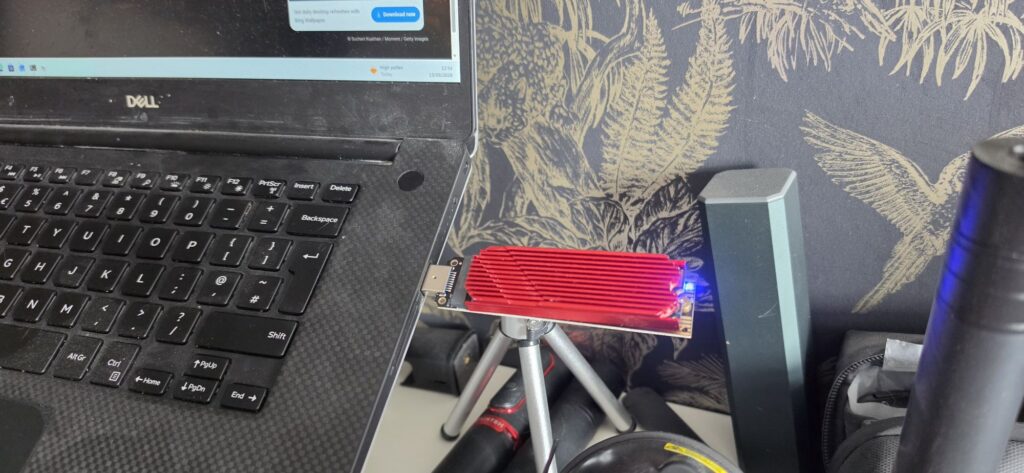
Insert your SSD into your computer, Im using a USB to to SDD drive.
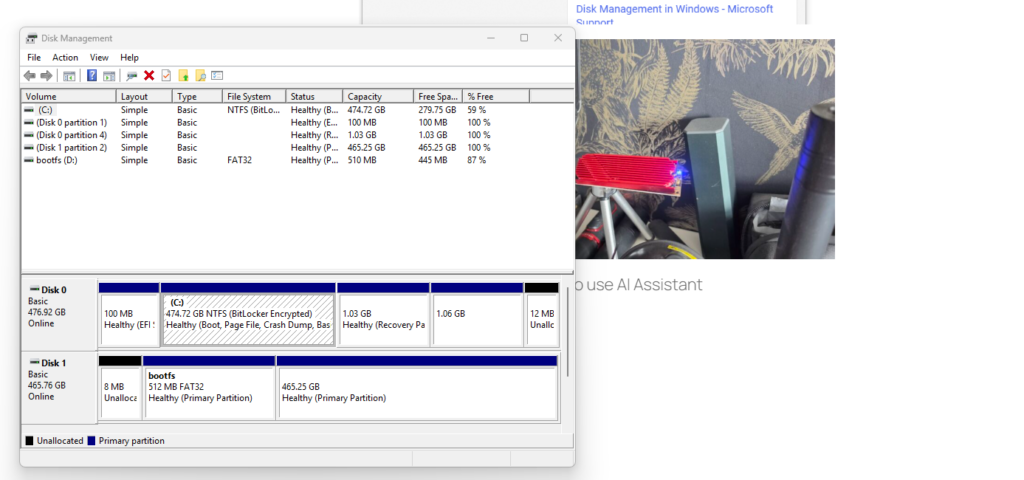
Now the drive is inserted and loaded by Windows, I can see the portions for the Partions of the system PI system i had installed.
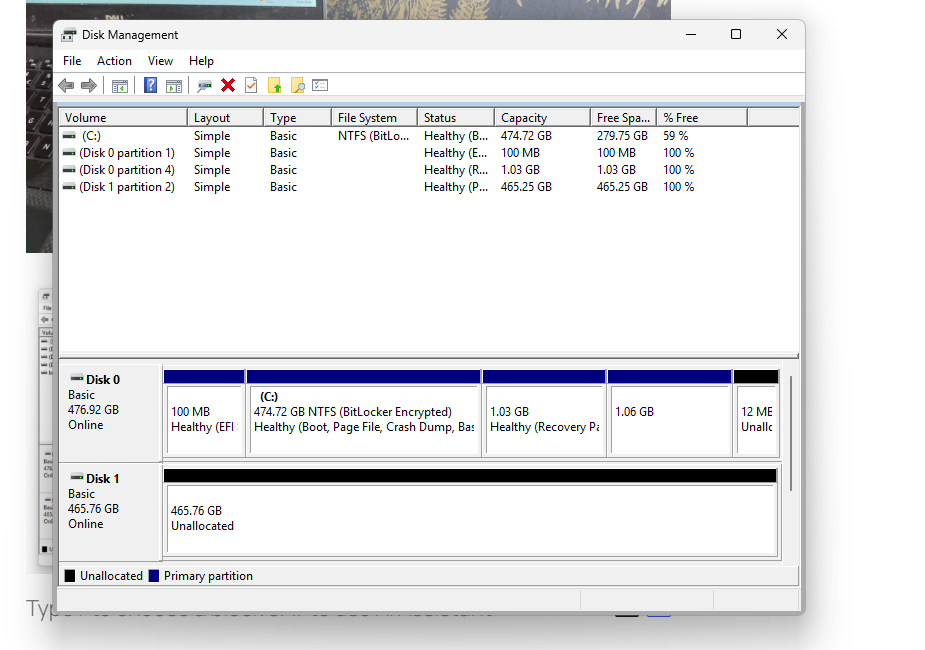
I have deleted the portions and ensured the drive is clear. you can also format the drive . but i like to use the option to ensure the drive is wiped.
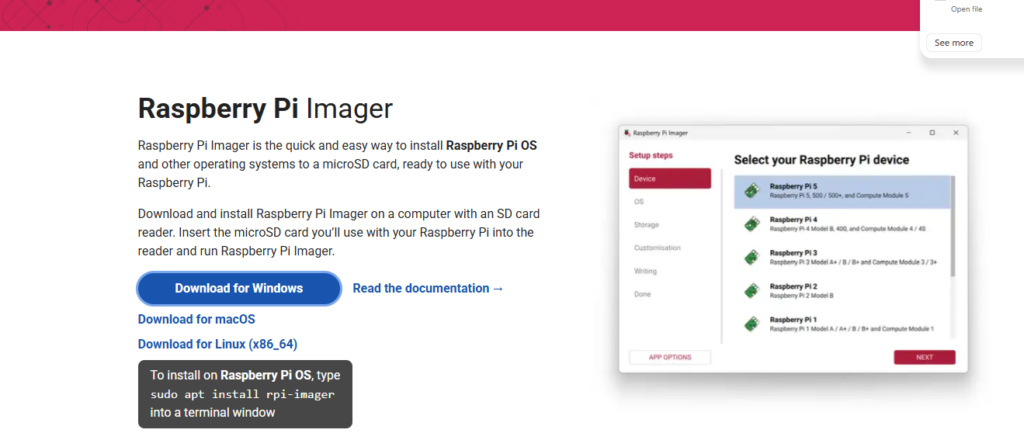
Install the pi-imager, Looks like they updated it from last time i used it. Link here
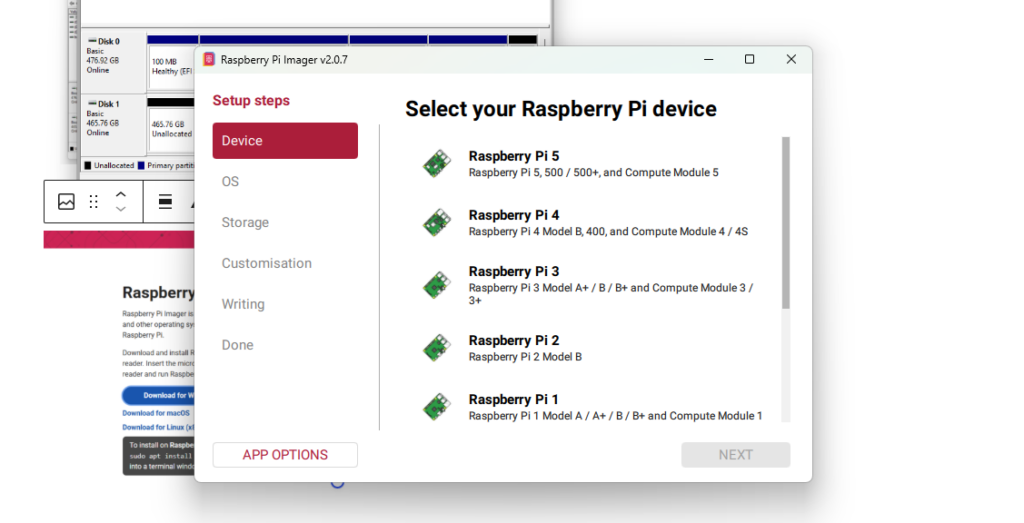
Now pi imager installled, Lets get this image on the SSD. Select your pi. Pi 5 for this guide.
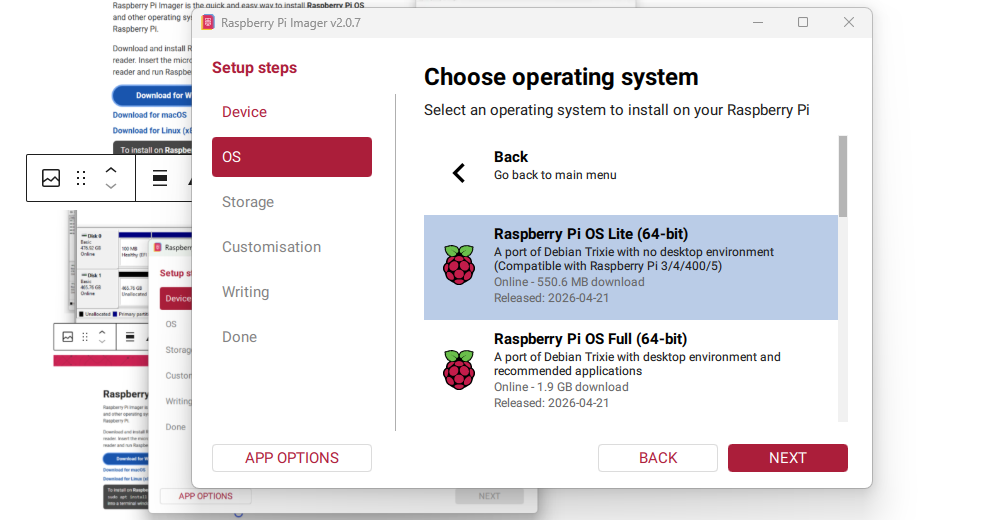
Raspberry pi OS Lite 64-bit, as i want it tobe fast and not bloated by a Desktop environment.
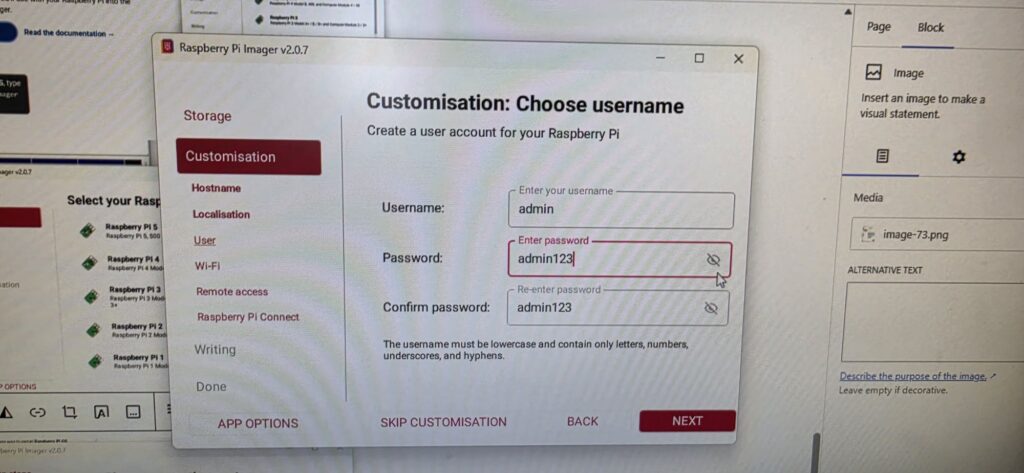
Choosing User details for this guide. User:admin password:admin123.
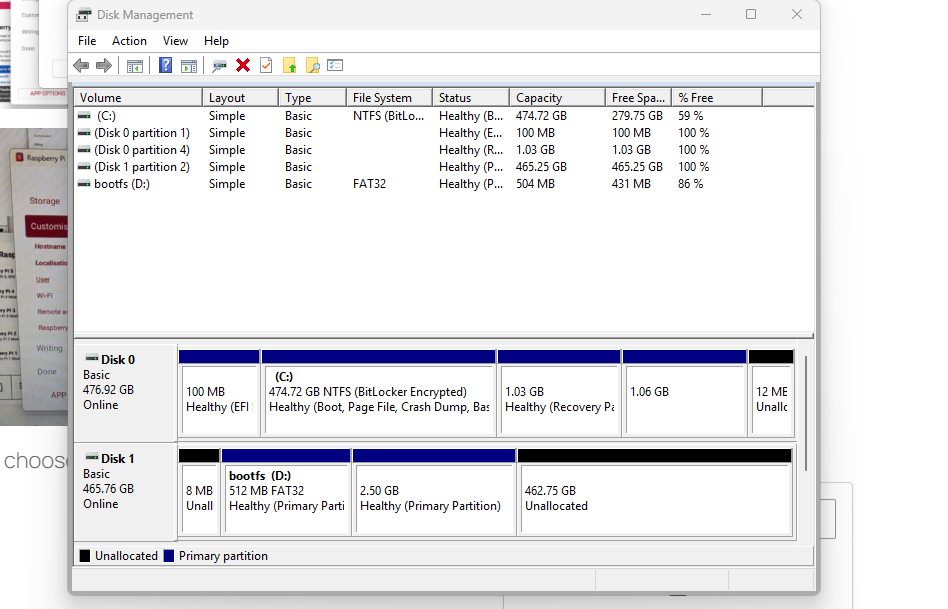
new OS is now installed on the SSD, Ass you can see in the above the partions have been created for the OS..
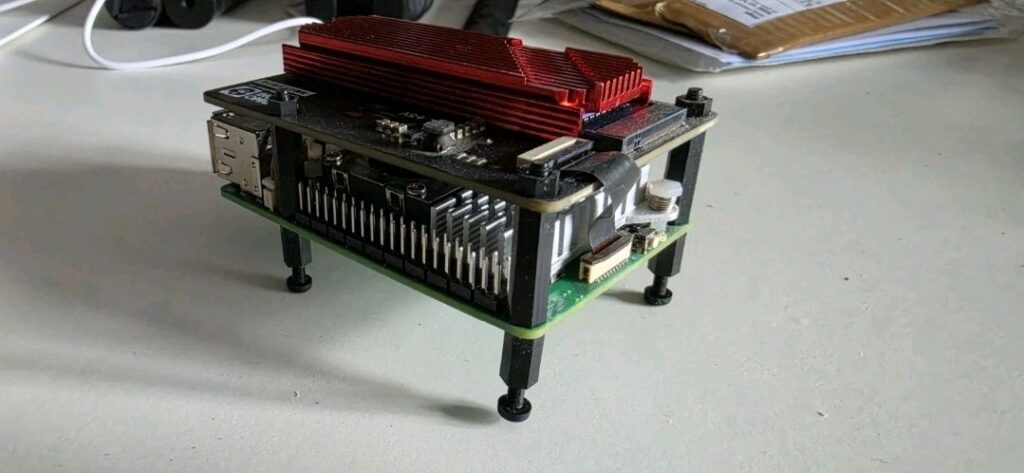
Fit the SSD back on the project
Power up and lets Loggin.
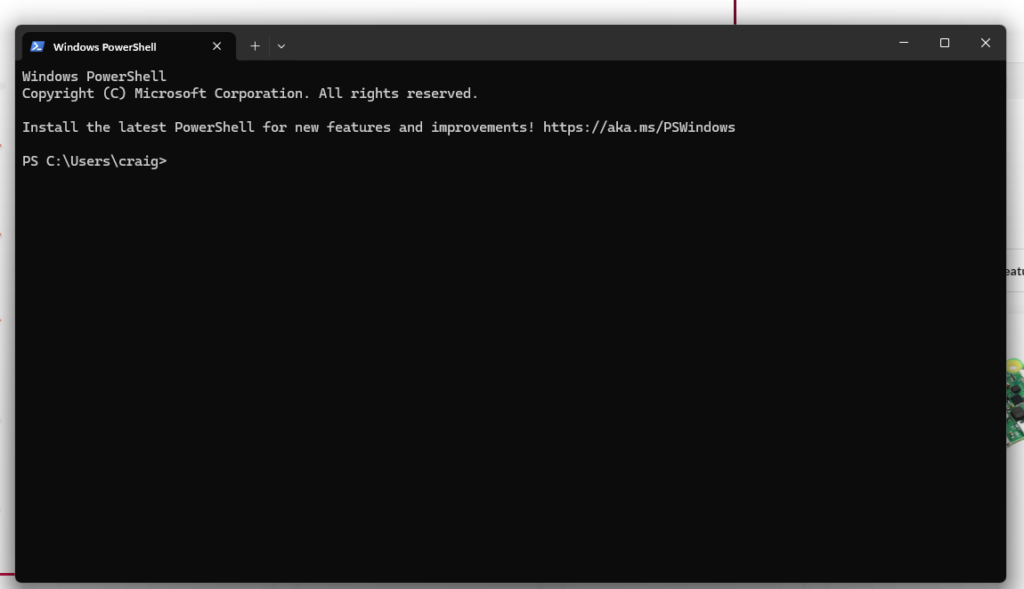
load up power shell .
login using this code
ssh admin@your ip number and then enter.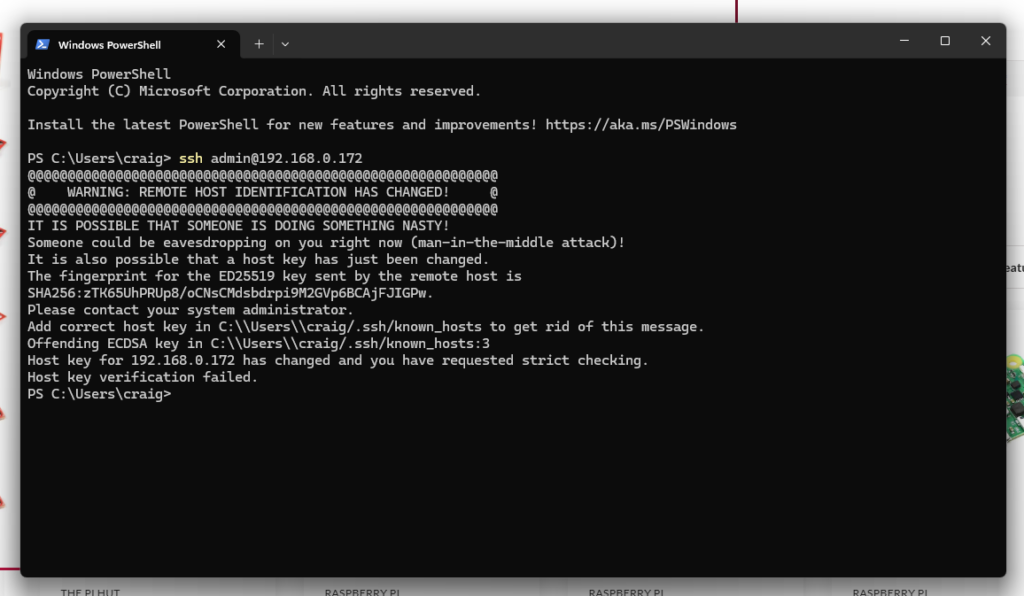
you may now be presented with this mine has failed because i had it setup before, This is easy to fix.
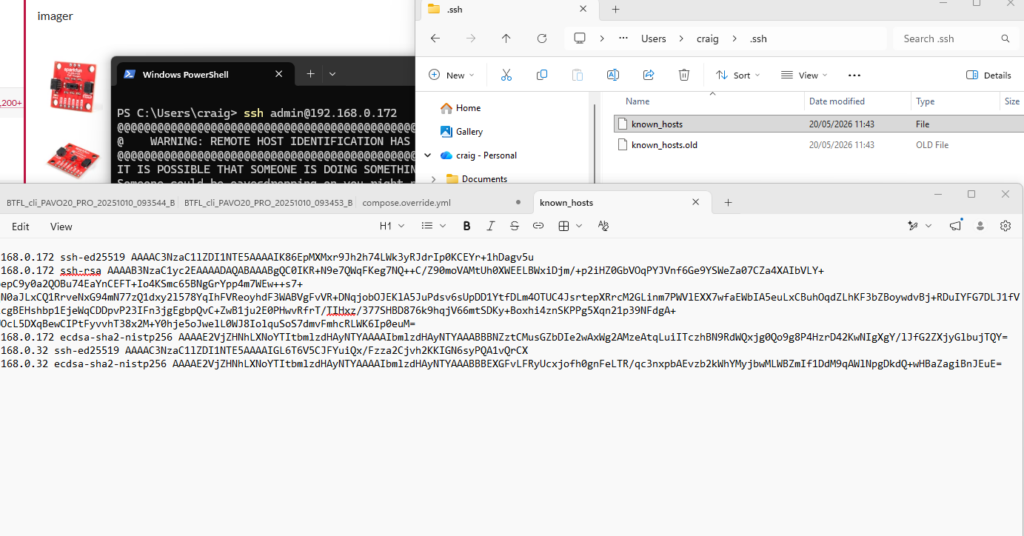
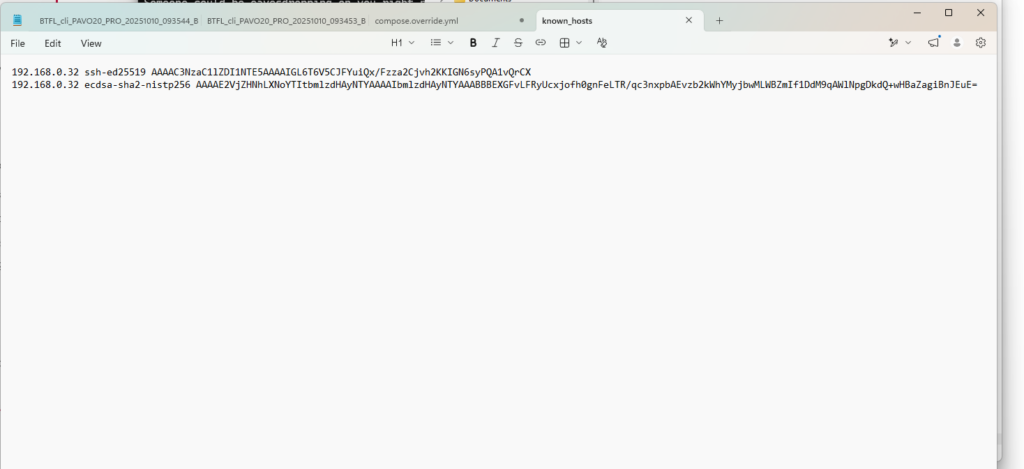
goto the user folder, open in editor and take out the lines with your ip number for the pi you are using. Like i have above.
and save
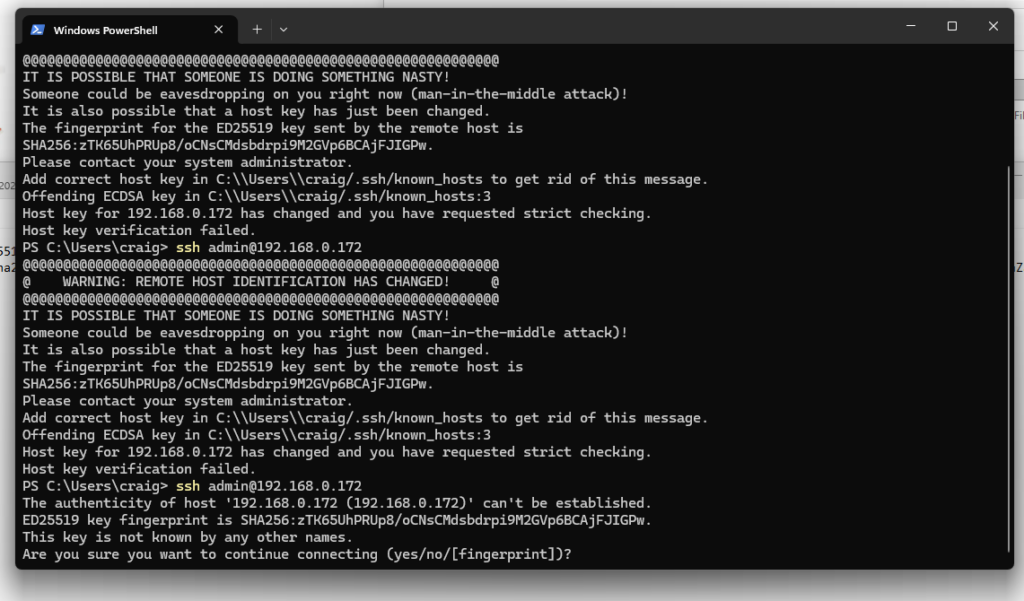
now type in ssh code again and type yes
ssh admin@your ip number and then enter.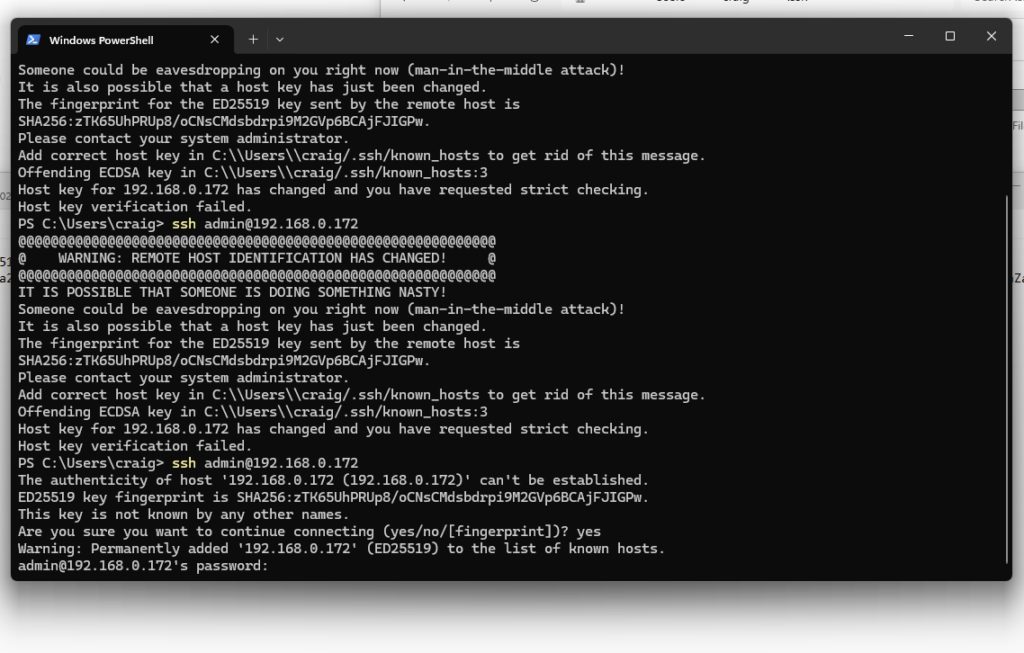
now password we setup. “admin123”
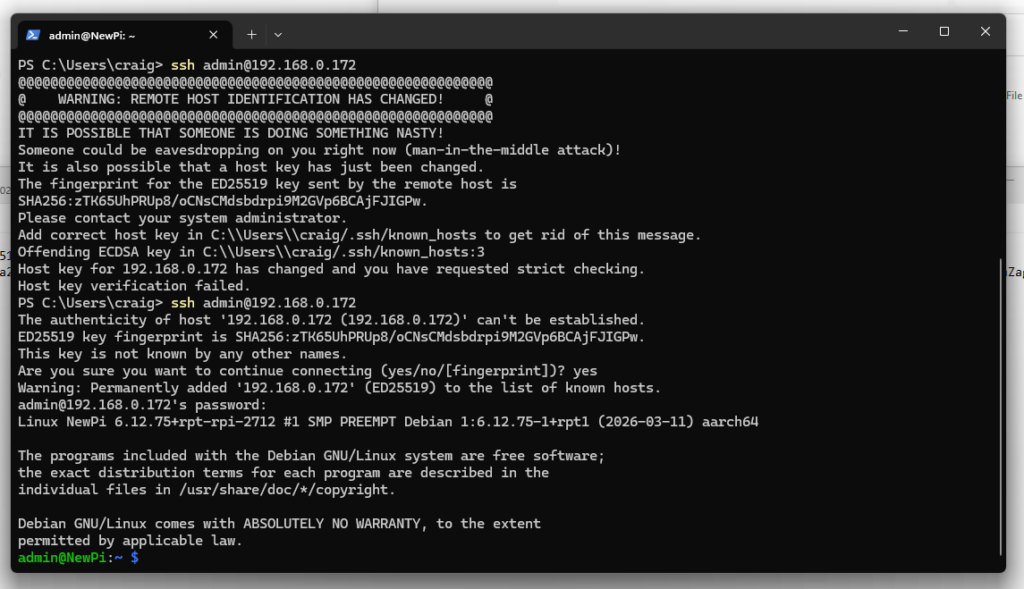
Your in happy playing.
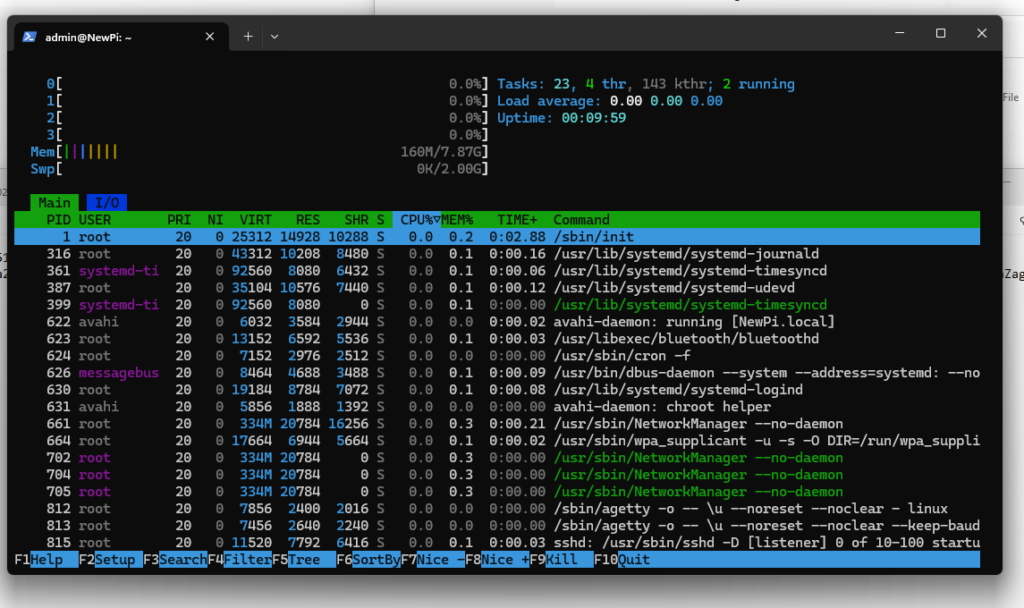
Easy to view what’s running, just type HTOP in the command line and enter you will get above. This is a easy way of seeing all the processes the Pi uses.
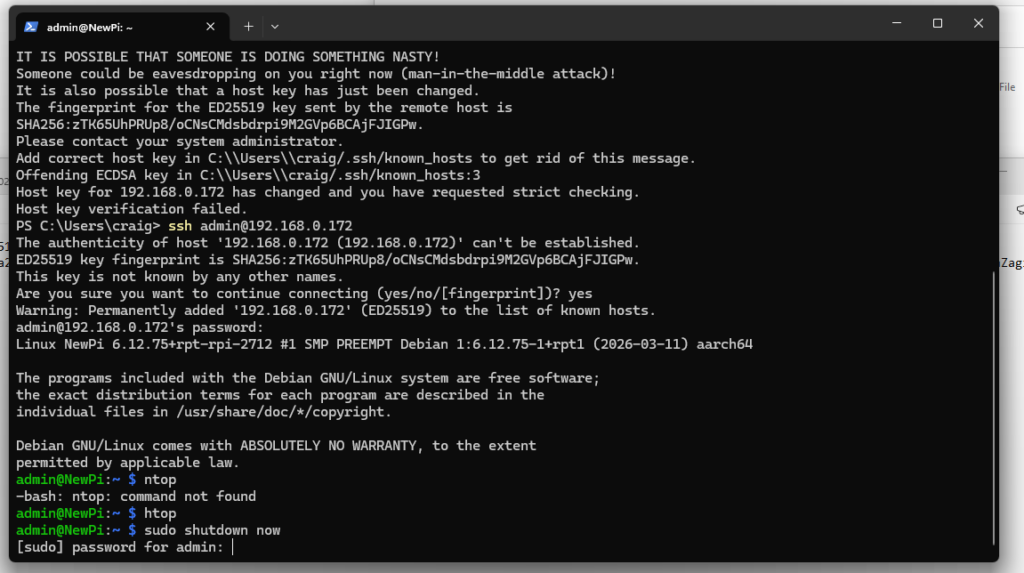
To shutdown your PI use this code
sudo shutdown nowyou will prompted to enter your password, I like this to stop error shutdowns