



Ungoogled
Ungoogled Chromium is Google Chromium without dependency on Google web services. Ungoogled Chromium retains the default Chromium experience as closely as possible. Unlike other Chromium forks that have their own visions of a web browser, Ungoogled Chromium is essentially a drop-in replacement for Chromium. It features tweaks to enhance privacy, control, and transparency. However, almost all of these features must be manually activated or enabled. In this step by step guide I will show you how to install Ungoogled Chromium on your Synology NAS using container manager.
Step 1
Install container manager, If you have already installed the manager jump to step 3
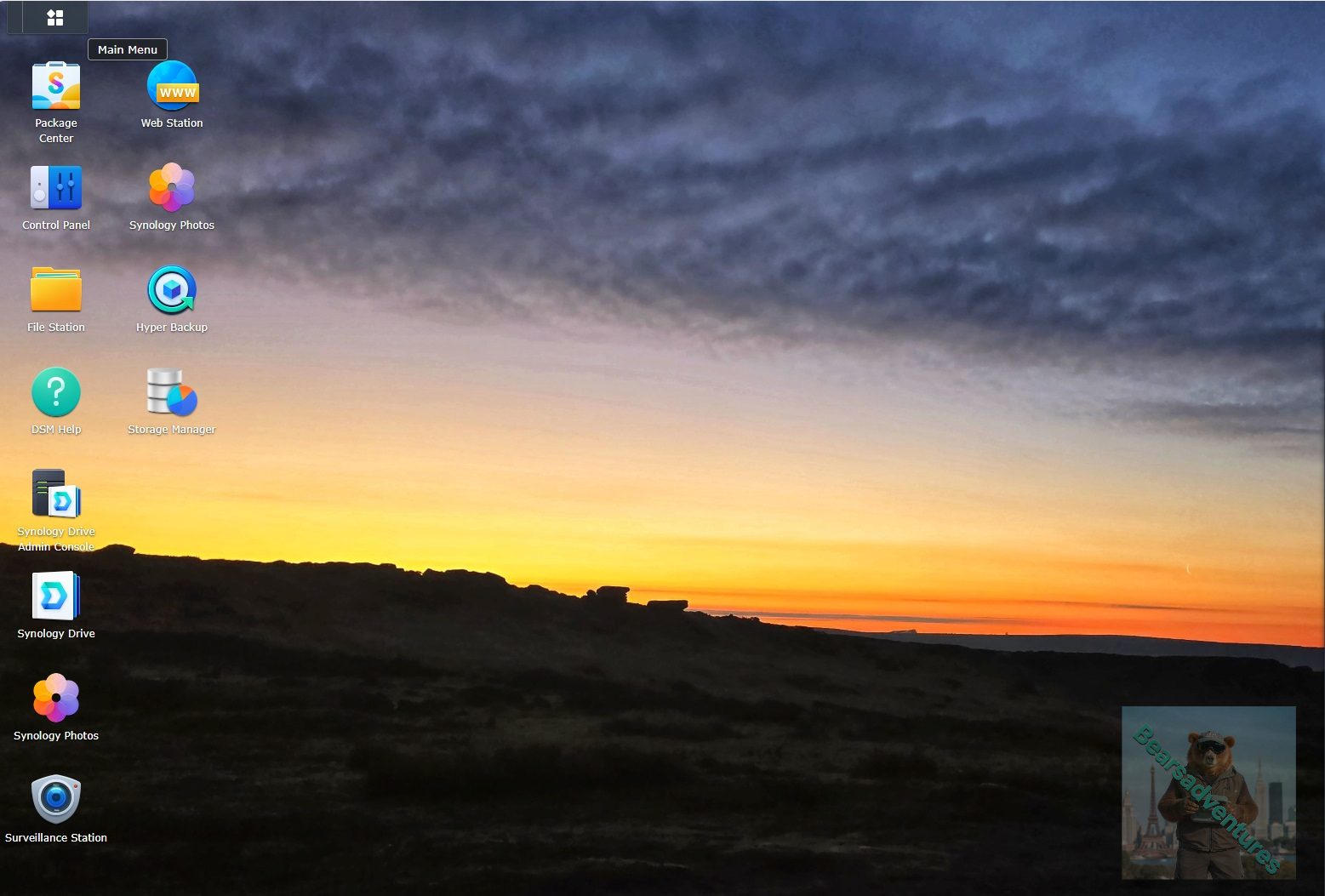
Select Main menu or the Package Center shortcut
Step 2
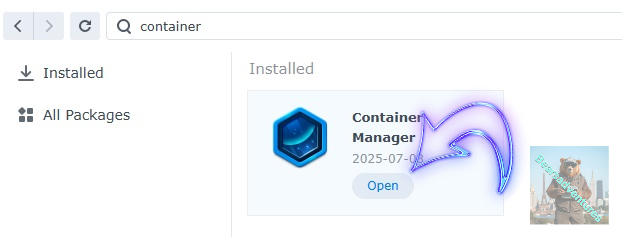
Type in Container in the Search bar and Press enter on your keyboard. Then you will See Container manager like below. in my case i have installed the Container manager already. Select install, wait a few second and then select open.
Step 3
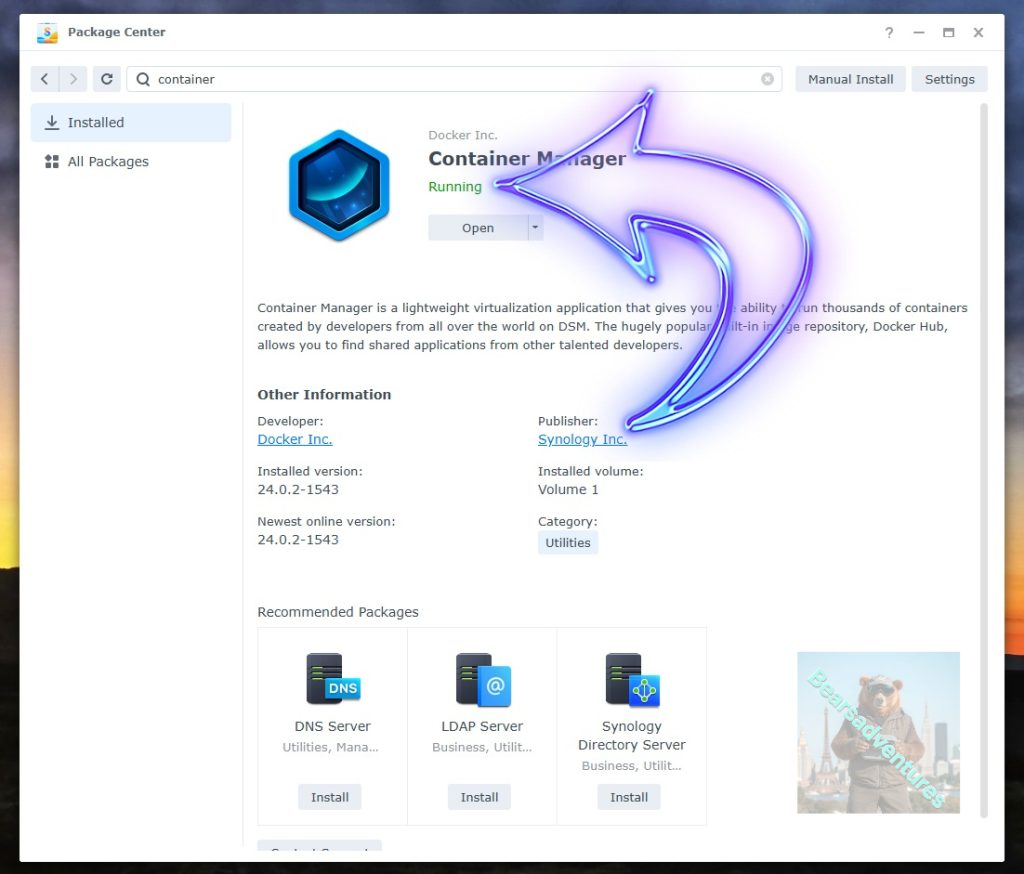
Now you have selected open you should see a screen like below and The Manager will say Running in green. Select open and move on to the next step.
Step 4
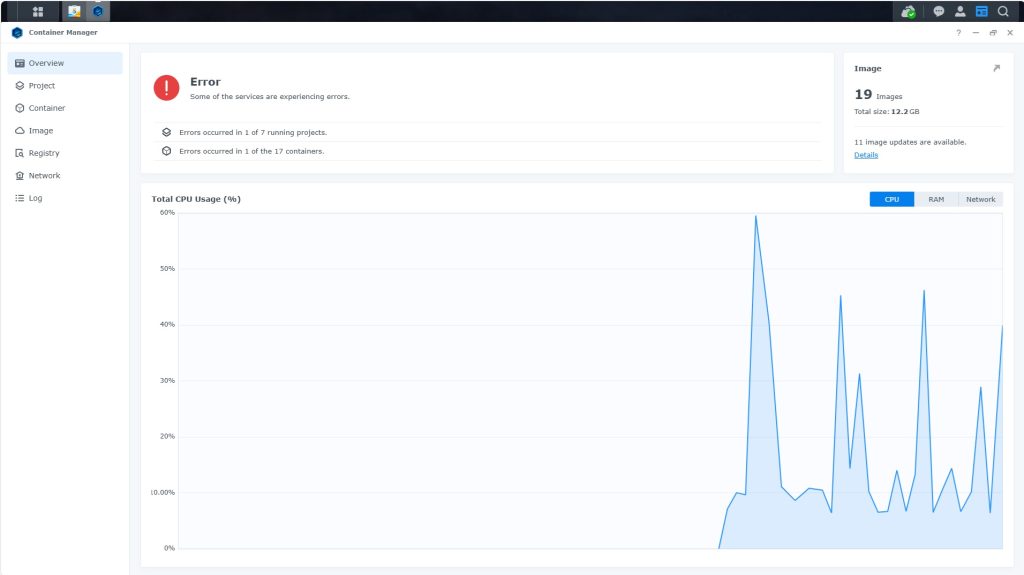
Now you will be Presented with the below. This is the Container manager over view of all your Containers and what’s happening in real time.
Step 5
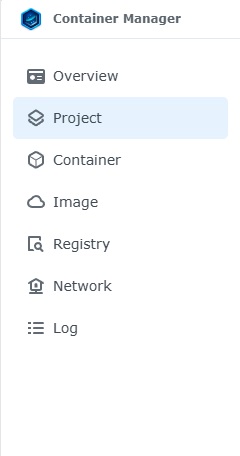
Now We need to Create a Project for ungoogled
.
This project will do a number of things. download the image and setup the Project to Run all in one go.
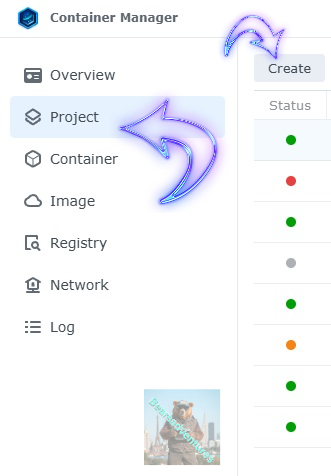
Select project from the menu down the side and then select Create button
Step 6
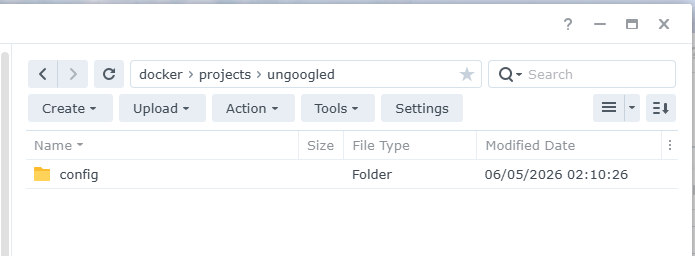
before we go any thurther we need to ensure we have our folders setup ready for the project.
I have a main folder on the Synology system just for docker projects. create the following folders using filestation so my path for ungoogled will look like this
- config
Step 7
now we have created the folders needed for the project we can go ahead and create the project in Container manager
Give the project a name, change source to Create docker-compose.yml and add the path. Project name is all lower case.
See below for before and after the code you will need is below also.
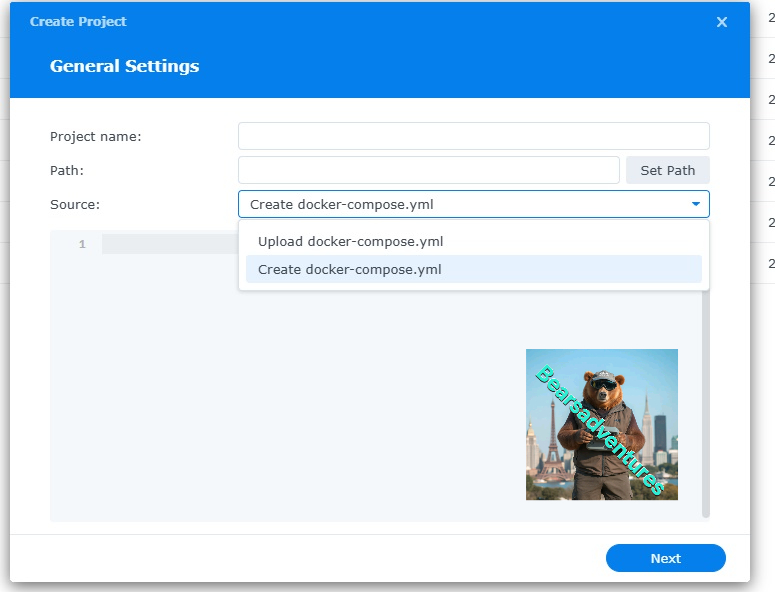
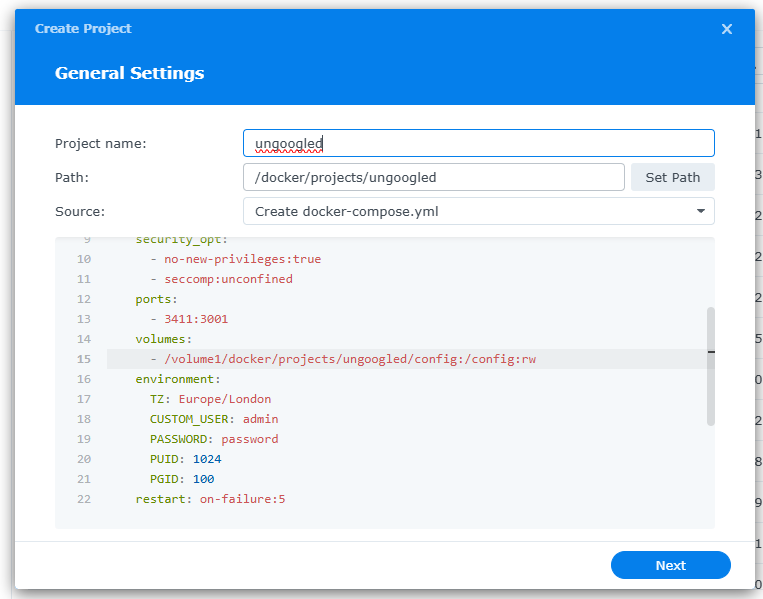
the volume path needs tobe exact or the project will return a fail. like above i missed out projects folder so i got a error and had to trouble shoot.
services:
  chromium:
    image: ghcr.io/linuxserver/ungoogled-chromium:latest
    container_name: Ungoogled-Chromium
    hostname: chromium
    mem_limit: 3g
    shm_size: 1g
    cpu_shares: 1024
    security_opt:
      - no-new-privileges:true
      - seccomp:unconfined
    ports:
      - 3411:3001
    volumes:
      - /volume1/docker/projects/ungoogled/config:/config:rw
    environment:
      TZ: Europe/London
      CUSTOM_USER: admin
      PASSWORD: password
      PUID: 1024
      PGID: 100
    restart: on-failure:5
press next when you are happy with the code
Step 8
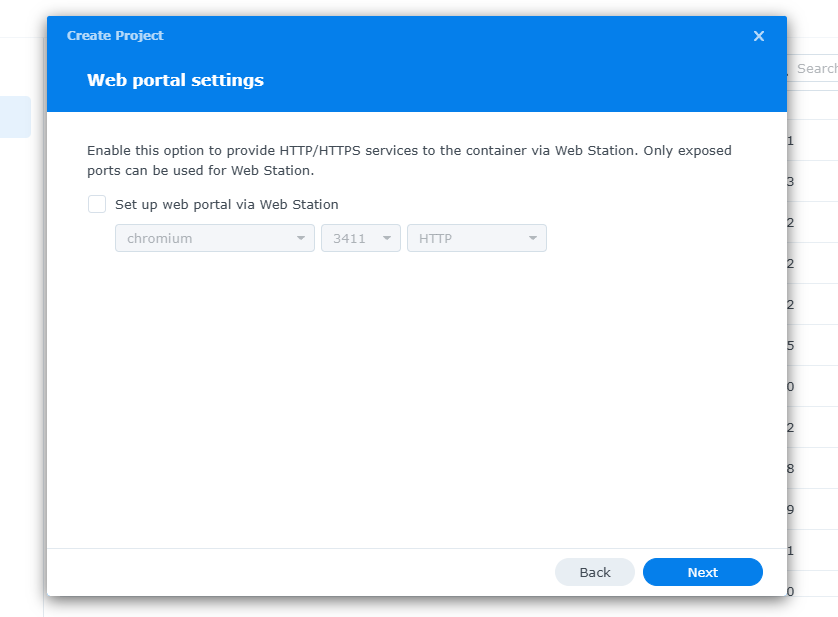
setup a web portal if you like . I would not advise it. and press next
Step 9
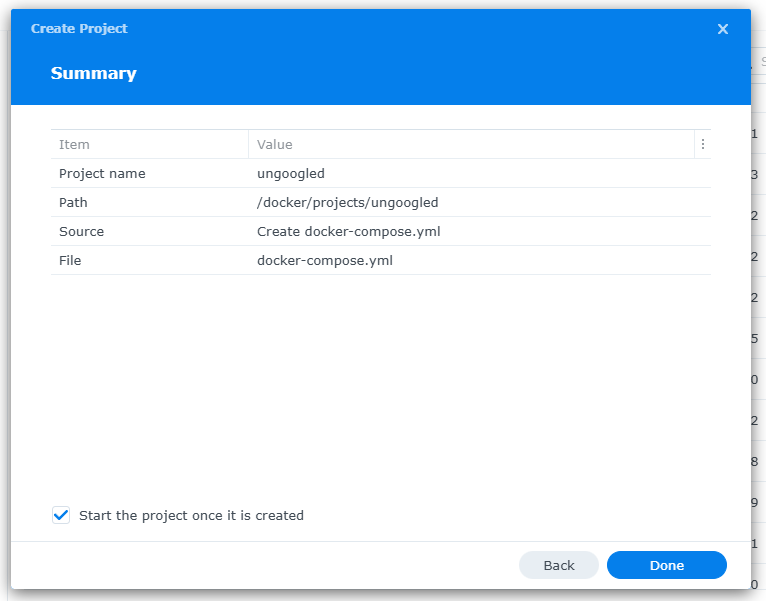
Thats it for this section, time to create the project.
Select Done
Step 10
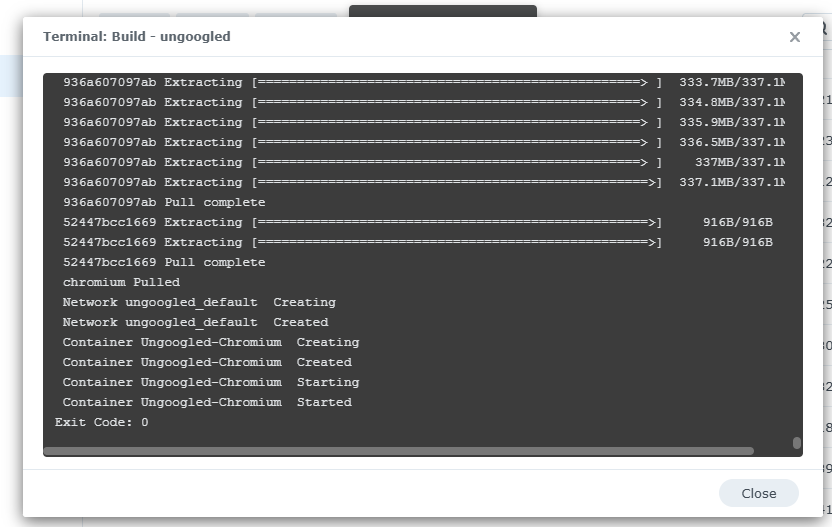
If you have a Exit Code of 0 like i have below then you are done. project created. if you have a Exit code 1 you have a error and need to visit the code again and trouble shoot.
Like i mentioned above. I Missed out Project folder, I added it in the container and it worked. see code and build complete below.
Step 11
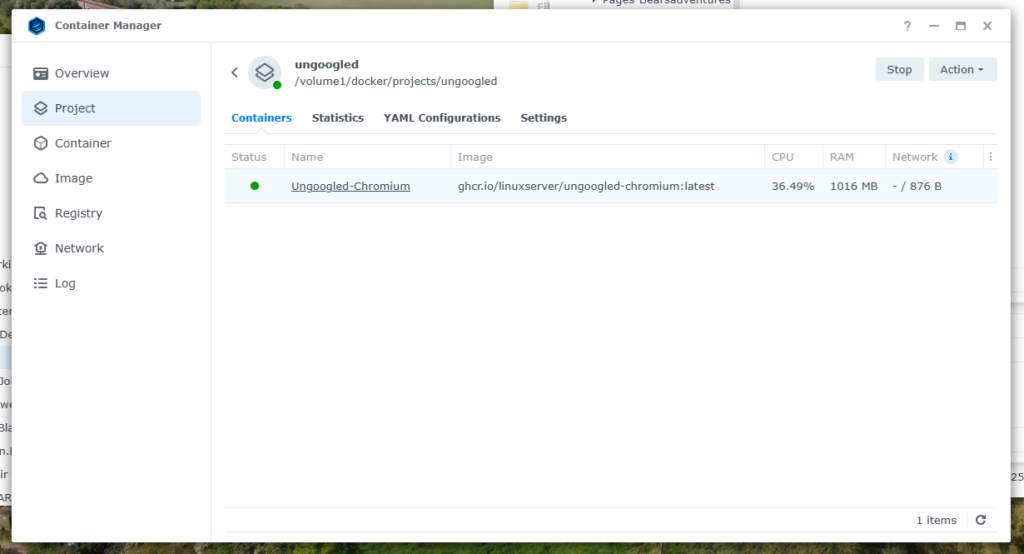
One last thing you can check to see if the docker is Green and showing no Errors, todo that just goto Container manager and on the left select Projects and ntop will be there Status Colum should be green if not you will need to trouble shoot.
Step 12
now booklore is running you are going to need to create a user and password head over to https://your ip:3411 this will give you the welcome screen
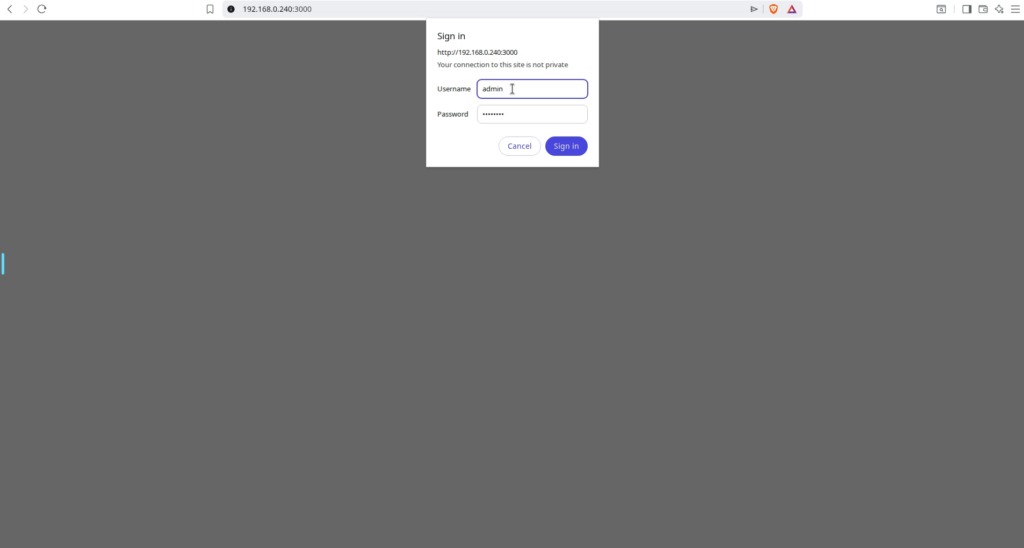
Step 13 we are in