




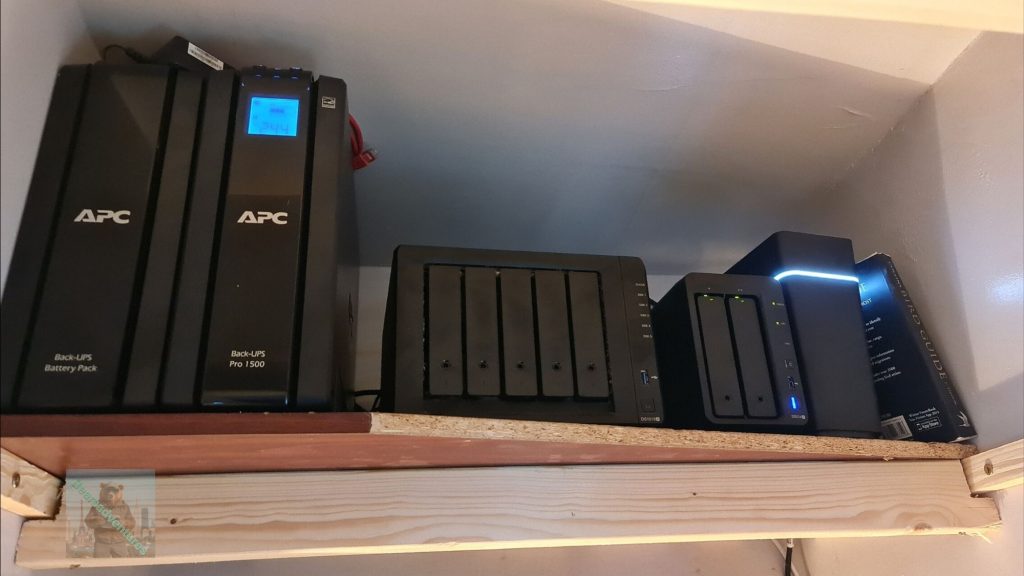
What is RAID? RAID 0, 1, 5, & 10 Made Easy
RAID, or Redundant Array of Independent Disks, is a data storage technology that combines multiple physical hard drives into a single logical unit to improve data performance, provide data redundancy, or both. By spreading data across several drives using techniques like striping (for performance) or mirroring (for redundancy), RAID protects against drive failures and can significantly increase data access speeds. There are various RAID configurations, called RAID levels, each offering a different balance of performance and reliability, such as RAID 0 for speed, RAID 1 for mirroring, and RAID 5 for striping with parity
What Is RAID 0
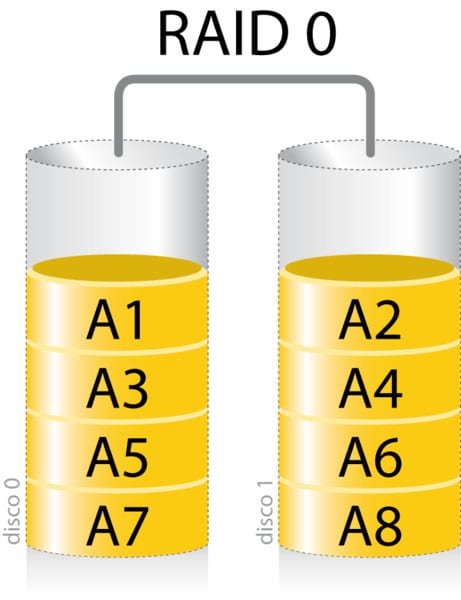
Also called “disk striping,” RAID 0 is all about optimizing the speed of your hard drives. If you have at least two drives, using RAID 0 will combine them and write data on both of them simultaneously or sequentially, depending on your system. This will help with read and write speeds. However, if one drive fails, you will lose all of your data.
When you save a file, RAID 0 breaks the data into segments called striped units. Then it spreads that data across all of the drives in your array. This is called striping, and it helps you access data faster because you have multiple drives working together to read, write, and store data.
Using RAID 0 is faster than getting a large hard drive with the same capacity because you would only have one hard drive processing data instead of multiple drives in an array.
However, RAID 0 does not include any redundancy (or backups). That means if one of your drives fails, you lose all the data on that drive. And, since your data is stored and processed across multiple drives, losing the data on one drive means you lose all of the data on all of your drives. Plus, since you are using multiple disks, the chance that one of them will fail is increased.
RAID 0 is best used for storing temporary files or files that you have backed up elsewhere.
What is RAID 1
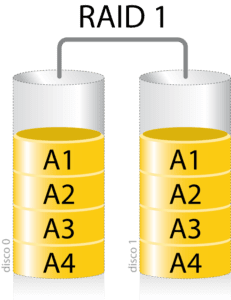
Otherwise known as “disk mirroring,” RAID 1 is all about backing up data (also known as redundancy). If you have at least two drives, using RAID 1 will duplicate your data and store a copy on each drive. This is called mirroring, and it ensures you won’t lose your files if a drive fails.
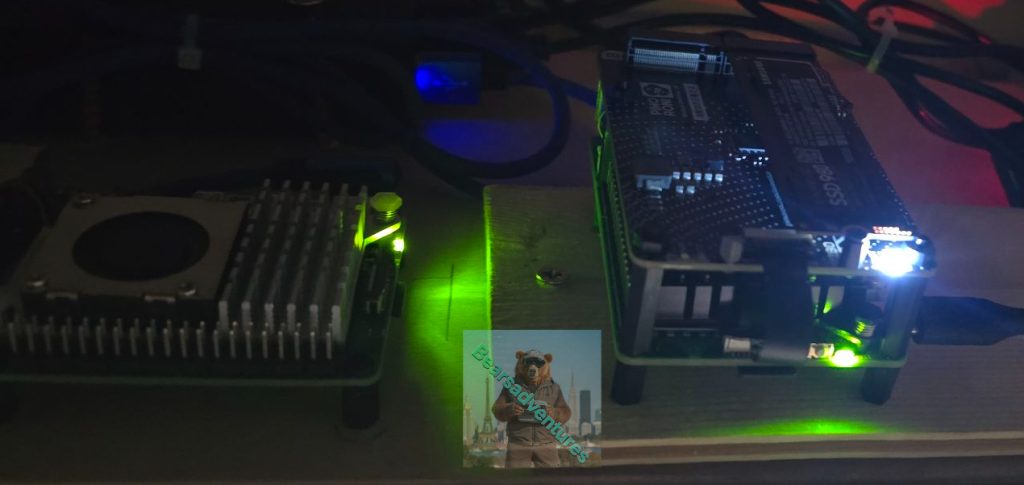
Using RAID 1 means that if one drive fails, you’ll still have a copy of all your data on the other drive. Then, you can replace the failed drive with a new one, even while the computer is still running. It will automatically create a new mirror image of all your data on the good drive. This capability in RAID arrays is called hot-swappable. I Run a Pi 5 with 2 SSDs on Raid 1.
However, using RAID 1 means that you will only get half the storage capacity that you would get otherwise. This is because every time you save a file to one drive, you save a copy to a second drive.
RAID 1 is best used for storing data that you don’t want to lose, such as crucial banking data or family photos and documents.
What is RAID 5
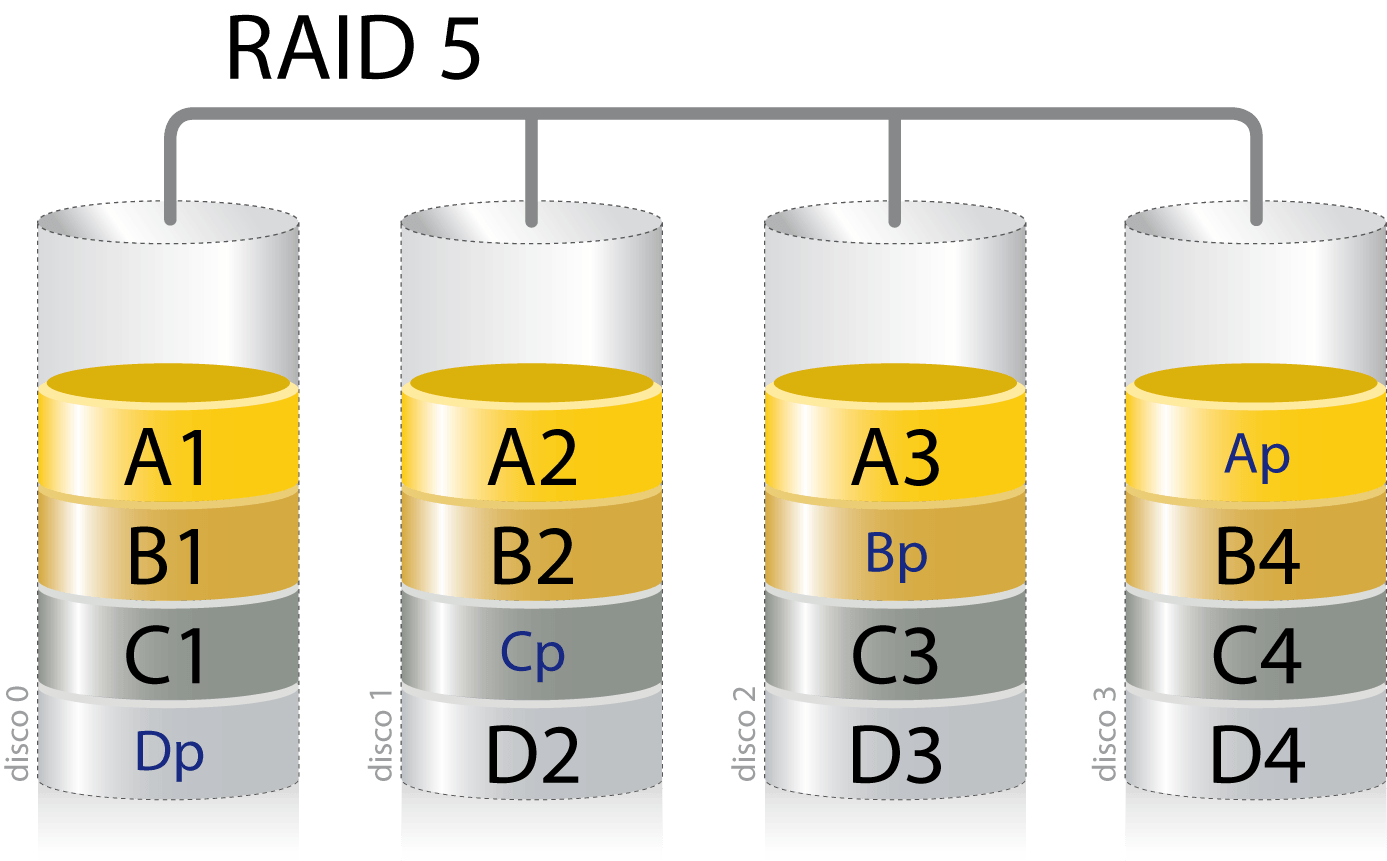
Also known as “disk striping with parity,” RAID 5 is about speed and redundancy. If you have at least three hard drives, using RAID 5 will break your data into segments and save those segments across your drives.
Now, when you write data in this array, just like in RAID 0, your data is broken down into units and spread over the hard drives in your array. But, aside from striping the data, it also stores parity bits on the drives. A parity bit is an additional binary digit that helps your array check if there’s any error or missing segments. These bits of data can also serve as redundancies.
Just like with Disk Mirroring, the drives in this array are also hot-swappable. So if one drive fails, you can easily replace it with a new one, and the array will automatically recreate your RAID configuration.
However, RAID 5 will not offer you the same speed as RAID 1 or the same capacity as RAID 0. It will take processing power to create the parity bits, and some storage space will be set aside for the redundancies. So, if you have three hard drives with 500GB of storage each, you will only get 1TB worth of capacity because one-third of the space will be allocated for redundancies.
This setup is best for storing critical data and running applications that need decent speed and efficiency.
RAID 6
RAID 6 is similar to RAID 5, except it provides another layer of striping and can sustain two drive failures. A minimum of four drives is required. The performance of RAID 6 is lower than that of RAID 5 due to this additional fault tolerance. RAID 6 becomes attractive when space and cost are important and sustaining multiple drive failures is required.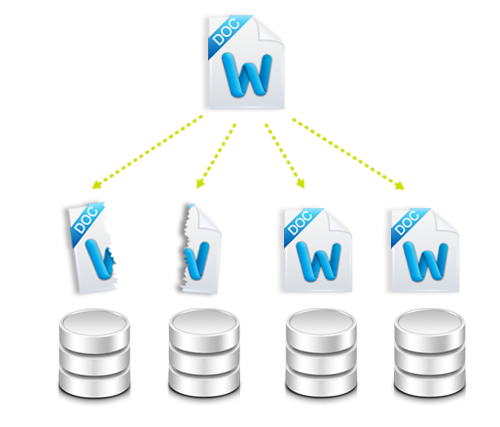
What is RAID 10?
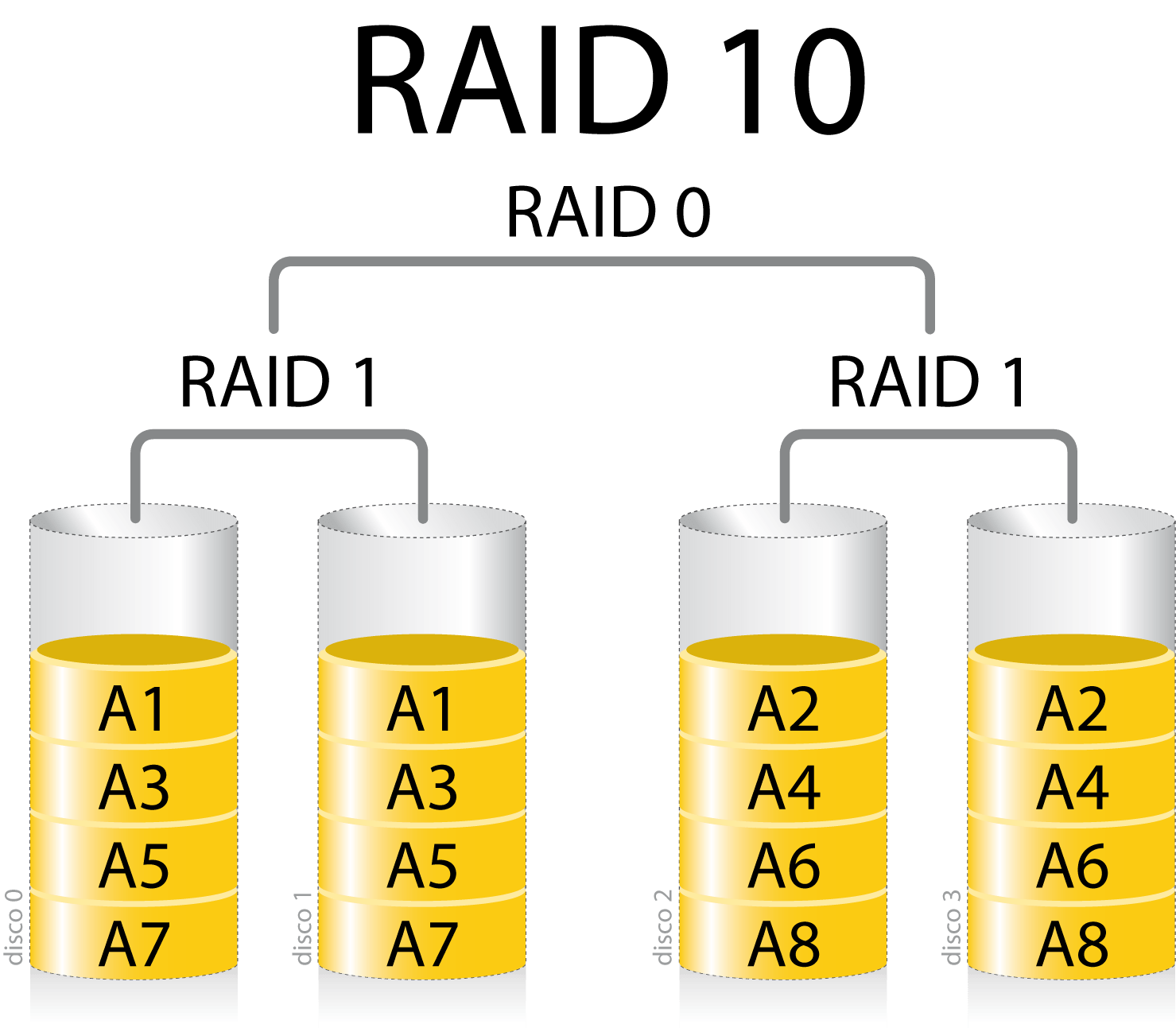
Classified as a “hybrid RAID configuration,” RAID 10 is actually a combination of RAID 1+0. This means you get the speed of disk striping and the redundancies of disk mirroring. For techies, this is also called a “stripe of mirrors.”
If you have at least four drives, RAID 10 will increase the speed that you would have with just one drive, and you get the advantages of having redundancies. However, this also means that you have to buy more drives, and you only get half the capacity of all of them.
RAID 10 is best for running applications or hosting servers that need to be up 24/7. If one or two of your drives fail, you still have the mirror drive with all your data intact in them.
If you’re looking to set up a RAID array, but you don’t know if you want to go with traditional hard drives or solid-state drives, check out our article on the difference between HDD and SSD.
Synology Hybrid RAID (SHR)
Synology Hybrid RAID (SHR) is an automated RAID management system, designed to simplify storage management and meet the needs of new users who are unfamiliar with RAID types.
SHR can combine different sized drives to create a storage volume with optimized capacity and performance, wasting less drive space and providing a more flexible storage solution. When sufficient drives are included, SHR allows for 1- or 2-disk redundancy – meaning the SHR Volume can suffer up to one or two failed drives without experiencing data loss.
What is SHR?
Synology Hybrid RAID (SHR) is Synology’s automated RAID management system. SHR allows users to create a flexible storage solution with optimized capacity and performance.1
SHR is based on a Linux RAID management system and designed to make storage deployment quicker and easier than classic RAID systems. This makes it especially suitable for users who are new to RAID technology.
If you prefer to manually manage your RAID system, we recommend choosing classic RAID on your Synology NAS (e.g., Basic, JBOD, RAID 0, RAID 1, RAID 5, RAID 6, and RAID 10).2
How does SHR maximize storage capacity?
In general, classic RAID bases its storage creation on the smallest drive in the storage pool. As shown in the image below, if the smallest drive in a classic RAID storage pool is 500 GB, all other drives in the storage pool can each only contribute 500 GB. As a result, the storage pool ends up with 2 TB of usable storage and 4.5 TB of wasted storage.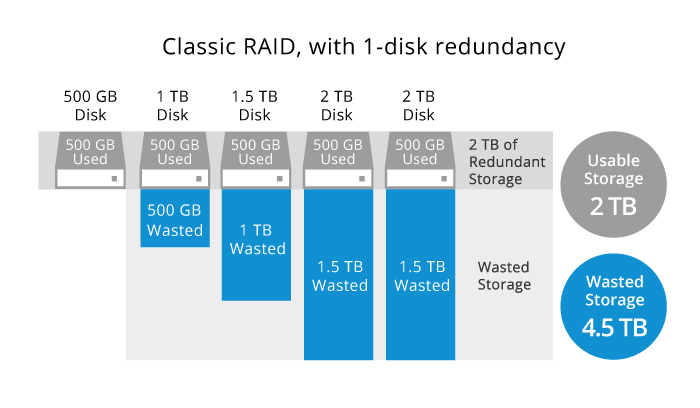
Unlike classic RAID, SHR divides each drive’s storage space into smaller chunks and creates additional redundant storage. Using the same example as before, SHR is able to divide the 4.5 TB of unavailable storage into smaller usable chunks and maximize the storage capacity of each drive.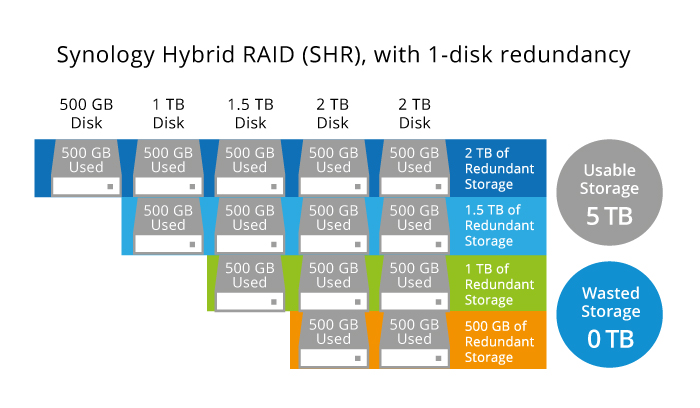
SHR also outperforms classic RAID in terms of storage expansion. As shown in the image below, classic RAID does not allow a storage pool to be expanded until all its drives have been replaced with larger drives.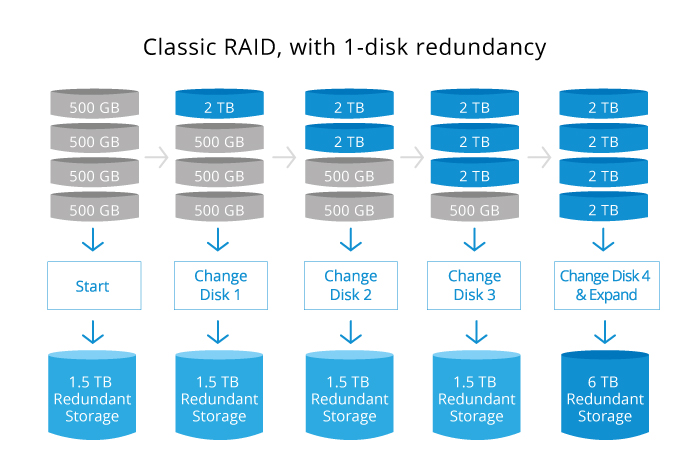
SHR, on the other hand, allows a storage pool to be expanded as soon as two of the drives are upgraded and can form a redundant storage array.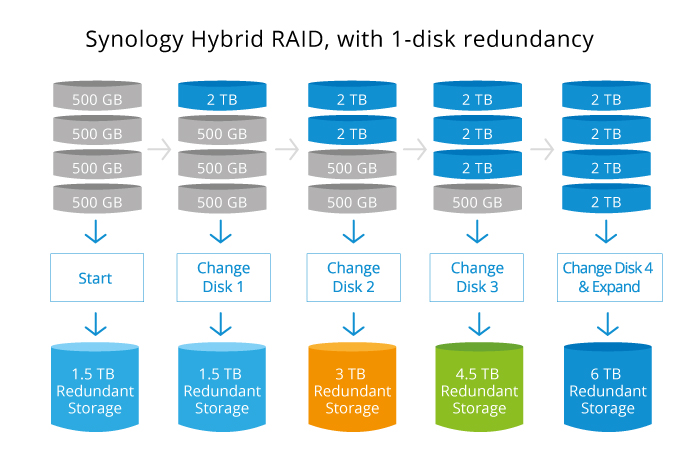
If you want to expand an SHR with two-drive fault tolerance (i.e., SHR-2), the new storage will be available after you add drives or expand existing ones.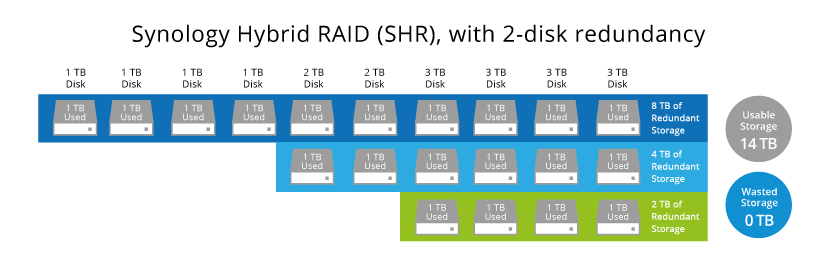
SHR is quick to use and a financially viable approach. It allows you to do the following with ease:
- Meet the rising needs of frequently upgrading large drive arrays (e.g., a 10-bay volume) while making the data accessible on demand.
- Achieve maximum storage capacity without needing to purchase an entire set of drives.