



Install WordPress in a Docker Container with Docker Compose
Step 1
Install container manager, If you have already installed the manager jump to step 3
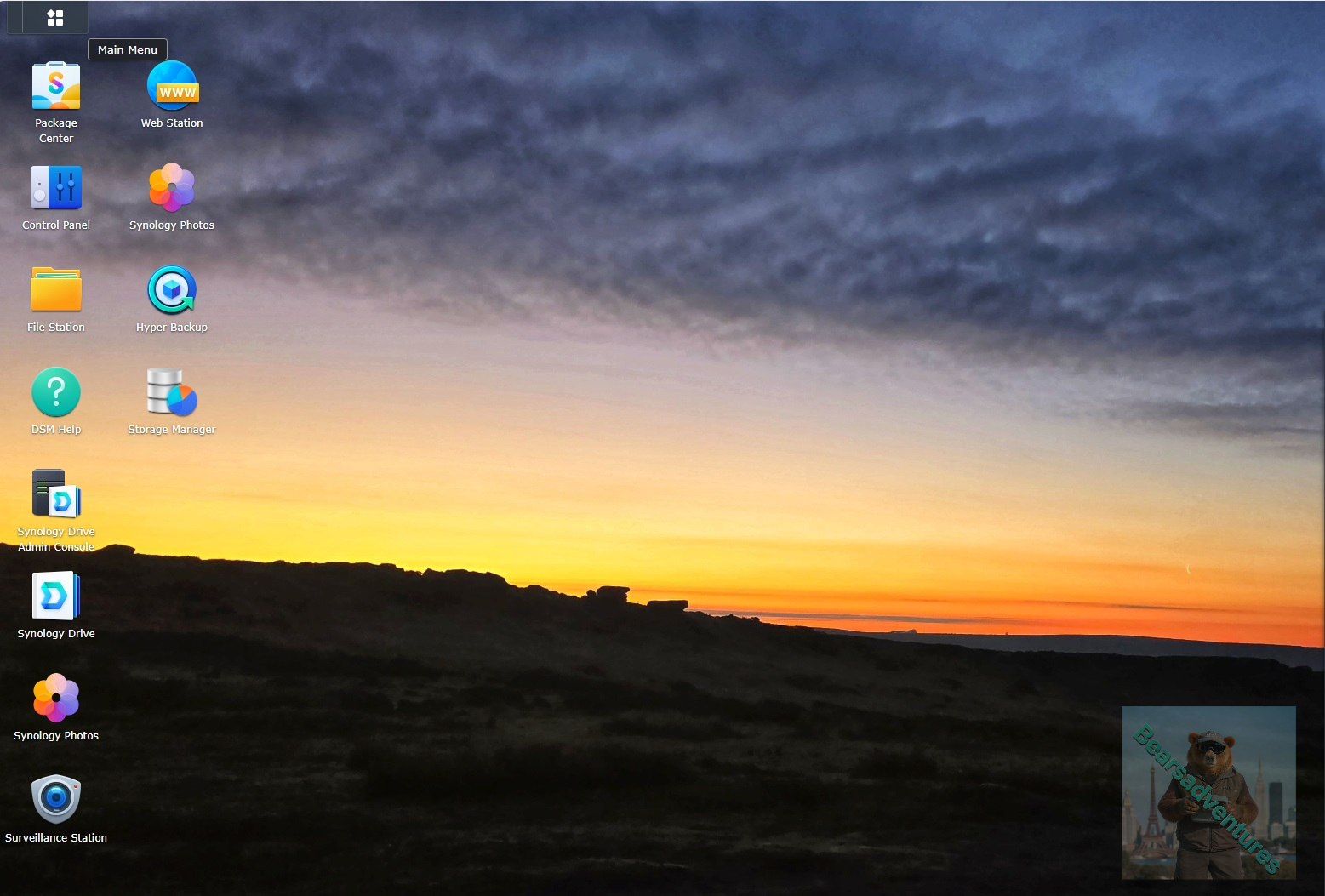
Select Main menu or the Package Center shortcut
Step 2
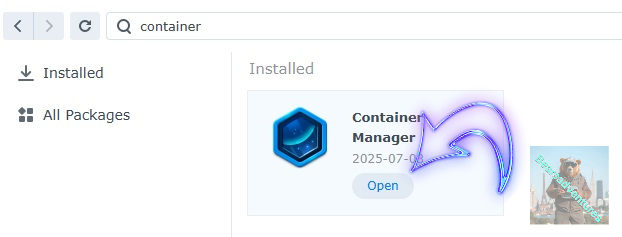
Type in Container in the Search bar and Press enter on your keyboard. Then you will See Container manager like below. in my case i have installed the Container manager already. Select install, wait a few second and then select open.
Step 3
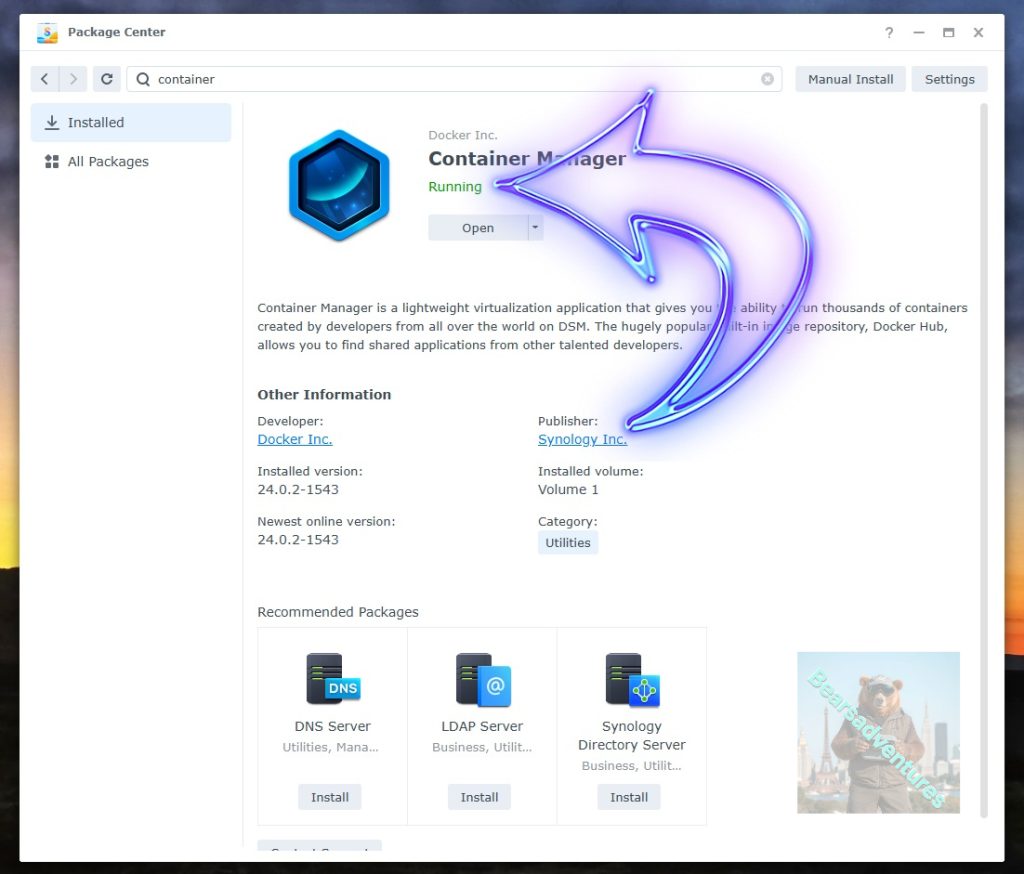
Now you have selected open you should see a screen like below and The Manager will say Running in green. Select open and move on to the next step.
Step 4
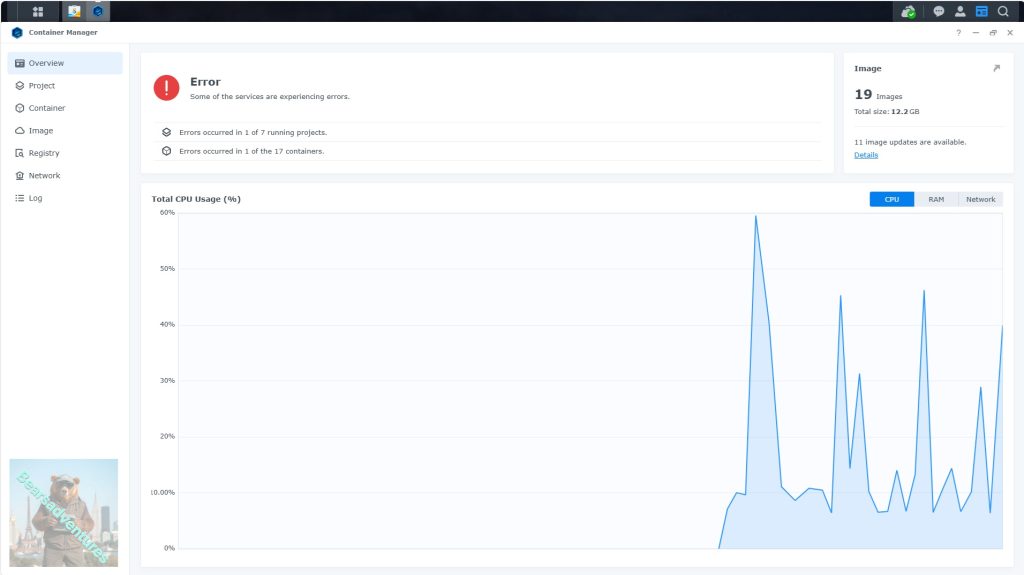
Now you will be Presented with the below. This is the Container manager over view of all your Containers and what’s happening in real time.
Step 5
Now We need to Create a Project for wordpress.
This project will do a number of things. download the image and setup the Project to Run all in one go.
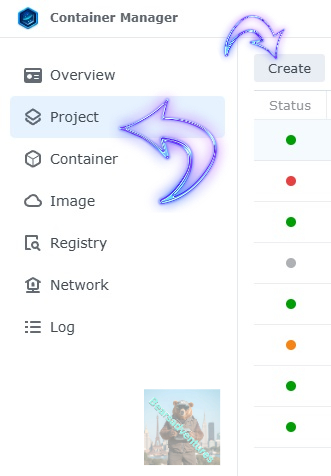
Select project from the menu down the side and then select Create button
Step 6
before we go any thuther we need to ensure we have our folders setup ready for the project.
I have a main folder on the Synology system just for docker projects. create the following folders using filestation in the wordpress / web folder
- wp-app
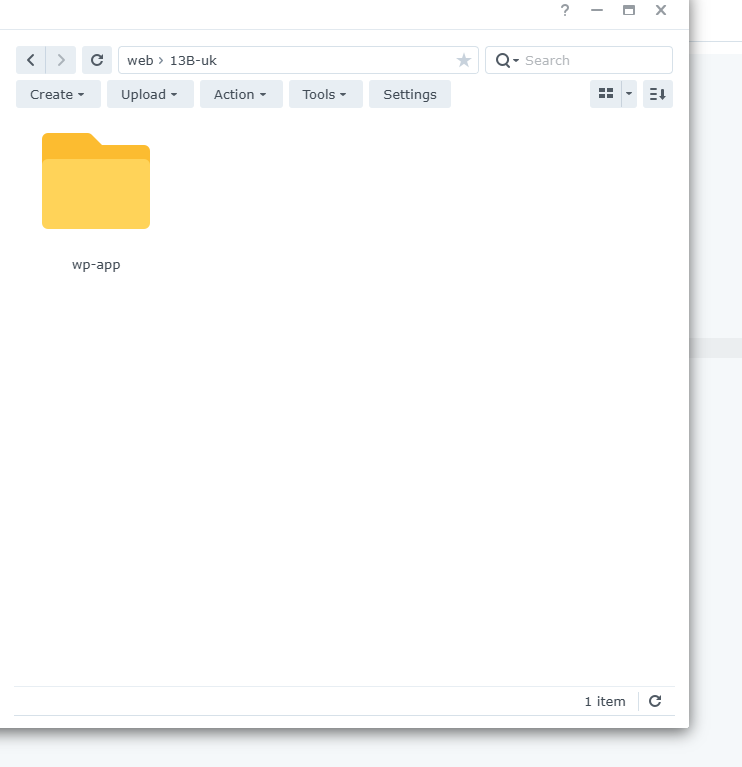
webpage folder / wp-app
wp-app is where we are going to use our wordpress website.
Install WordPress in a Docker Container with Docker Compose
Docker is a powerful containerization platform that packages applications and their dependencies into containers. These containers can then be deployed across different environments, ensuring consistency and simplifying the deployment process.
In this article, we are going to cover everything you need to do to have WordPress running in a docker container with the help of docker-compose. Here is what you will get by following the WordPress Docker Installation in this article:
- WordPress Container: we are going to install the latest WordPress version with volums for WordPress installation and php.ini file that will allow you to modify the PHP settings like
memory_limit,upload_max_filesize,max_execution_time, etc - Database Container: MYSQL latest version will be used with a volume to mysql data that will allow you to backup WordPress if needed.
- phpMyAdmin: container with phpMyAdmin app that will allow you to connect to the database and do various things in there directly,
UPLOAD_LIMITcan be set to accommodate big databases, access to phpMyAdmin config files to modify parameters in case you have custom things or databases are too big and you need custom PHP parameters - Database Backups: a container that will use
sqldumpto create periodic backups to your WordPress database and do a cleanup of older backups in case something goes wrong to restore the backup. Backups will be stored in a local volume. - SSL/Reverse Proxy: CloudFlare Tunels will be used to set up a domain to the container and have SSL certificates + protection through CloudFlare free plan with WAF.
- Dockge for Manage Docker: Dockge will be used to add our docker compose files and manage the containers, this can be done also with docker-compose commands but Dockge offers a better way to work with the containers thru a UI.
Steps to Install WordPress in Docker with Docker Compose
1. Docker Compose File
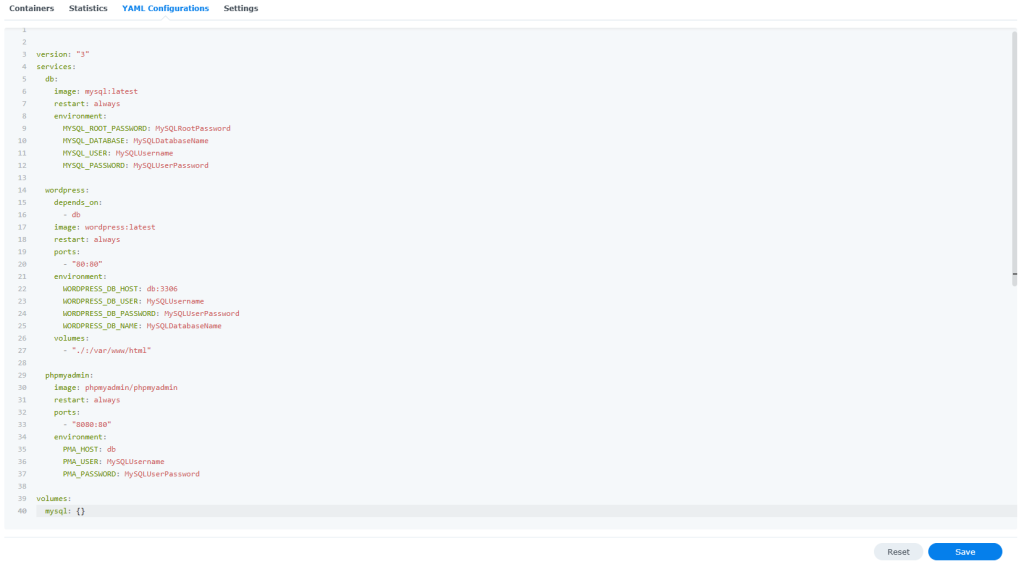
The first thing is to have a docker-compose file with all the services we need: WordPress, Database, phpMyAdmin.
version: "3"
services:
  db:
    image: mysql:latest
    restart: always
    environment:
      MYSQL_ROOT_PASSWORD: MySQLRootPassword
      MYSQL_DATABASE: MySQLDatabaseName
      MYSQL_USER: MySQLUsername
      MYSQL_PASSWORD: MySQLUserPassword

  wordpress:
    depends_on:
      - db
    image: wordpress:latest
    restart: always
    ports:
      - "8686:8686"
    environment:
      WORDPRESS_DB_HOST: db:3306
      WORDPRESS_DB_USER: MySQLUsername
      WORDPRESS_DB_PASSWORD: MySQLUserPassword
      WORDPRESS_DB_NAME: MySQLDatabaseName
    volumes:
      - "./:/var/www/html"

  phpmyadmin:
    image: phpmyadmin/phpmyadmin
    restart: always
    ports:
      - "8685:80"
    environment:
      PMA_HOST: db
      PMA_USER: MySQLUsername
      PMA_PASSWORD: MySQLUserPassword

volumes:
  mysql: {}
This file defines four services: wp (WordPress), wp-db(MySQL database for WordPress), pma (phpMyAdmin for database management). Each service is configured with specific settings, such as image versions, ports, volumes for persistent storage, and environment variables for configuration.
Port 8686 will be used for WordPress to get access to the application and 8685 for phpMyAdmin, they can be changed and used as per requirements. The DB users and password are set as environment variables to not keep them in the compose-file.
unless-stopped is added to each container to restart automatically in case something goes wrong with the server and reboots.
2. Start WordPress on Docker
Now lets start the docker container. Select start top right
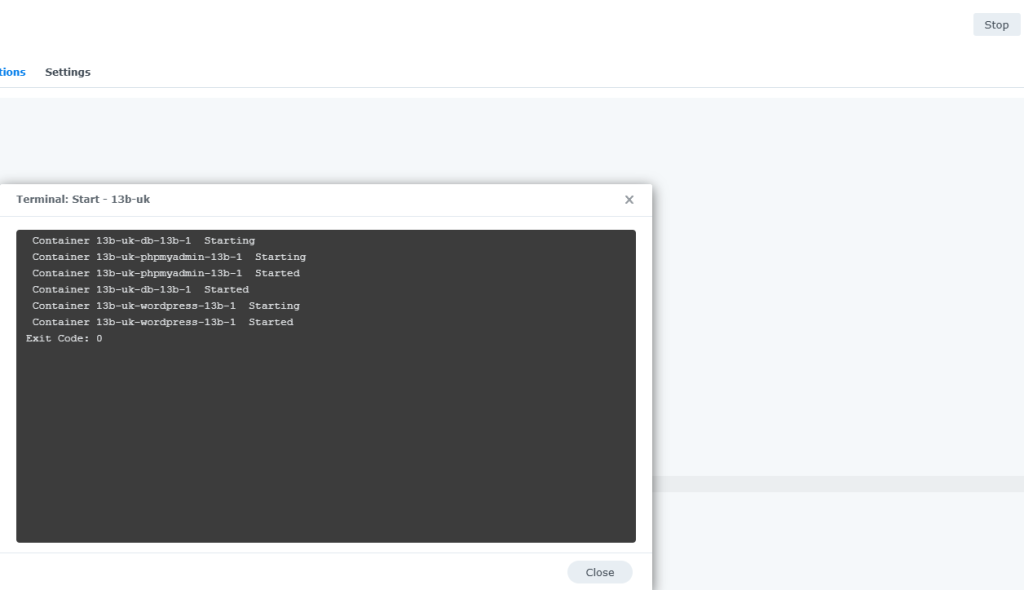
If Dockge is used you just need to start the stack you created with the docker compose file after saving.
3. Configure CloudFlare Tunnels
You need to let CloudFlare Tunel know which port to use, you just need to go in Access – Tunnels and choose the tunnel you created and add a hostname that will link a domain or subdomain and the service and port.
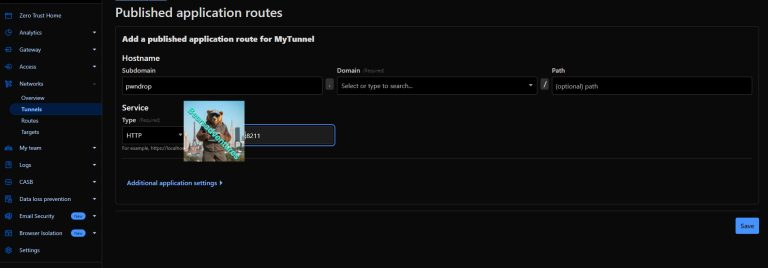
As we are using port 8686 in the compose file we should use that in CloudFlare Tunnels. We can add also another config to a subdomain for phpMyAdmin with 5885 port but we will be able to access it via port also.
You can also check Setup CloudPanel as Reverse Proxy with Docker and Dokge to use CloudPanel as a reverse proxy to your Docker containers or How to Use Traefik as A Reverse Proxy in Docker.
4. Configure WordPress
Now lets check the Project to ensure we are running correctly. Head over to Projects / Containers. and you should have somthing like below. WordPress, PHPmyadmin and Mysql running.

5. Configure WordPress
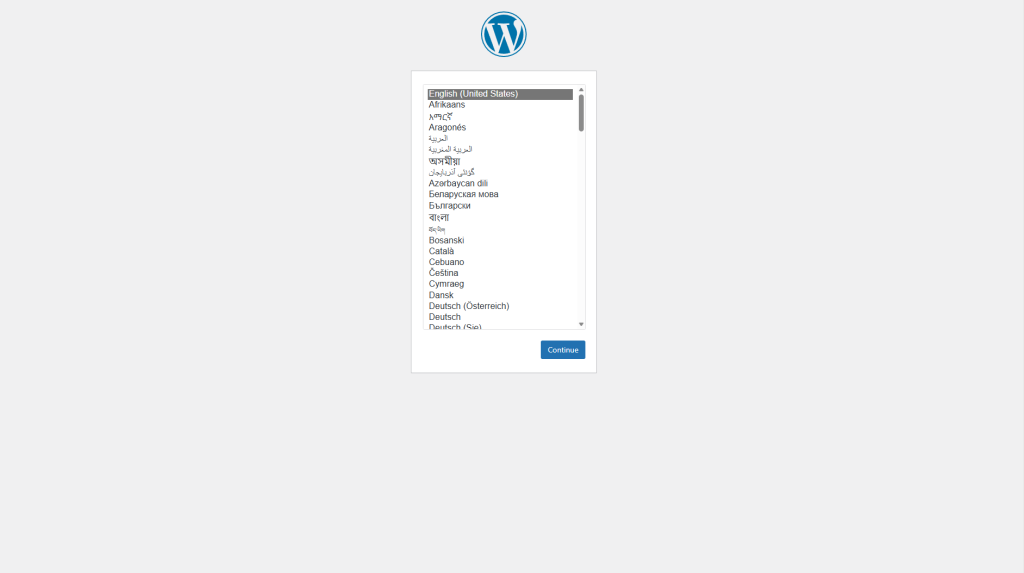
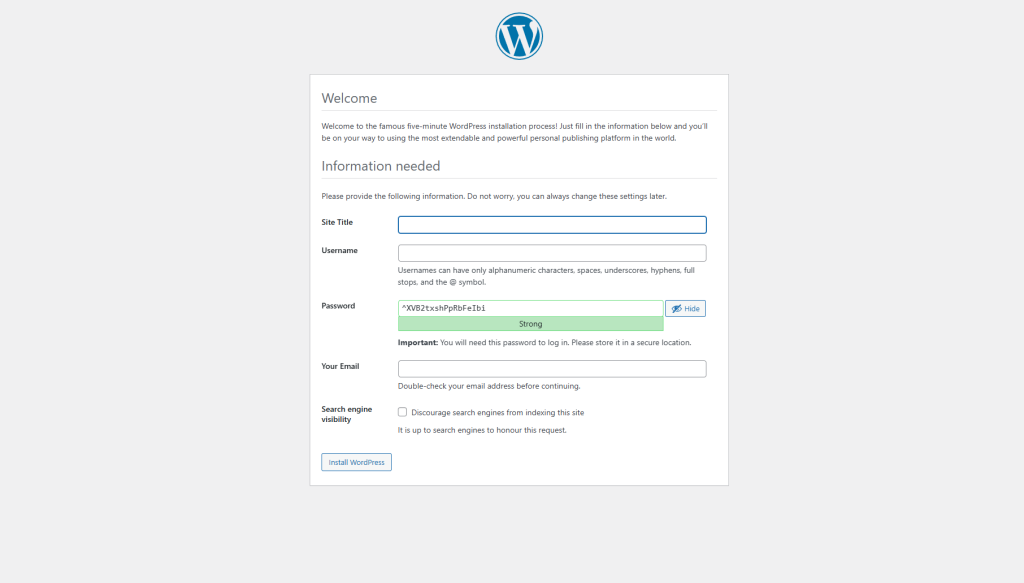
After the steps are done you will be able to access WordPress and set up the admin account. You should use the domain you set up in CloudFlare Tunells in the browser and you will be asked to choose a language and create a WordPress admin user as in the picture below:
After selecting your language you can the enter your site details for access.
You should get success on setup
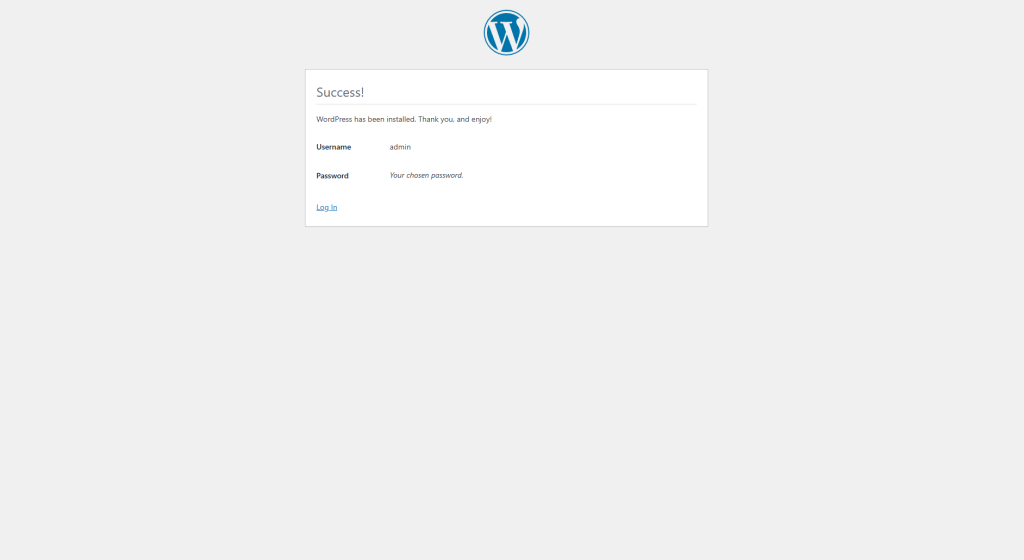
login using the Login button and then your in and ready to setup your site as you wish.
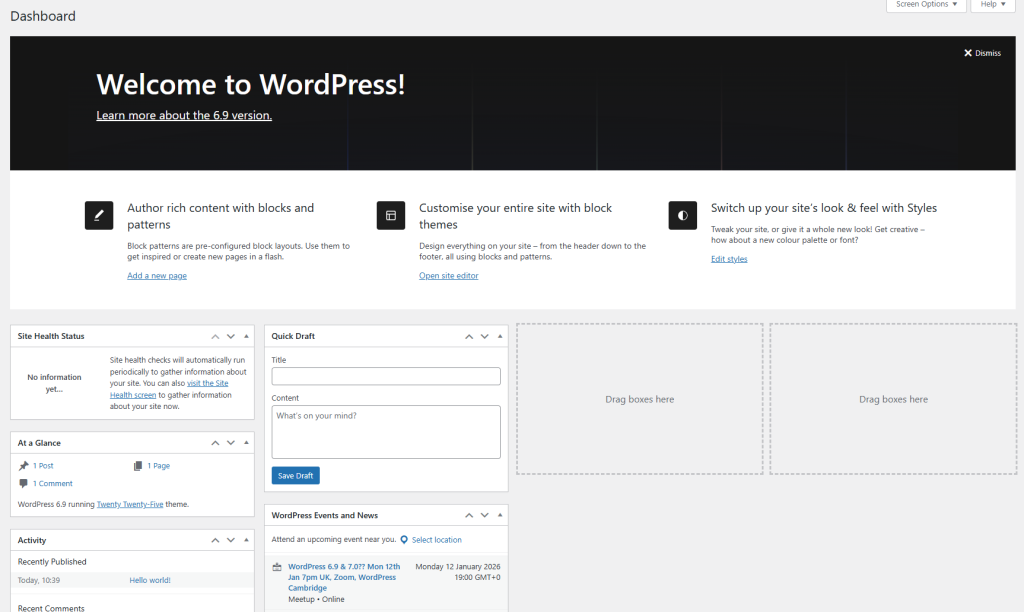
6. Access phpMyAdmin
If you want to check the database you can access phpMyAdmin directly with: IP:8685 and input the user and password you have set in the point point 3 in .env file.
12. What’s Next
Now you should have everything up and running and you should be able to use the WordPress installation for your projects. You can go and see if everything is working as expected and install some themes and plugins.
You can also close access to the ports through a firewall if you are using CloudFlare Tunels or a reverse proxy so only the domain can be used for access.
Conclusions
This is how you are setting up WordPress on top of docker, I hope the article helped and will get you started with WordPress.